A new course is a draft that only your team can see. Publishing it makes it available to everyone who has access, through an offer or access you grant by hand. Unpublishing takes it offline again without removing anyone's access. Inside a published course, each lesson is shown or hidden by its own Live or Draft status, so you can publish before every lesson is finished.
Who can do this
- Owners and admins can publish and unpublish.
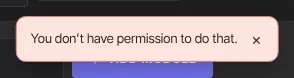
- Staff and viewers see the button, but clicking it shows "You don’t have permission to do that." and nothing changes.
Publish a course
- Open the course builder from Catalog.
- Click Publish course in the top-right corner.

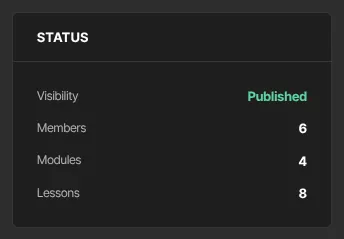
- The Status panel on the right now shows Visibility as Published, and the button changes to Unpublish. In Catalog, the course shows Live.
Every product type has the same button: Publish download, Publish newsletter, Publish program, Publish podcast or Publish access group. A newsletter with no posts asks first, "No posts yet — members will see an empty archive. Publish anyway?": click Publish anyway to go ahead (members can subscribe before your first issue) or Cancel.
Publishing doesn't check the course's content or whether anything sells it. Before you publish, set the lessons members should see to Live, and make sure an offer sells the course.
Show or hide single lessons
- On the outline, click a lesson's ● Draft pill to make it ● Live, or the other way round. Or set Status in the lesson editor and click Save lesson.
- Members of a published course see Live lessons only.
A module is shown to members whenever it has at least one Live lesson. See Build your course outline.
Preview what members see
Click Preview as student in the builder header to open the course the way members see it.
Unpublish a course
- Open the course builder and click Unpublish.
- The course goes back to Draft.
Members who have access then see This course isn’t available right now, with a note that you've taken it offline. Their access is kept, so they're back in as soon as you publish again. If the product has a live room running, it ends.
What happens next
- Members with access can open the course from their library straight away.
- People get access through the offers you sell or the access you grant by hand; see Grant and revoke access.
- Publishing and unpublishing don't send any emails.
Common errors
- "You don’t have permission to do that.": only owners and admins can publish or unpublish.
- "Your free trial has ended, so your workspace is read-only. …": subscribe in Settings → Billing. Nothing has been deleted.
- Members can't see a lesson: check the lesson is Live and the course is published. Dripped lessons also wait for their unlock day.
- The course home says No published lessons yet — check back soon.: the course is published, but none of its lessons are Live.