Knowing what your students see makes it easier to build a good course and to answer their questions. This article walks through the member side of your school: how students sign in, their library, the course player, how to preview your own course as a student, and what students receive as they learn.
Who can do this
- Every team member (owner, admin, staff and viewer) can preview your workspace's courses as a student, including draft courses.
- A preview uses your team login, so nothing you do in it is saved as student progress.
- To walk the full student journey with a test email, an owner or admin gives that email access (see "Test the full student journey" below).
How students get in
- Students sign in with a code or link we email them, with no password, using the email they bought with. There are no sign-in options to set up; see How your members sign in.
- A new student who signs in on your school's website, with the code or the link, is added to your contacts, so your offers show in their library's Discover section even before they buy.
- The first time, they're asked for their first and last name.
- They land in their library: every product they have access to, with progress on each course, a Certificates link, and a Discover section listing your other published offers. Free ones can be claimed in one click.
- On your school's website (
yourname.zinstruct.comor your own domain), a student sees only your school, with your name and logo at the top. A student who learns with several schools and signs in on app.zinstruct.com sees them all together.
Preview a course as a student
- Open the course from Catalog. In the builder header, click Preview as student; in the lesson editor, Preview as student opens that lesson. Both open in a new tab, with a bar at the top saying you're previewing. Click Back to editor in that bar, or close the tab, to return.
- The course page opens as students see it. Under the title, it reads "Preview —" and the number of lessons, with a Start course button.

- Click Start course or any lesson. The lesson list on the right is headed Preview · not enrolled.
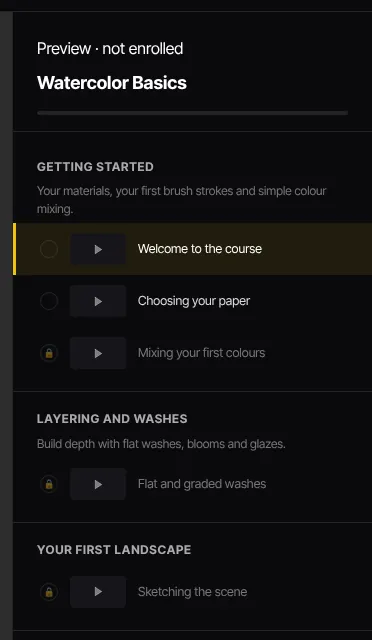
What a preview can't show
A preview shows your content as students see it, with these differences because you aren't enrolled:
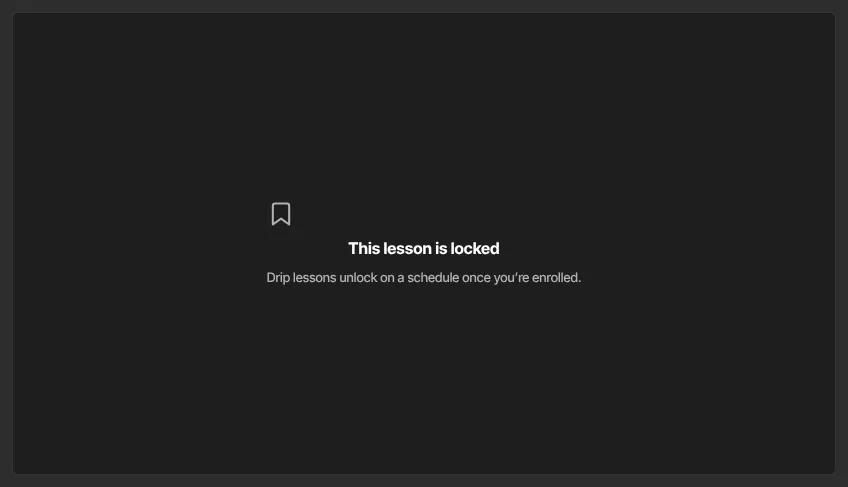
- Dripped lessons stay locked and say "Drip lessons unlock on a schedule once you’re enrolled." In a cohort course with a start date, they show the date they open for the group instead. To check a dripped lesson's content, open it in the lesson editor.
- Videos play, but your watching isn't recorded.
- Mark complete doesn't appear, so you can't finish the course or get a certificate in a preview.
- Quizzes show their questions with "Enroll to take this quiz." in place of Submit answers.
- You can read a lesson's discussion but not post in it. To reply to students, use Manage comments; see Lesson comments and moderation.
- Files under Downloads & resources download normally.
Other products have a preview button in their header too: Preview member view on a download, Preview on a newsletter, coaching program, podcast or community. A coaching preview shows the program without the built-in booking panel. A private podcast lists its episodes in a preview, but they won't play there. For communities, see Create, preview and publish a community.
Test the full student journey
To see everything a student sees, including completing lessons, passing quizzes, certificates and emails, use a second email address that isn't on your team:
- Give it access. An owner or admin can create a contact with that email and pick an offer under Grant offers, or you can claim one of your own free offers with it. See Give or remove product access by hand.
- Open a private browser window and sign in to your member area with that email.
- Work through the course as a student would.
The test contact shows on the course's Customers tab like any other student, so you may want to remove its access when you're done.
What happens next: what students receive as they learn
- Progress: watching saves their place, and Mark complete or passing a quiz completes a lesson. You see it on the course's Customers tab; see Customers and progress. When a student finishes a course, their contact record's Lifecycle tab shows Completed a course, and Certificate issued when a certificate follows.
- "New lesson unlocked" emails: each dripped lesson sends the student an email when it opens for them: your release time on the unlock day, counted from the cohort start date in a cohort course. It goes only if they still have access and the lesson is still published and dripped at that moment. A lesson that's already open when a student joins, or when you publish it, doesn't send one. See Set the time dripped lessons unlock.
- Certificate email: when a student completes every Live lesson of a course with a certificate turned on, they get an email titled "Your certificate —" and the course name, and the certificate appears in their library. If you set certificates to expire, each one shows the date it expires. See Certificates of completion.
- Their own help center: students click Help in the member area to open member help at
/support. It covers signing in, the library, courses, certificates and billing. Point students to Your library and Take a course. Students don't have the support chat; it's for your team.
Common errors
- "This course isn’t available right now" when you preview: you're signed in to a different workspace from the one that owns the course, and the course isn't published. Sign in with a login on the right team.
- A student says a lesson is locked: check the lesson's Release in the lesson editor and your drip release time; see Drip and schedule course content.
- A student says the course "isn’t available right now": the course is unpublished. Publish it; see Publish or unpublish a course.
- A student can't find something they bought: they're usually signed in with a different email from the one they bought with. Check their contact record's Products tab.
- Podcast episodes won't play in a preview: previews can't play a private podcast's episodes. Use your test student login to check them.