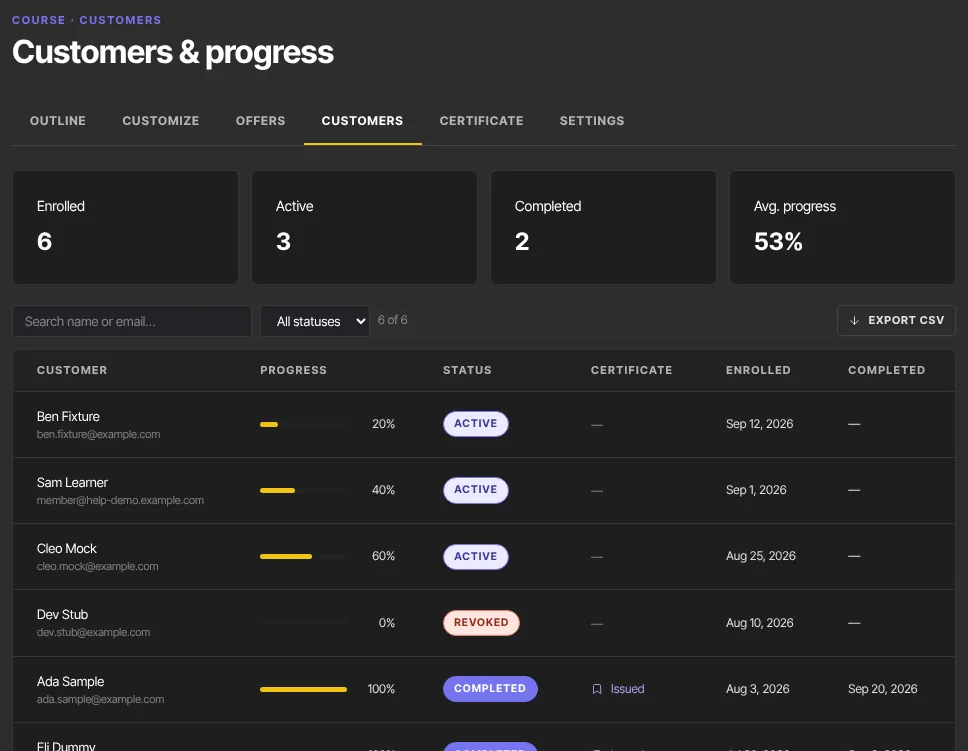
Each course has a Customers tab listing everyone who has access and how far they've got. Summary cards give you the totals at a glance, and you can search, filter and download the list. Files, consulting programs and newsletters have the same tab, called Customers, Clients or Subscribers.
Who can do this
Every team member (owner, admin, staff and viewer) can open the tab and export the list. It's read-only: you change who has access elsewhere (see below).
Review a course's customers
- Open the course and click the Customers tab (
/products/{id}/customers). The page is titled Customers & progress. - The cards show Enrolled (everyone on the list), Active, Completed and Avg. progress.
- The table shows each Customer with their Progress, Status (active, completed or revoked), Certificate, the date they Enrolled and the date they Completed.
Search, filter and export
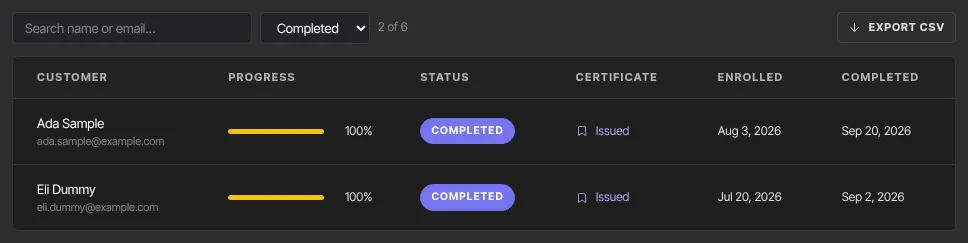
- Type in Search name or email… to find someone, or choose a status from All statuses: Active, Completed or Revoked. The count beside it shows how many match.
- Click Export CSV to download the rows you're looking at. The file is named after the course, for example
watercolor-basics-customers.csv, with the columns Name, Email, Status, Progress %, Certificate, Enrolled and Completed.
Who appears on the list
Everyone with access to the course appears here, however they got it:
- buying through an offer that includes the course;
- being given access by hand on their contact record, or by an automation;
- being brought in by an import from another platform.
The newest members are at the top. Someone whose access ends stays on the list as revoked.
How progress and status work
- Progress is the share of the course's Live lessons the member has completed. Members complete a lesson by clicking Mark complete in it, or by passing its quiz. It updates each time they complete a lesson.
- A member becomes completed once they've completed every Live lesson. If the course has a certificate turned on, the Certificate column then shows Issued; click it to open the certificate's public page.
- Revoked means the member's access ended, for example after a refund or when a subscription ended. They can't open the course, but they stay on the list.
What happens next
- To give someone access by hand, or take it away, see Grant and revoke access. People who buy through an offer appear here automatically.
- When someone gets access, any "lesson unlocked" emails for dripped lessons are scheduled for them.
- Watch time per lesson isn't shown on this page or anywhere else in the app; it's available through the Reporting API. See Video and engagement stats.
Common errors
- "No one has access to this course yet. Customers appear here once members get access via an offer.": nobody has access yet. Sell the course with an offer, or grant access by hand.
- "No customers match your filters.": clear the search, or set the status back to All statuses.
- Export CSV is greyed out: no rows match your filters.