Any lesson can carry one quiz. Members answer it in the lesson and get their score straight away. A member who reaches your pass mark has the lesson marked complete automatically, so quizzes count toward course progress and certificates.
Who can do this
- Owners, admins and staff can add and edit quizzes.
- Deleting a quiz needs an owner or admin.
- Viewers can't change quizzes; saving shows "You don’t have permission for this."
Build a quiz
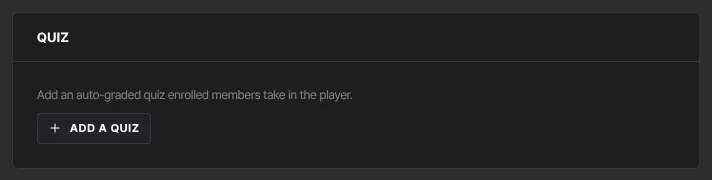
- Open the lesson in the lesson editor and scroll to the Quiz panel.
- Click Add a quiz. A first question appears.
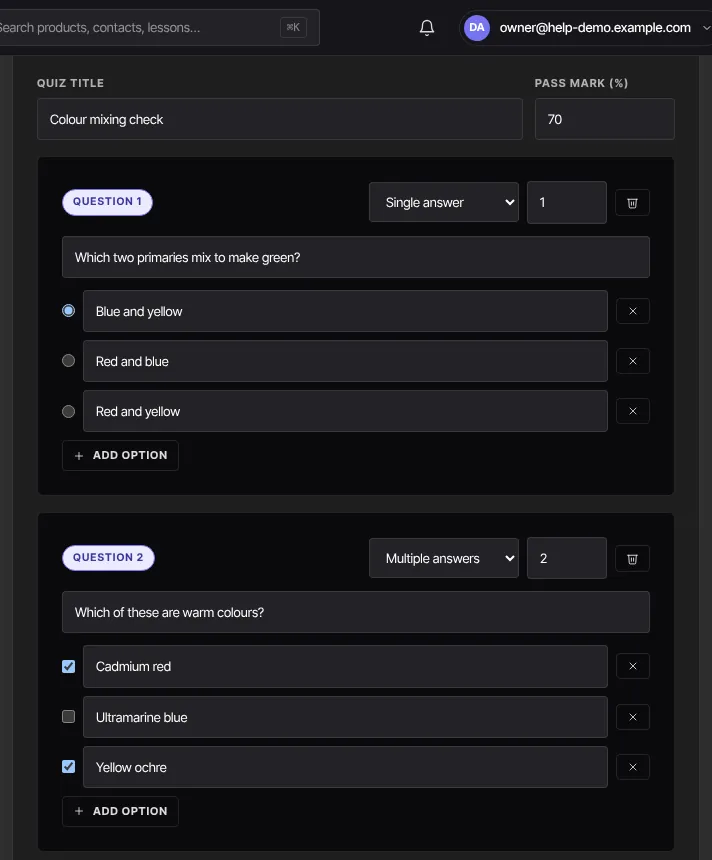
- Set the Quiz title and the Pass mark (%). The pass mark starts at 70.
- For each question, choose Single answer or Multiple answers, set its points (1 to 100), and type the question in Question prompt….
- Type each answer option, and mark the correct one (or every correct one, for multiple answers). Click Add option for more options: each question needs 2 to 10.
- Click Add question for another question. Use the trash icon to remove a question, or the × to remove an option.
- Click Save quiz. ● Saved appears.
How grading works
- A question earns its points only when the member picks exactly the correct options. There's no partial credit.
- The score is the share of points earned. At or above your pass mark, the member passes.
- Members can retake a quiz as many times as they like.
- Passing marks the lesson complete, which counts toward the member's progress and the course's certificate.
Change a quiz later
- Open the lesson and edit the quiz in the Quiz panel: reword questions, change the correct answers or the pass mark, or add and remove questions.
- Click Save quiz.
New attempts are graded against the saved version. Earlier attempts keep the score they got, and a member who already passed keeps the lesson marked complete.
Delete a quiz
- In the Quiz panel, click Delete quiz (owners and admins).
- The quiz is removed straight away, with no confirmation.
What happens next
- Members with access see the quiz in the lesson and submit their answers there.
- Pass rates and average scores appear under Quiz performance on the Analytics page.
- The Quiz passed and Quiz failed triggers can start an automation, for example tagging members who pass a final exam.
Common errors
- "Each question needs at least one correct option.": mark the correct answer on every question.
- "Single-choice questions need exactly one correct option.": mark only one answer, or switch the question to Multiple answers.
- "Too small: expected string to have >=1 characters": the quiz title, a question prompt or an option is empty. Fill it in, or remove the empty option.
- "Could not save the quiz.": save again.
- "You don’t have permission to do that." after Delete quiz: only owners and admins can delete quizzes. The panel may close, but the quiz comes back when you reload.
- "You don’t have permission for this.": viewers can't edit quizzes.