Announcements are short updates for the members of one course: a new module is live, office hours have moved, a download was refreshed. A published announcement appears on the course home, above the outline. Emailing it is a separate, one-time step, so publishing never emails anyone by surprise.
Who can do this
- Owners, admins and staff can create, edit, publish and unpublish announcements.
- Only owners and admins can email or delete an announcement. Staff see "You don’t have permission to send announcements." or "You don’t have permission to do that."
- Viewers can read announcements but can't change them; saving shows "You don’t have permission for this."
Write and publish an announcement
- In the course builder header, click Announcements (
/products/{id}/announcements). - Click New announcement. A draft called Untitled announcement opens in the editor.
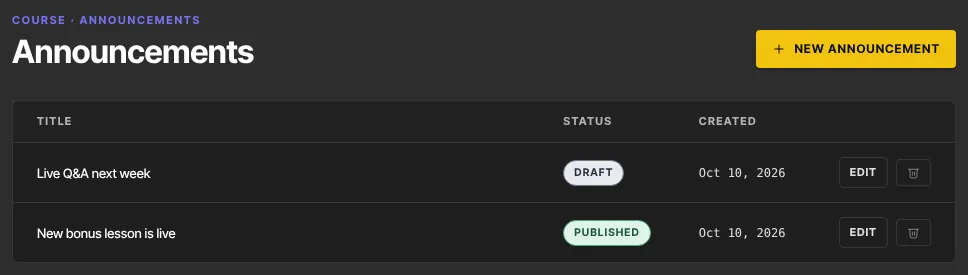
- Type a title in the Title box at the top, and build the body with blocks, as you would a website page. Unsaved changes shows until you save.
- Click Save draft to save without publishing.
- Click Publish. It saves your latest changes, then publishes, and the status changes from Draft to Published.

Email it to members (owners and admins)
- Open a published announcement and click Email members. The button stays greyed out until the announcement is published.
- Confirm in the browser pop-up: Email this announcement to all enrolled, subscribed members now? This can only be done once.
- When it's done, the editor shows how many members were emailed (for example Emailed 2 of 2 members) and an Emailed badge, and the button stays greyed out.
The email goes to members whose access to the course is active and who are subscribed to your marketing emails. Members who have already completed the course, or whose access was revoked, aren't included. Each email has an unsubscribe link. Blocks that can't show in an email are swapped for a View it in your course link; the editor names those blocks before you send.
You can email an announcement only once, even if you unpublish it and publish it again.
Unpublish or delete an announcement
- Unpublish: in the editor, click Unpublish. It moves back to draft (Moved to draft) and leaves the course home.
- Delete (owners and admins): on the Announcements list, click the trash icon on its row. It's deleted straight away, with no confirmation.
What happens next
- Members see published announcements above the outline on the course home, newest first, each with its date.
- For news meant for your whole list rather than one course's members, use an email broadcast.
Common errors
- "Publish the announcement before emailing members.": click Publish first.
- "This announcement has already been emailed.": each announcement can be emailed once. Create a new one for a fresh email.
- "Nothing to send — the announcement has no content.": add some content, publish, then email.
- "Could not resolve members.", "Could not save the announcement.", "Could not publish the announcement." or "Could not unpublish the announcement.": try again.
- "You don’t have permission to send announcements.": only owners and admins can email announcements.
- "You don’t have permission for this.": viewers can't edit announcements. You also see this when your free trial has ended and the workspace is read-only; subscribe in Settings → Billing.