Most lessons are built around a video. You upload the file in the lesson editor; it's processed for streaming in the background and plays for members once it's ready. You can replace or remove it later and choose which frame members see before they press play. Videos that live on YouTube, Vimeo, Loom or Wistia can also appear in lessons when you bring a course in with the course importer.
Who can do this
- Owners, admins and staff can upload, replace and remove lesson videos and choose thumbnails.
- Viewers can't. An upload shows "Video uploads need Cloudflare Stream configured for this environment.", and Remove video shows "You don’t have permission for this."
Upload a video
- Open the lesson in the lesson editor (click the lesson on the course outline).
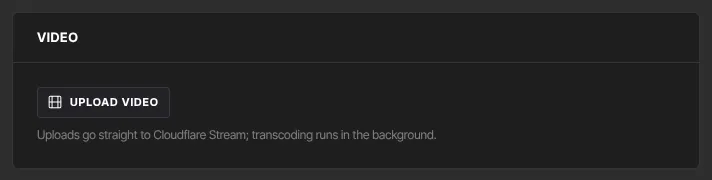
- In the Video panel, click Upload video and choose a video file (up to 2 hours long and 30 GB). The button reads Uploading… while the file is sent. Large files go up in pieces, so keep the page open until it finishes.
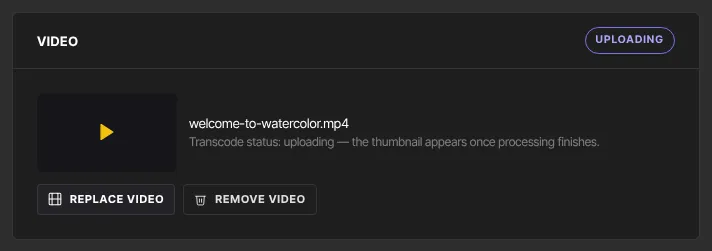
- When the upload finishes, the panel shows the file name and a processing badge. The video is being prepared for streaming, usually in a minute or two.
- While the lesson is open, the badge switches to ready on its own as soon as processing finishes, and the thumbnail appears; there's no need to reload. If you close the page, it still becomes ready within about 15 minutes.
Replace or remove a video
- Replace: click Replace video and choose the new file. The new video takes over, and the old one, including one an import brought in, is deleted unless another lesson still uses it.
- Remove: click Remove video. It's removed straight away, with no confirmation. The video file is deleted too, unless another lesson, for example in a duplicated course, still uses it.
Upload your own thumbnail
Under Thumbnail in the Video panel, click Upload thumbnail and choose an image. Use 1280 × 720 px (16:9), as a JPG, PNG or WebP, under 3 MB.
- Drag and zoom to frame it in the 16:9 crop window, then save. Or keep the full image as it is. GIFs skip the crop.
- The image replaces the video frame everywhere: members see it on the player before they press play, and next to the lesson in the lesson list.
- To change it, click Replace thumbnail. To go back to a frame from the video, click Use a video frame instead.
Choose the thumbnail frame
If you haven't uploaded your own thumbnail, you can pick a frame from the video instead.
- Once the video is ready, click Choose thumbnail frame.
- Move the Thumbnail frame position slider. The preview shows the frame and its time, for example Frame at 12s (25% of the video).
- Click Set as thumbnail, or Cancel.
The new thumbnail shows in the lesson editor, and in the member player the next time it loads.
Videos from YouTube, Vimeo, Loom or Wistia
The lesson editor can't add an embedded video by hand. Embedded videos come in through the course importer: give a lesson a video_link (a normal YouTube, Vimeo or Loom page link, or a direct link to an .mp4 file) and the lesson shows that platform's player above its text. When you edit and save an imported lesson's text, the embedded video stays; the editor tells you it's there.
Uploaded or embedded? Uploaded videos give members resume-where-you-left-off, and Zinstruct records how much of each one students watch; the numbers come from the Reporting API (see Video and engagement stats). Embedded videos play from the other platform, so watch progress isn't tracked, and a public YouTube video is as public as it sounds. Keep paid lessons uploaded; embeds suit extra or third-party material.
What happens next
- Members see the video once it's ready, the lesson is Published and the course is published. Until then, the lesson says Video is still processing.
- Video links expire after a few minutes, so a video can't be shared or watched outside your member area.
Common errors
- "Video uploads need Cloudflare Stream configured for this environment.": the upload couldn't start. Viewers, and workspaces whose free trial has ended, see this too. Otherwise wait a moment and try again; if it keeps happening, contact Zinstruct support.
- "Upload failed.": the file didn't finish sending. Check your connection and try again.
- "Could not remove the video.": try again.
- "Video is still processing.": you can choose a thumbnail frame only once the video is ready.
- "…Thumbnails must be under 3 MB.": export the image as a JPG, or crop it smaller, and upload again.
- "Use a JPG, PNG, WebP or GIF image.": the file isn't one of those image types.
- "Video not found." or "Could not update the thumbnail.": reload the page and try again.
- The status still isn't ready after half an hour: open the Media Library and click Refresh. If the video shows an error, upload the file again.