Zinstruct records two kinds of engagement in your courses: lessons completed, when a student clicks Mark complete, and, for videos you uploaded, how much of each video they watched. Use this article to see who is keeping up and who has stalled, and to find out which numbers are on screen in the app and which come from the Reporting API.
Who can do this
- Every team member (owners, admins, staff and viewers) can see course progress on a course's Customers tab, on a contact's Products tab and in Reports, and download them.
- Watch time and drop-off aren't shown on any screen yet. They come from the Reporting API, which needs an API key from the workspace owner, on any paid plan (Core, Advanced or Professional).
- Your students see their own progress in the course and in their library, never anyone else's.
What is recorded
- Lesson completion. A lesson counts as complete when the student clicks the lesson's Mark complete button, or passes the lesson's quiz. Watching a video to the end doesn't complete the lesson.
- Course progress. Lessons completed out of the course's published lessons. When it reaches 100%, the course is completed: its status becomes Completed, and a certificate is issued if you've turned one on. Watch time doesn't change this number.
- Watching. For videos you uploaded to Zinstruct, the player records which parts each enrolled student watched, about every 10 seconds and whenever they pause, skip or leave the page. Watching the same part twice doesn't count twice. The student's furthest point is saved too, so the video resumes where they left off.
- Not recorded: YouTube, Vimeo and Loom videos embedded in a lesson, and your own previews of a lesson from the admin app.
See each student's progress in a course
- In the sidebar, click Catalog and open the course.
- Click the Customers tab. The heading reads Customers & progress.
- The cards at the top show Enrolled, Active, Completed and Avg. progress. The table lists each student with Progress, Status, Certificate, Enrolled and Completed.
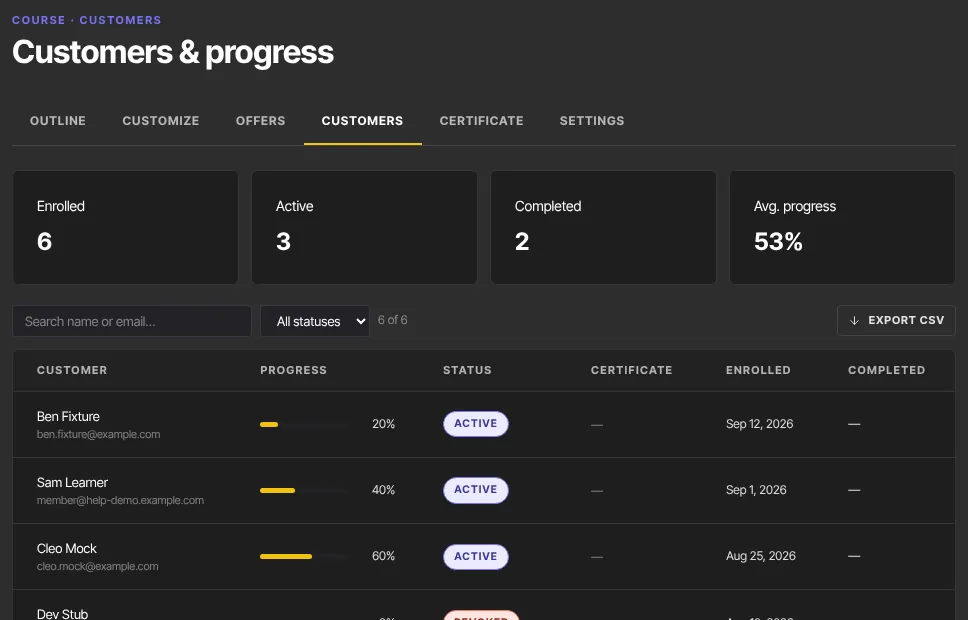
- To narrow the list, pick a status (Active, Completed or Revoked) or type in Search name or email….
- Click Export CSV to download the list, with each student's Progress %.
See one student's progress across courses
- In the sidebar, click Contacts and open the student.
- Click the Products tab. It lists everything they have access to, with Progress for each course.
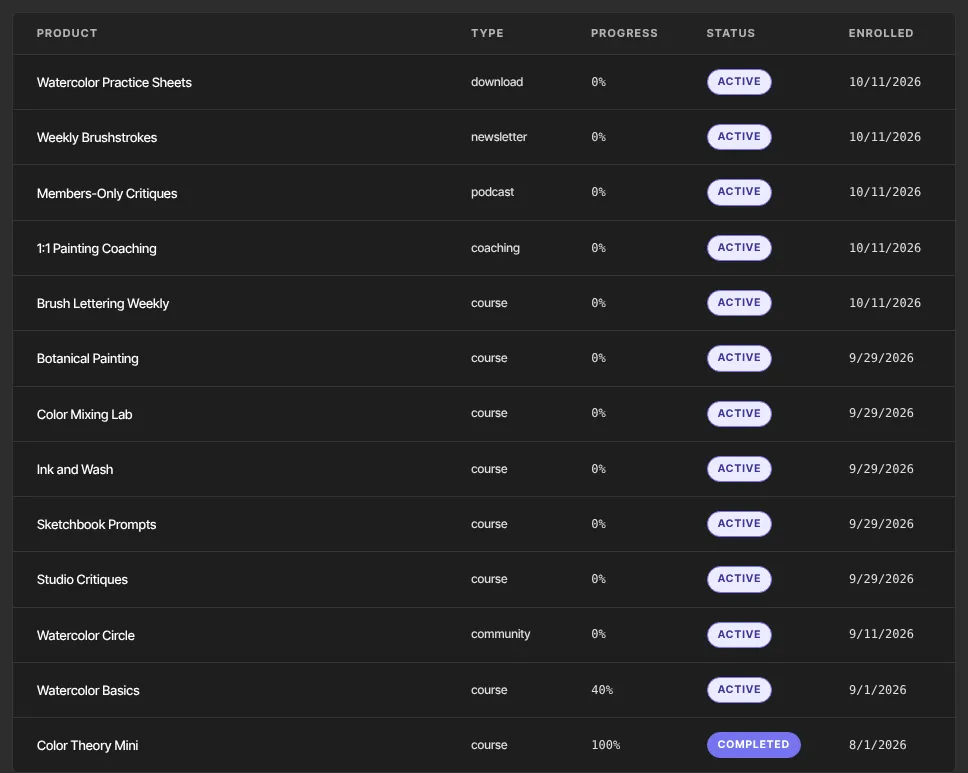
The contact's Lifecycle tab also shows when they completed a lesson or a course and when a certificate was issued.
Progress across your school
- On Analytics, the Course completions tile counts lessons completed in the window you pick, not whole courses.
- In Analytics → Reports, the Enrollments report lists every enrollment in a date range with its Progress %. See Reports and CSV exports.
Watch time and drop-off
No screen in the app shows watch time, how much of a video people watch, or where they stop. Those numbers are in the Reporting API: per course, how many lessons were watched for more than 30 seconds and by how many students; per student, their watch history; and per lesson, views, average watch time, a retention curve and the biggest drop-off, including a list of the lessons where viewers drop off earliest.
Act on it
- Automations can start on Lesson completed, Course completed, Certificate is issued, Quiz passed or Quiz failed, for example to send a follow-up when someone finishes. See Build an automation.
- The Send a certificate action issues a certificate for a course to anyone with access to it, including students who already finished, for example after you turn the certificate on late. See Certificates of completion.
- Segments can't filter by progress or completion. The Product access condition counts every student who has the course, including those who finished it.
- Nothing in automations or segments uses watch time.
What happens next
- Progress updates as soon as a student marks a lesson complete. Reload the Customers or Products tab to see it.
- Watch data for an uploaded video arrives within about 10 seconds of the student watching.
Common errors
- A student watched every video but shows 0% progress: progress counts only lessons marked complete. Ask them to click Mark complete on each lesson.
- A video doesn't resume where the student stopped: only uploaded videos resume. Embedded YouTube, Vimeo or Loom videos start from the beginning, and an uploaded video starts over if the student stopped in its first few seconds.
- "No one has access to this course yet. Customers appear here once members get access via an offer.": nobody is enrolled yet.
- "No customers match your filters.": clear the status or the search box.
- "Could not save your progress." (a student reports it after Mark complete): the lesson wasn't marked. Ask them to try again.