Besides Analytics, these screens have their own export button: Revenue → Transactions, each offer, Cancel flows → Activity, Community Settings → Members & roles, and Community AI → Insights. Each one downloads what that screen lists as a CSV file you can open in any spreadsheet. This article covers what each file holds, its limits, and which team roles can download it.
Who can download each export
- Transactions and offer purchases: every team member, including viewers. Both files contain customer email addresses.
- Cancel-flow Activity: owners and admins only.
- Community members: owners, admins and staff.
- Community AI insights: owners, admins and staff, on workspaces where Community AI is switched on.
Everyone sees the buttons. When your role isn't allowed, clicking one opens a page with a short line of code containing "Not allowed" instead of downloading a file. Ask an owner or admin for the file, or for a different role: see Team members and roles.
Export transactions
- In the sidebar, open Revenue → Transactions (
/sales/orders). - To narrow the list, fill in Search (customer email or offer name), pick a Status (All statuses, Paid, Free, Refunded, Disputed or Failed), set From and To, and click Apply.
- Click Export CSV at the top right.
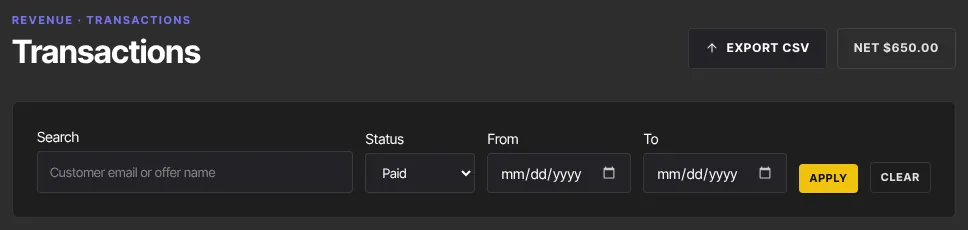
The file is orders.csv, with the status and dates added to the name when you've filtered. Its columns are Date, Status, Type, Amount (USD), Refunded (USD), Tax (USD), Currency, Offer, Product, Customer email, Payment intent and Provider reference. Status uses the system words: succeeded means Paid. Refunded (USD) is the whole amount on a refunded line, or the part refunded on a line that's still paid. In the list, such a line shows the refunded part under its amount, and Partly refunded in its details.
It holds the 200 newest matching transactions, the same rows as the list. Filters you typed but didn't Apply aren't used. For a longer history, use the Transactions report in Reports and CSV exports.
Export one offer's purchases
- Open Revenue → Offers (
/sales/offers). - Click the ⋮ button (More actions) on the offer's row, or at the top right of the offer's own page.
- Click Export.
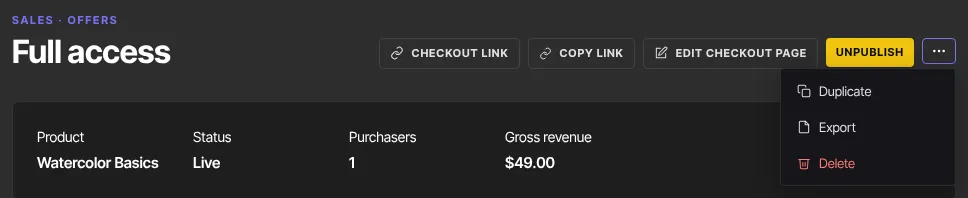
The file offer-…-purchases.csv lists the purchases of that offer, newest first: Date, Status, Kind, Amount, Currency, Email and Reference. It holds every purchase, up to 50,000.
Export cancel-flow activity (owners and admins)
- Open Revenue → Cancel flows and click Activity (
/sales/cancel-flows/activity). - To narrow it, use Email, Outcome, Reason, Offer accepted, Flow, From and To, then click Filter.
- Click Export CSV.
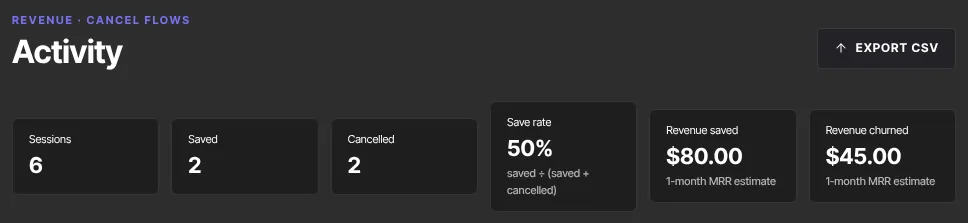
The file cancel-flow-activity- plus today's date mirrors the table: Started at, Ended at, Timezone (always UTC), Customer email, Customer name, Flow, Outcome, Reason, Reason detail, Feedback, Offer accepted, MRR, Currency, Subscribed since, Duration and Provider error. It holds the newest 500 matching sessions.
Staff and viewers can read Activity, but Export CSV gives them "Not allowed". If your plan doesn't include cancel flows, the page shows an upgrade notice and no button. For the page itself, see Cancel flows: build, preview and publish.
Export your community members (owners, admins and staff)
- In the sidebar, open Catalog → Community and click Community Settings, then the Members & roles tab (
/products/community-settings?tab=members). - If you sell more than one community product, click All communities or one product's name to choose whose members go in the file.
- Click Export CSV in the panel's header.

The file is named after the community product you picked, or community-members.csv for all of them. Its columns are Name, Email, Role (member for anyone without a community role) and Banned (yes for banned members). It lists every member. Viewers see the list on screen, but Export CSV gives them "Not allowed". Roles and bans are covered in Community members, roles and bans.
Export Community AI insights (owners, admins and staff)
This appears only when Community AI is switched on for your workspace. See Set up Community AI.
- Open Community Settings → Community AI → Insights.
- Pick 7 days, 30 days or 90 days.
- Click Export CSV.
The file, such as community-ai-insights-30d.csv, has one row per day: date, avg_sentiment, scored_items, member_messages, active_members, agent_posts, agent_replies, agent_skips and flags_opened. It holds daily totals only, no member names. The figures are worked out overnight, so today's activity appears tomorrow. Viewers get "Not allowed".
What happens next
Exports only read your data: nothing in your workspace changes and no email is sent. Most of these files contain customer email addresses, so store them somewhere safe. To download your whole workspace as one file, see Export your data, or close your workspace.
Common errors
- "Not allowed": your role can't download that export, or you've been signed out. See "Who can download each export" above, or sign in again.
- "Authentication required": your session ended. Sign in again and click the button again.
- "Offer not found": the offer was deleted or belongs to another workspace. Open it from your Offers list and try again.
- "Resource not found" from the community Export CSV: your workspace has no community yet. Create a community product first.
- "Not found" from the Community AI Export CSV: Community AI isn't switched on for your workspace.
- "Something went wrong": try again in a moment.
- The Transactions file stops at 200 rows: that's this export's limit. Use the Transactions report in Reports for longer history.
- The community file has only column names: either nobody has access to a community product yet, or the list couldn't be read. Reload Members & roles; if members are listed there, export again.