Everyone on your team has one role, and it decides what they can see and change in your workspace. This article explains the four roles, what each one can and can't do, and how to change someone's role. You manage your team at Workspace → Team.
Who can do this
- Owners and admins can change roles. Admins can change other admins' roles too. Nobody can change the owner's role or their own.
- Staff and viewers who open Team see only "Only owners and admins can manage the team."
The four roles
From most to least access:
- Owner: one person per workspace, at first whoever created it. Can do everything, including the owner-only items below. The owner can't be paused, removed or given another role. Ownership moves only by transferring it.
- Admin: runs the workspace with almost no limits: products, offers, discounts, refunds, contacts, email, the website, settings and the team. Admins can't use the owner-only items.
- Staff: day-to-day content and community work, without settings, money or most publishing powers. The right role for someone writing lessons or answering members.
- Viewer: read-only. A viewer can look around the workspace but can't change anything.
You cannot assign Owner. The roles you can pick are Admin, Staff and Viewer. There's only ever one owner, so making someone else the owner is a transfer, not a role change.
Only the owner can
- View and change the workspace's plan and billing (Subscription & billing).
- Connect or change the payment processor (Payment setup).
- Create and revoke API keys.
- Export the workspace's data or close the workspace (Privacy).
- Let an admin receive money-related notifications. See Financial notifications for admins.
- Transfer ownership.
What Staff can do
- Create products and edit their details, modules and lessons. Draft podcast episodes and newsletter posts.
- Add and edit contacts, tags, notes and segments, and tag or subscribe many contacts at once.
- Write broadcast drafts, and build forms, email sequences, automations and funnels.
- Create website pages and blog posts, and save drafts of them.
- Set up and moderate communities.
What Staff can't do (an admin has to)
- Publish or unpublish products, modules, lessons, website pages, blog posts, podcast episodes or newsletter posts.
- Send a broadcast, or email a newsletter post to subscribers.
- Delete things: modules, lessons, contacts, tags, segments, forms, sequences, automations, funnels, community spaces, pages and blog posts.
- Create or change offers, discounts or invoices, issue refunds, or cancel a member's subscription.
- Change settings (site design, domain, navigation, email templates, checkout and the rest), run imports, or manage the team.
What Viewers can and can't do
Viewers can open the main areas (Catalog, Revenue, Marketing, Contacts, Website and Analytics) and read what's there. Every change is refused. Most Settings pages, and Team, show a message that only owners and admins can use them. Viewers also can't open a community's member preview unless they're enrolled.
Change a teammate's role
- Go to Team (
/team). - In the teammate's row, pick Admin, Staff or Viewer in the Role column.
- Click Update. It reads Saving…, then Role saved ✓ appears beside it.
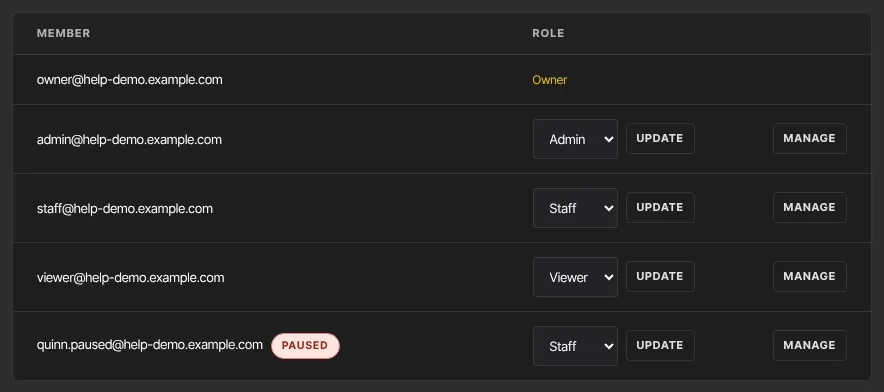
The owner's row shows Owner, and your own row shows your role followed by "· you". Neither has a picker.
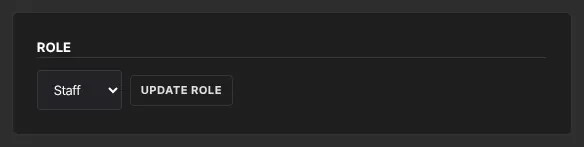
You can also change a role from a teammate's own page: click Manage, then in the Role panel pick a role and click Update role.
Make someone an Admin
Changing a role never uses a seat: your plan counts team members of every role, so promoting a Staff member or Viewer to Admin (or the reverse) is always allowed. See Plans and billing.
What staff and viewers see
- Team shows only "Only owners and admins can manage the team."
- Most Settings pages show "Only owners and admins can change this." or a similar message.
- Some buttons they can't use still appear. Clicking one shows a message such as "You don’t have permission for this." and nothing changes.
- Permissions are checked on our servers and again in the database, so typing a page's address or using another tool doesn't get around them.

Community roles are separate
Community admins and moderators are set inside a community and only apply there. They aren't workspace roles. See Build a community.
What happens next
- A new role applies on the teammate's next click. They don't need to sign out.
- We don't email the teammate about a role change, and the change isn't logged, so let them know yourself.
- To stop someone's access altogether, see Pause, restore or remove a teammate.
Common errors
- "That role could not be changed. Reload the page and try again.": you tried to change the owner's role or your own, or the page was out of date. Reload it.
- "That teammate could not be found. Reload the page.": they were removed, or the page is out of date.
- "Pick a valid role.": choose Admin, Staff or Viewer.
- "Only owners and admins can change roles." or "Only owners and admins can manage the team.": you're signed in as Staff or a Viewer.
- "You don’t have permission for this.": your role can't do that. Ask an owner or admin.
- "Your free trial has ended, so your workspace is read-only…": the owner needs to subscribe in Subscription & billing.