Notification emails about money, such as a new sale, a refund or a failed payment, go to the workspace owner. Admins can get them too, but only when the owner allows it for that admin, and then only the types the admin turns on for themselves. That keeps revenue details with the people you choose.
Who can do this
- Only the owner can allow or block an admin's financial notifications. Admins don't see the setting. If one tries anyway, they get "Only the workspace owner can change financial-notification access."
- It applies to Admins only. Staff and viewers don't receive workspace notification emails at all.
- Every admin starts Blocked.
Allow an admin's financial notifications
- Go to Team (
/team) and click Manage next to the admin. - The Financial notifications panel shows Blocked.
- Click Allow financial notifications. It reads Saving…, then the badge changes to Allowed.
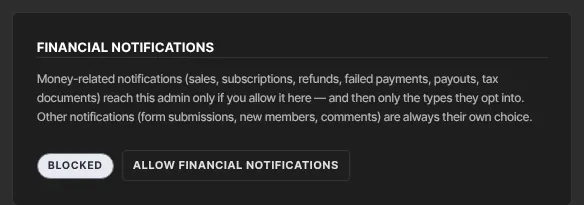
- Let the admin know. Nothing is emailed to them about the change, and nothing arrives until they choose which emails they want (next section).
What the admin does next
- They open Notifications from their avatar menu (
/settings/notifications). The page is titled Notifications & privacy. - Until you allowed it, the money-related options were greyed out with "Managed by your workspace owner." Now they can tick them.
- They tick the ones they want and click Save preferences. For an admin, every option starts off.
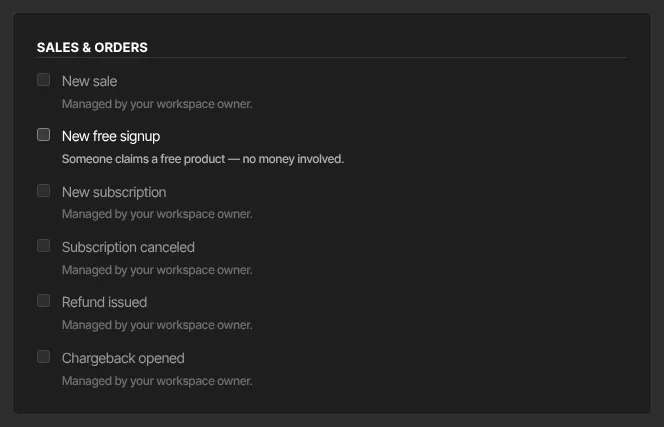
The money-related options are New sale, New subscription, Subscription canceled, Refund issued, Chargeback opened, Failed payment, Payout sent and Tax document available. Emails go out for all of them except Tax document available, which doesn't send an email to anyone today, owner included, because no tax documents are issued in the app.
Other notifications, such as form submissions and community activity, are each admin's own choice and don't need your permission. New free signup is one of these, even though it's listed under Sales & orders: no money changes hands.
Block it again
- On the admin's Manage page, click Block financial notifications.
- The badge changes to Blocked. They stop getting money-related emails at once, and those options lock again on their Notifications & privacy page. Their other notifications carry on.
What happens next
- Paused admins get no notification emails until you restore their access. The setting you chose is kept.
- Role changes: if you change an admin to Staff or a Viewer, their notification emails stop. If they become an Admin again, the setting you chose still applies.
- After an ownership transfer, the former owner becomes an Admin, and the new owner decides whether they get financial notifications. See Transfer ownership of your workspace.
Common errors
- "Only the workspace owner can change financial-notification access.": only the owner can change this setting.
- "Could not update access.": try again in a moment.
- The admin says the money options are greyed out: you haven't allowed it yet, or you blocked it. Check the badge on their Manage page.
- Allowed, but the admin gets nothing: they still need to tick the types they want and click Save preferences. The tax document option doesn't send emails.
- No Financial notifications panel: you're not the owner, or that teammate isn't an Admin. Change their role first if needed; see Team and roles.
- "Only owners and admins can change notifications.": staff and viewers can't open notification settings.