Zinstruct can email you when something happens in your workspace: a sale, a free signup, a failed payment, a form submission or a new community member. On Notifications & privacy you choose which of those emails reach your inbox. The workspace owner gets everything until they switch it off. Admins get nothing until they switch it on.
Who can do this
- The owner chooses which emails they get. Every box starts ticked.
- Each admin chooses their own emails. Every box starts unticked. Money-related emails stay locked until the owner allows them for that admin.
- Staff and viewers can't open the page. They see "Only owners and admins can change notifications." and never receive these emails.

Choose your emails (owner)
- Click your avatar or initials at the top right, then Notifications. The page is titled Notifications & privacy (
/settings/notifications). - The page says "Choose which account emails you receive as the workspace owner. Everything is on by default."
- Untick any email you don't want. They're grouped into Account & security, Sales & orders, Payments & payouts and Contacts & community.
- Click Save preferences. A green Saved badge appears.
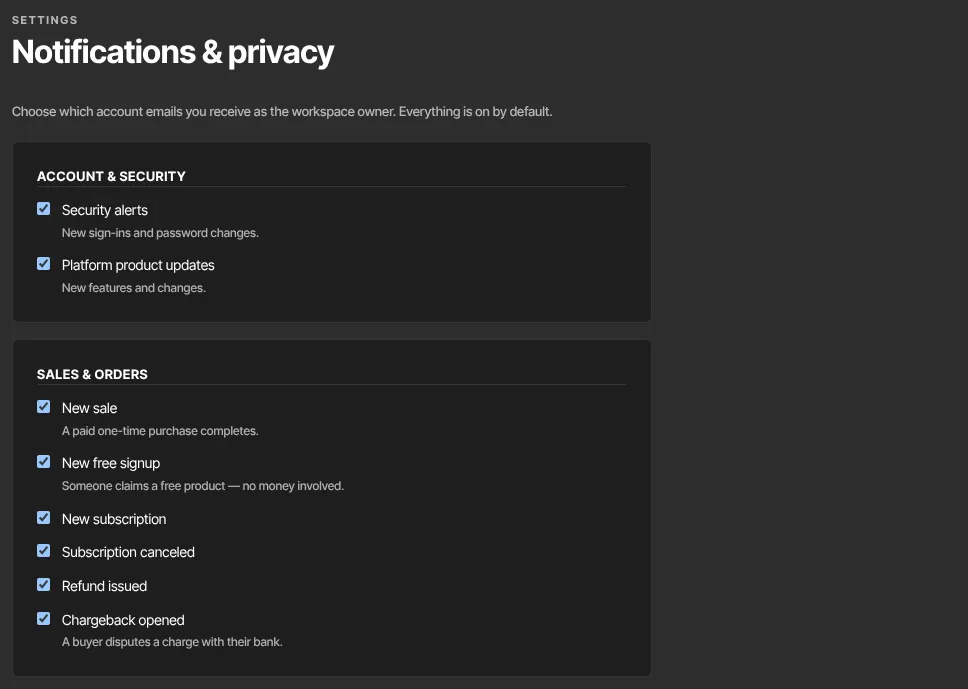
Every box is saved each time you click Save preferences, so an unticked box means "don't email me".
Opt in to emails (admins)
- Open Notifications from the account menu. The page says "Off by default — turn on what you want to hear about."
- Tick the emails you want.
- Click Save preferences. A green Saved badge appears.
If the owner hasn't allowed you money-related emails, the page adds "Money-related notifications are managed by your workspace owner." Those boxes are greyed out and read Managed by your workspace owner. They are New sale, New subscription, Subscription canceled, Refund issued, Chargeback opened, Failed payment, Payout sent and Tax document available.
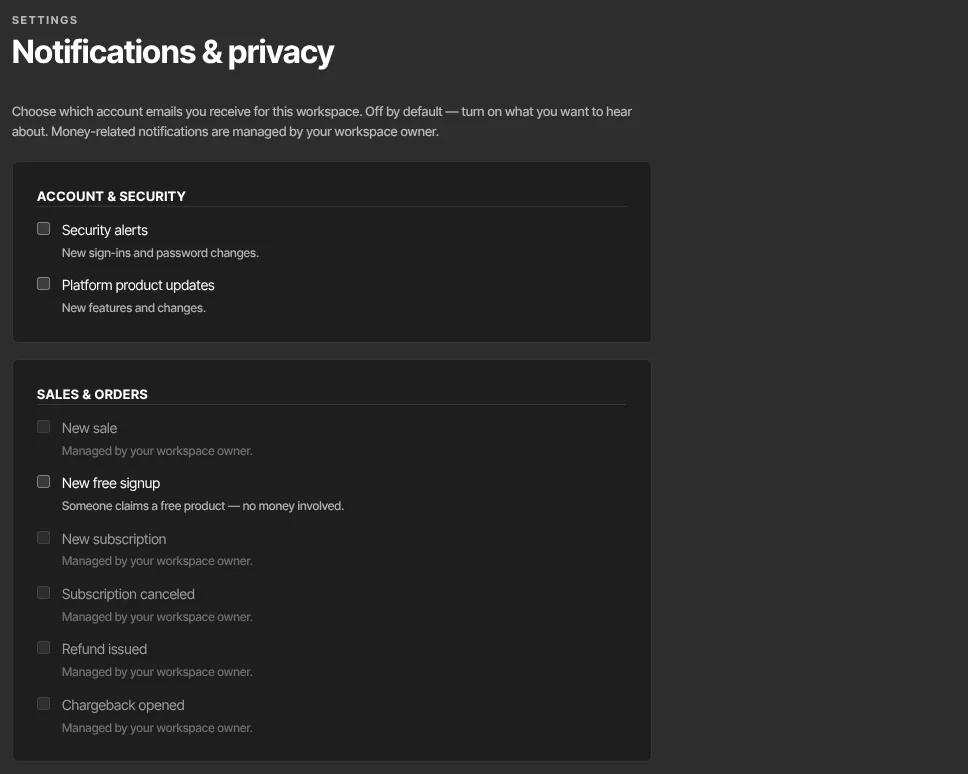
Saving while those boxes are locked saves them as off. If the owner allows them later, come back, tick the ones you want and save again.
Let an admin get money-related emails (owner)
- Go to Team in the sidebar and click Manage next to the admin.
- In the Financial notifications panel, click Allow financial notifications. The badge changes from Blocked to Allowed.
- Tell the admin to tick the money-related emails they want on their own Notifications page.
To take it away again, click Block financial notifications on the same panel. For the details, see Financial notifications for admins.
What each email is for
These boxes send an email when the event happens:
- Security alerts: someone signs in to your own account with your password, or your password is changed or reset. The email goes only to you, never to the rest of your team, and says when, from which IP address and browser, with a link to reset your password if it wasn't you.
- Platform product updates: announcements from Zinstruct about new features and changes. Untick it and they stop reaching your inbox. The banner at the top of the admin app still shows them.
- New sale: a paid one-time purchase completes.
- New free signup: someone claims a free product.
- New subscription: someone starts a subscription.
- Subscription canceled: a member's subscription ends. A payment plan that's paid off isn't a cancellation, so it doesn't send one.
- Refund issued: a purchase is refunded, in full or in part. A partial refund (say $10 back on a $100 course, issued from your payment provider's dashboard) sends "Order partly refunded — $10.00 of $100.00": who, which product, and that they keep their access. One email per partial refund.
- Chargeback opened: a buyer disputes a charge with their bank. The email includes the evidence deadline when there is one, and replies go to Zinstruct support.
- Failed payment: a charge or renewal fails.
- Payout sent: Stripe pays money out to your bank. The email gives the amount and the date it should arrive.
- New contact: someone is added to your contacts, by hand, through the API, or by opting in on a form or quiz. Contacts brought in by an import don't send it. A form opt-in sends this and New form submission, so untick one if you only want one email.
- New form submission, New community member and New community comment.
- Community AI alerts and Weekly community insights digest (a Monday summary), if you use Community AI.
Tax document available sends no email today, because no tax documents are issued in the app. Its box carries a grey badge that says so.
What happens next
- The owner's emails go to the owner's sign-in email. An admin's emails go to that admin's sign-in email.
- Each email says what happened, such as who bought which product, and has a button that opens the right page in your admin app.
- An admin whose access is paused gets no notification emails until it's restored.
- Your choices apply to the next event. Past events aren't sent again.
Common errors
- "Only owners and admins can change notifications.": you're staff or a viewer. If you're the owner and see this when saving, your free trial has ended and the workspace is read-only: subscribe in Settings → Billing.
- "Could not save notification preferences.": a temporary problem. Try again.
- "No tenant in session.": sign out, sign in again, and retry.
- A money-related box won't tick: it's locked until the owner allows financial notifications for you.
- An admin gets no emails: check that they ticked the boxes and saved, that the owner allowed money-related emails if they need those, and that their access isn't paused.