Two owner-only tools live on Settings → Privacy. Export your data downloads a copy of everything in your workspace as one file. Close workspace takes your school offline and stops all billing. Take an export before you close, and keep a recent one if your customers might ask you for their records.
Who can do this
- Only the workspace owner can export or close.
- Admins who open Privacy see "Only the workspace owner can export or delete workspace data."
- Staff and viewers see "Only owners and admins can view privacy settings."
- The owner can still export when the trial has ended and the workspace is read-only, when the workspace is offline, and after it's closed.

Export your data
- Click your avatar or initials at the top right, then Privacy (
/settings/privacy). - In the Export your data panel, click Export my data. The button reads Starting… while the archive is built, which can take a while for a large workspace.
- When it's done you see "Export started — it’ll appear below when it’s ready to download." The table lists each request by when you asked (Requested) with its Status: Ready, Processing… or Failed.
- Click Download on a Ready row. Your browser saves a
.jsonfile.
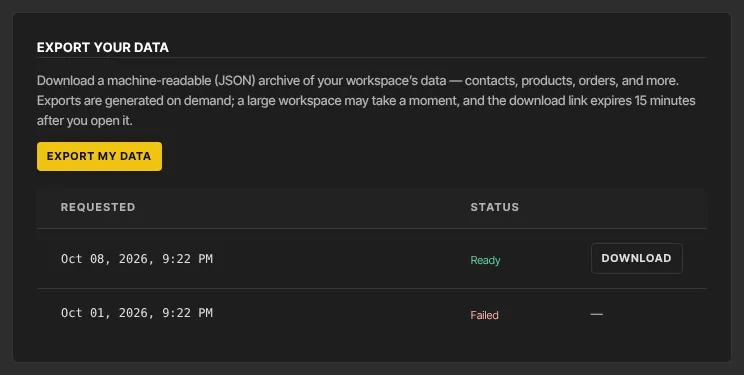
Each download link works for 15 minutes. After that, click Download on the same row again for a fresh one. The table keeps your last 20 requests.
What's in the file
The archive is one JSON file, a format other software and developers can read. It holds every record in your workspace, in full: contacts, products, modules and lessons, offers, orders and invoices, enrollments and progress, emails, community posts and your settings.
Uploaded files and videos aren't inside it, and the Media Library has no download button, so keep your own copies of anything you upload.
Export when your workspace is offline
If your trial ended or a plan payment failed and the workspace went offline, signing in takes you to a page saying your workspace is offline ("… is offline") instead of the Dashboard.
- Sign in as the owner. Below the plans, or the Update payment method button, is an Export your data panel.
- Click Export my data.
- Click Download your latest export when it appears. If you see "Your export is being prepared — refresh this page in a moment.", refresh the page.
You don't have to pay first. Only the owner sees this panel; everyone else is asked to get the owner to sign in. If our team paused the workspace, the page asks you to contact support instead, and it has no export.
Close your workspace
Closing works the same way on a trial or a paid plan.
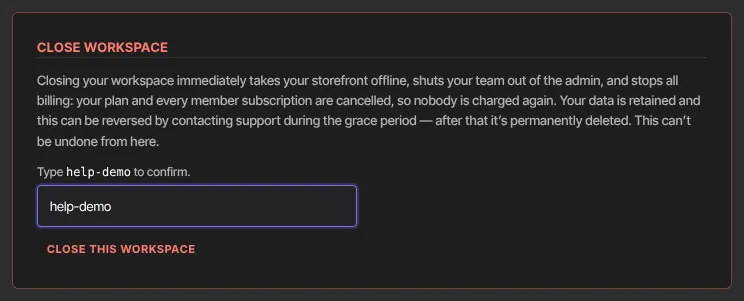
- On Privacy, read the Close workspace panel.
- In the box, type the handle shown in "Type … to confirm." exactly. It's the handle your workspace was created with, which can differ from your current web address. Close this workspace stays greyed out until it matches.
- Click Close this workspace. The button reads Closing….
What happens next
After an export, nothing in your workspace changes and no email is sent.
After you close:
- You land on a page titled "… is closed". As the owner, you can still click Export my data there, then Download your latest export.
- Your school's site goes offline on your web address and on any custom domain, including its checkout and member sign-in pages.
- Your team can't use the admin app. They aren't signed out, but every admin page takes them to the closed page, which has a Sign out button.
- Billing stops. Your Zinstruct plan is cancelled straight away. Every member subscription is cancelled shortly after, so nobody is charged again, and those members lose the access their subscription gave them.
- Your data is kept. To reopen the workspace, contact support. You can't undo a close yourself. A reopened workspace comes back read-only: your site is online again, but you can't change anything until you subscribe again in Settings → Billing. Cancelled subscriptions stay cancelled, including your members'.
- No confirmation email is sent, so note the date you closed.
If a member asks about their own data
That's a different job from closing your workspace. Open their record in Contacts and use the actions menu. Export contact (.csv) gives you a copy of their details to send them. Delete contact removes them, with their notes and tags; past orders keep their own record. See The contact record.
Common errors
- "Could not start the export. Please try again.": the export failed and its row shows Failed. Click Export my data again.
- A row stays on Processing…: refresh the page. If it still hasn't finished a few minutes later, start a new export.
- "export not ready or not found": that export isn't ready, or it belongs to another workspace. Use Download on a Ready row.
- "Forbidden": only the owner can download exports. Sign in as the owner.
- "Only the workspace owner can export workspace data." or "Only the workspace owner can close the workspace.": you're not the owner.
- "Type “yourhandle” exactly to confirm." (with your handle): what you typed didn't match. Copy the handle from the line above the box.
- "Could not close the workspace. Please try again or contact support.": nothing was closed. Try again, or contact support.
- "No workspace found for your account.": sign out, sign in again, and retry.