Each contact has a record page with everything you know about them. Open it by clicking a name on your Contacts list, or Open full profile in Quick view. The record has five tabs, Lifecycle, Info, Purchases, Products and Notes, and opens on Info.
Who can do this
- Everyone on your team can open records, read every tab, copy a contact's email and download their CSV.
- Staff, admins and owners can edit details, add and remove tags, add and delete notes, and send a password email.
- Viewers see the same buttons. Saving details or sending a password email shows "You don’t have permission for this."; adding or removing a tag or note pops up "You don’t have permission to do that." Nothing changes.
- Deleting a contact is for owners and admins; see Delete contacts.
The top of the record
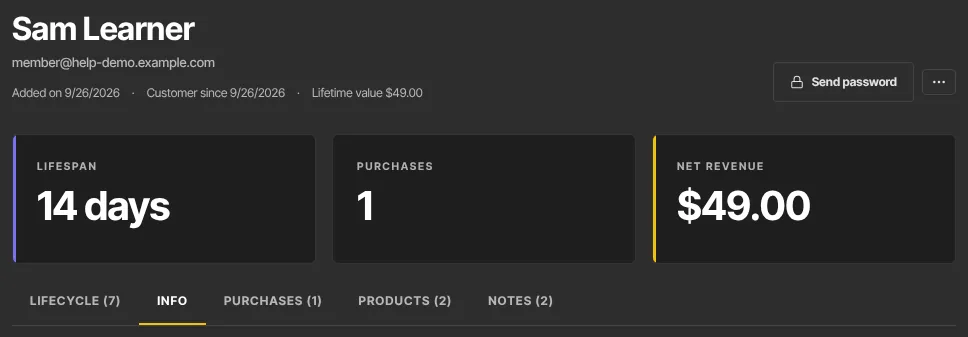
The header shows the contact's name and email, when they were Added on, Customer since (or Not a customer yet) and their Lifetime value. Below are three tiles: Lifespan (how long they've been on your list), Purchases and Net revenue. Tabs show a count, for example Notes (2).
Edit their details
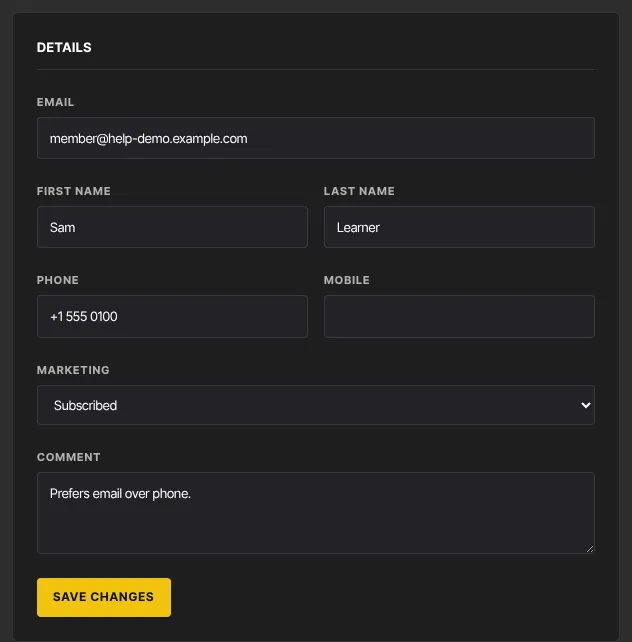
- On the Info tab, the Details panel holds Email, First name, Last name, Phone, Mobile, Marketing (Unsubscribed or Subscribed) and Comment.
- Change what you need and click Save changes. The panel shows Saved.
Good to know:
- To clear a name, Phone, Mobile or Comment, empty the box and click Save changes. Email can't be left empty: the panel asks you to fix it.
- A member's courses follow their email. After you change it, they sign in with the new address to see their library.
- For someone waiting to confirm a double opt-in, Marketing shows Pending (waiting for them to confirm). Saving other changes keeps them pending; only their confirmation click subscribes them. Pick Subscribed or Unsubscribed to set it yourself.
Add or remove tags
- In the Tags panel on the Info tab, type a name into Add tag… and click Add. A tag that doesn't exist yet is created.
- To remove a tag, click the × on its chip. It comes off straight away, with no confirmation.
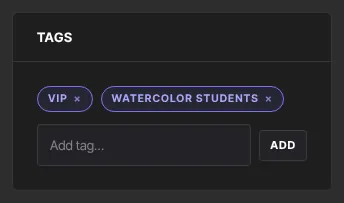
Adding or removing a tag here starts any automation that uses Tag is added or Tag is removed for that tag. More in Tags.
Keep notes
- Open the Notes tab and type into Add a note….
- Click Add note. Notes are listed newest first, with the date and time.
- To remove a note, click Delete under it. It's deleted straight away. Any staff member can delete any note.
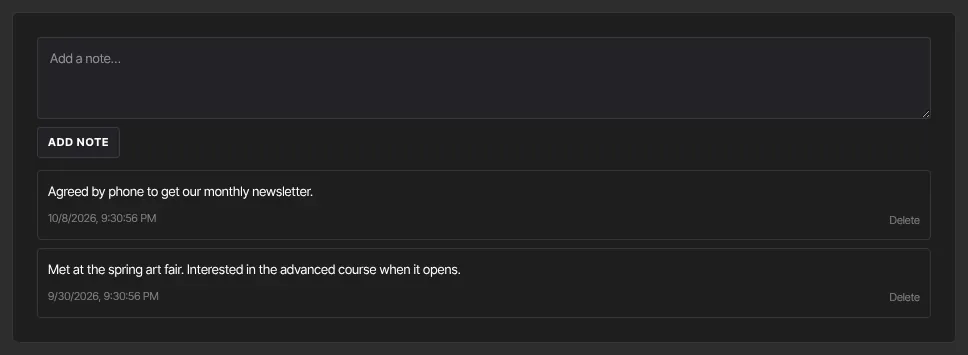
Notes are for your team only. The contact never sees them.
Read the timeline
The Lifecycle tab lists what happened to this person, newest first: Contact created, payments (Paid and the amount), Granted access to a product, Access revoked, Tag added, Tag removed, course completions, spam complaints and bounces. Filter it with the buttons at the top (All, Contact, Purchases, Access, Tags, Engagement, Other); only the kinds this contact has appear. It keeps the 500 most recent events.
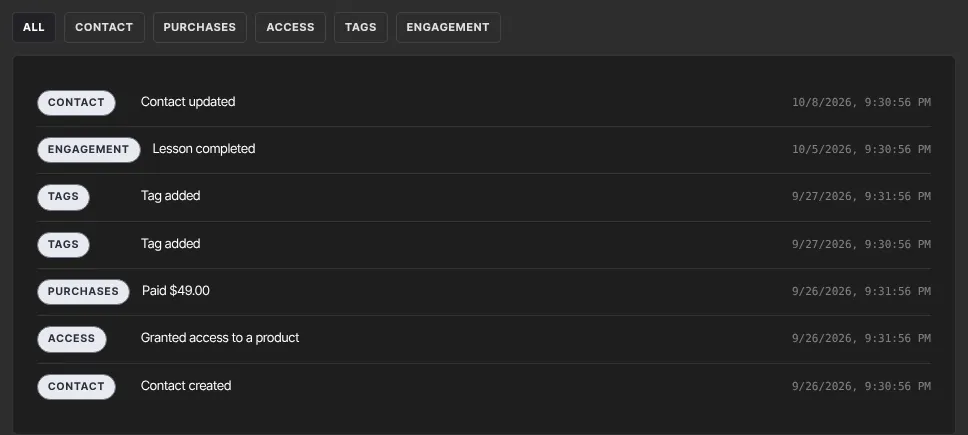
Tag entries don't name the tag. Some things never appear: tags changed by an automation, a Contact created entry for people brought in by CSV import, and anything from before the timeline existed.
Purchases and products
- Purchases lists their orders, free claims and refunds with Date, Offer, Product, Amount and Status.
- Products lists every product they bought, claimed or were given, with Type, Progress, Status (active, completed or revoked) and Enrolled date.
Both tabs are read-only. To give or remove access, see Give or remove product access by hand.
More actions
Click More actions (⋮) at the top right:
- Send password (also a button of its own): emails the contact a "Reset your password" message with a code and a link, and the record shows Password email sent. They choose a password and land in their course library. Members normally sign in with an emailed code, so few need this. If the person has never signed in, they have no login, so no email is sent, although the record still says Password email sent.
- Copy email: copies their address and shows Email copied.
- Export contact (.csv): downloads a one-row file with their details, tags, revenue in cents, sign-ins and dates.
- Delete contact: see Delete contacts.
Custom fields
The Import and migrate importer saves extra CSV columns as custom fields on the contact. The record doesn't show or edit custom fields, and segments can't filter on them.
What happens next
Changes to details, tags and notes take effect straight away. Segments and broadcasts use the new values the next time they run. Setting Marketing to Unsubscribed stops all marketing email to them; see Email preferences and unsubscribes.
Common errors
- "A contact with this email already exists.": another contact already uses that email.
- "Please fix the highlighted fields.": read the note under the field.
- "Contact not found.": the contact was deleted, or isn't in this workspace.
- "Could not save changes.": try again.
- "Too many attempts. Please wait a few minutes and try again.": you've sent several password emails in a short time. Wait a few minutes.
- "We can’t send email right now. Please try again in a few minutes.": a temporary problem on our side.
- "You don’t have permission for this." or "You don’t have permission to do that.": your role can't make this change.