If you have a list of people in a spreadsheet, such as webinar sign-ups or customers from another tool, you can add them all at once. Save the spreadsheet as a CSV file and import it under Contacts → Imports. This import only adds new contacts: anyone already on your list is skipped, not updated.
Moving a whole business, or need tags, notes and extra columns brought across too? Use Import and migrate under Settings → Import & migrate instead. It shows a preview first and can update existing contacts.
Who can do this
- Owners and admins can import.
- Staff and viewers can open the page, but Import contacts shows "You don’t have permission to import contacts."
- Bulk import is included from the Core plan up. During the free trial, before you've chosen a plan, the page shows Bulk contact import and a Choose a plan button instead of the form. It unlocks as soon as your subscription starts, even during your trial. See Plans and billing.
- The new contacts must fit within your plan's contact limit.
Prepare your file
- The first row must be column headings, with at least one row of data under it.
- One column must hold the email address, headed email (or "email address" or "e-mail").
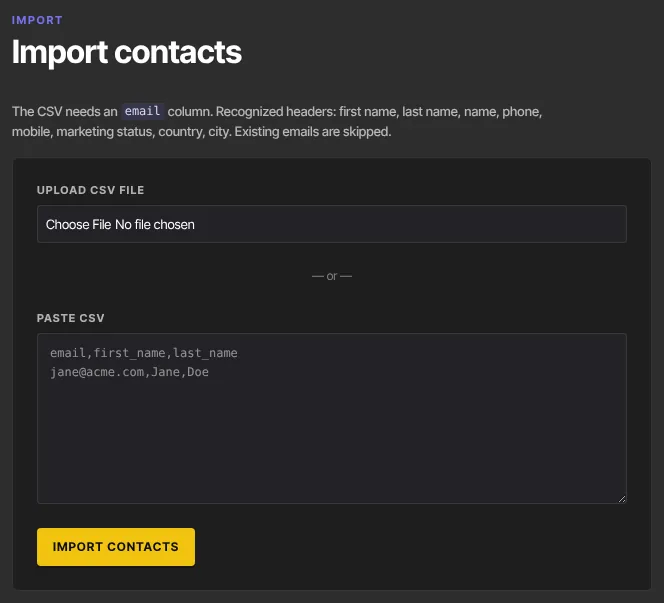
- These columns are read too: first name, last name, name, phone, mobile, marketing status, country and city. Common variations work, such as "firstname", "surname", "full name", "phone number" or "cell". Capitals and spaces in headings don't matter.
- marketing status must say
subscribedorunsubscribedin lowercase. Any other value, or no such column, brings the contact in as unsubscribed. - Every other column is ignored, including tags and notes.
- Keep each file under 1 MB. Split a bigger list into several files and import them one after another.
Import the file
- Go to Contacts → Imports (
/contacts/import), or click Import CSV on the Contacts list. The page is titled Import contacts. - Choose your file under Upload CSV file, or paste the text into Paste CSV.
- Click Import contacts. The button reads Importing… while it works.
- When it's done you'll see a summary such as Imported 120, skipped 4 (existing/duplicate), 2 invalid — of 126 rows. Click View contacts → to see them.
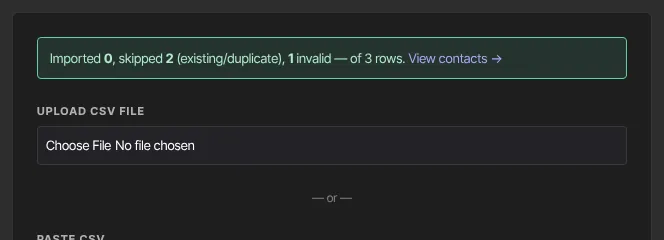
What the numbers mean:
- Imported: new contacts added.
- Skipped: the email is already on your list, or appears twice in the file (the first row is used). Existing contacts aren't changed.
- Invalid: the row has no valid email address.
What happens next
- The new contacts appear on your Contacts list with the source import. Emails are saved in lowercase.
- We don't email anyone you import.
- Imported contacts don't start Contact is created automations and don't get a Contact created entry on their timeline. To welcome them, tag them in bulk afterwards and use a Tag is added automation; see Change many contacts at once.
- Only email people who agreed to hear from you. A bought or scraped list harms your deliverability and breaks anti-spam law.
Common errors
- "Paste CSV text or choose a file.": nothing was supplied.
- "Need a header row plus at least one data row.": the file has headings only, or a single line.
- "The CSV must include an "email" column.": add or rename the email column.
- "Adding … contacts would put you over your … plan's limit of … (you have …). Upgrade in Settings → Billing to add more.": nothing was imported. Import fewer rows, or upgrade.
- "Bulk contact import is included from the Core plan up. Subscribe in Settings → Billing to unlock it.": choose a plan first.
- "Import failed: …": something went wrong partway, so some rows may already be in. Run the same file again: rows that made it are skipped.
- "Could not read existing contacts.": try again.
- "You don’t have permission to import contacts.": ask an owner or admin.