A segment is a saved filter over your contacts, such as "tagged VIP and subscribed" or "bought the watercolor course". It stores the rules, not a fixed list of people, so whoever matches right now is in it. Use a segment to filter your Contacts list or as the audience of a broadcast.
Who can do this
- Staff, admins and owners can build, preview, save and edit segments.
- Viewers can build a segment and use Preview matches, but Save segment shows "You don’t have permission for this."
- Only owners and admins can delete a segment. For anyone else, Confirm delete pops up "You don’t have permission to do that."
Build a segment
- Go to Contacts → Segments (
/segments) and click New segment (or Create your first segment). The New segment shortcut on your Dashboard works too. The page is titled Build a segment. - Choose whether contacts must match all or any of your conditions.
- For each condition, pick a field, an operator and a value, for example Tag has VIP. Click + Add condition for another row, or × to remove one. Every field is explained in Segment conditions reference.
- Click Preview matches. You'll see how many contacts match and the 25 newest of them, so you can check the rules catch the right people.
- Enter a Segment name and click Save segment. You return to the Segments page.
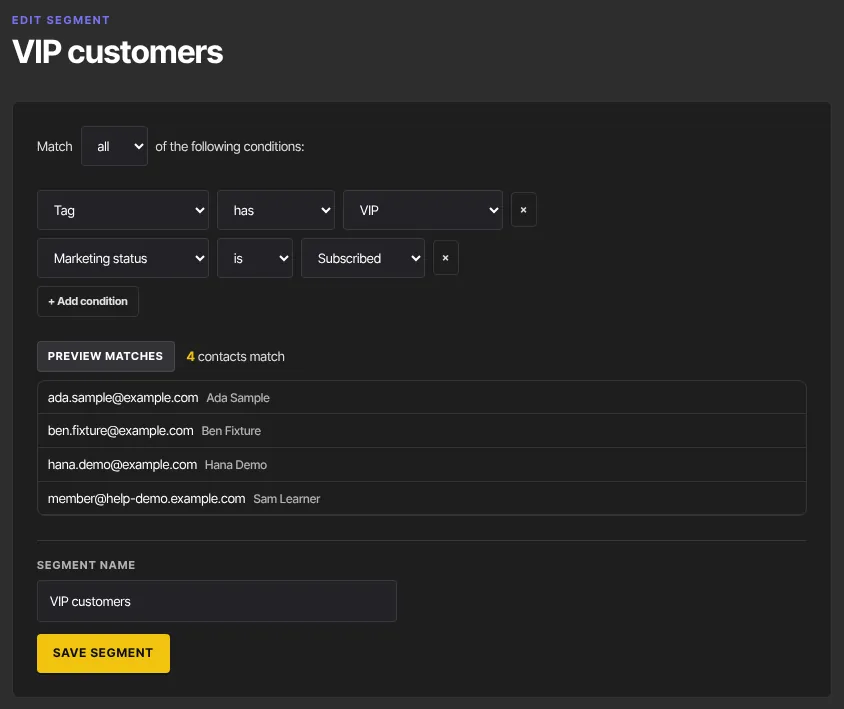
The builder has one list of conditions and one all-or-any choice. Every condition needs a value before you can save.
The Segments page
Each saved segment shows how many conditions it has, how many contacts match it now, and how many of those also match another segment, which helps you spot two segments emailing the same people. Each row has View contacts, Edit and Delete.
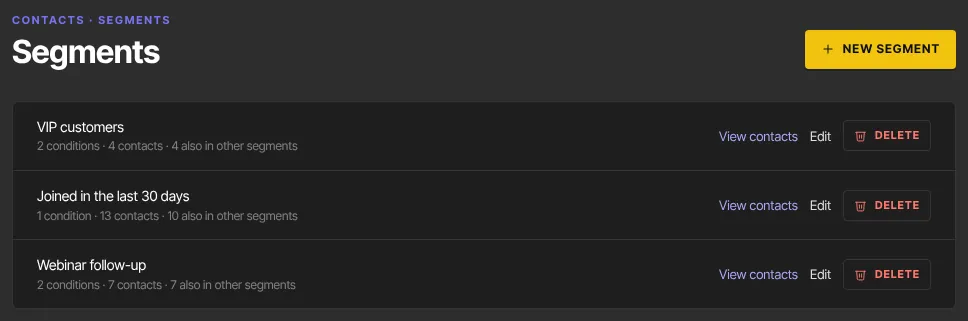
Use a segment
- Filter your contacts: click View contacts, or pick the segment from the All contacts menu on the Contacts list. A banner reads Filtered by segment:; click Clear to remove it.
- Email it: when you write a broadcast, choose Segment: and the segment's name in the audience menu instead of All subscribed contacts. Only subscribed contacts in the segment get the email. See Email broadcasts.
Automations don't pick saved segments; they have their own conditions. See Automation triggers and actions.
Edit a segment
- On the Segments page, click Edit. The page shows the segment's name as its title.
- Change the conditions or the name, click Preview matches to check, then Save segment.
The change applies everywhere the segment is used, including broadcasts that haven't been sent yet.
Delete a segment (owners and admins)
- Click Delete on the segment's row.
- Click Confirm delete, or Cancel.

A segment that is the audience of a broadcast that hasn't been sent yet (a draft, or one still sending) can't be deleted. The Segments page shows "{segment} wasn’t deleted: it is the audience of a draft broadcast." Change that broadcast's audience in Broadcasts first, then delete the segment.
What happens next
- A segment is worked out fresh every time it's used, so "created in the last 30 days" always means the last 30 days from today.
- Deleting a segment never changes or deletes any contacts.
Common errors
- "Give the segment a name.": fill in Segment name.
- "Finish every condition — one is missing its value (e.g. pick a tag or enter text).": a row has no value. Pick or type one, or remove the row.
- "The filter is invalid — add at least one valid condition.": add a condition and try again.
- "A segment with this name already exists.": choose another name.
- "Segment not found.": it was deleted while you were editing.
- "… wasn’t deleted: it is the audience of a draft broadcast.": change the broadcast's audience first, then delete the segment.
- "Could not save the segment.": try again.
- "You don’t have permission for this.": viewers can't save. In a workspace whose free trial has ended, everyone sees this when saving until you subscribe.