Contacts is your list of everyone connected to your school: people who bought, signed up through a form, were imported from a CSV, signed in to your member area, or were added by hand. Open it from the sidebar under Contacts → All people (/contacts). Each contact's record holds their details, tags, purchases, product access, notes and a timeline of what happened to them.
Who can do this
Everyone on your team can open Contacts. What you can change depends on your role:
- Owner and admin: everything staff can do, plus the admin-only actions: deleting contacts (one at a time or in bulk), importing a CSV, deleting or merging tags, deleting segments, and granting offers while adding a contact.
- Staff: add contacts, edit details, add and remove tags, add and delete notes, send a password email, create and rename tags, tag, subscribe or unsubscribe contacts in bulk, and save or edit segments.
- Viewer: look only. Viewers can search, filter, open records, use Quick view, preview a segment and download a CSV of contacts they select.
Every role sees the same buttons. When you press one your role doesn't allow, the screen says "You don’t have permission for this." or a pop-up says "You don’t have permission to do that.", and nothing changes.
Find a contact
- Go to Contacts → All people. The newest contacts are at the top.
- Type part of a name or email into Search name or email… and press Enter.
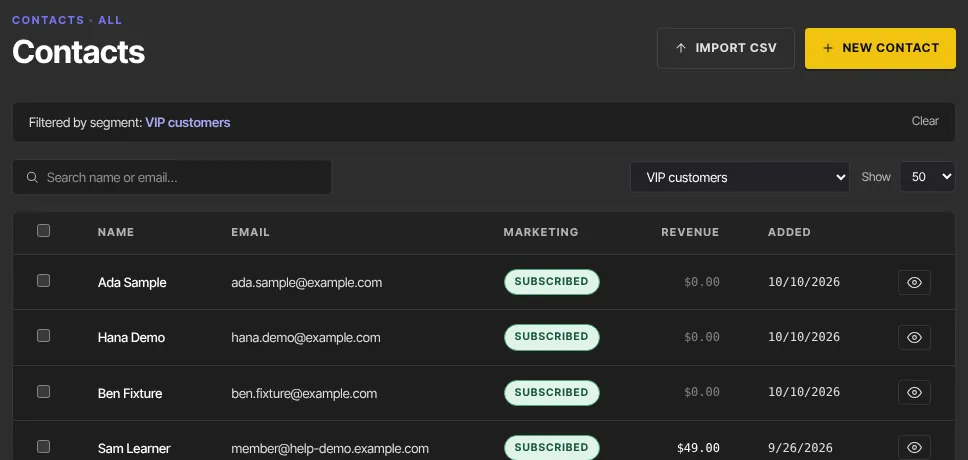
- To narrow the list to a saved segment, pick it from the All contacts menu next to the search box. A banner reads Filtered by segment: with the segment's name. Click Clear to see everyone again. The menu appears once you have at least one saved segment; see Segments.
- Use Show to list 25, 50 or 100 contacts per page, and Next › to move to the next page.
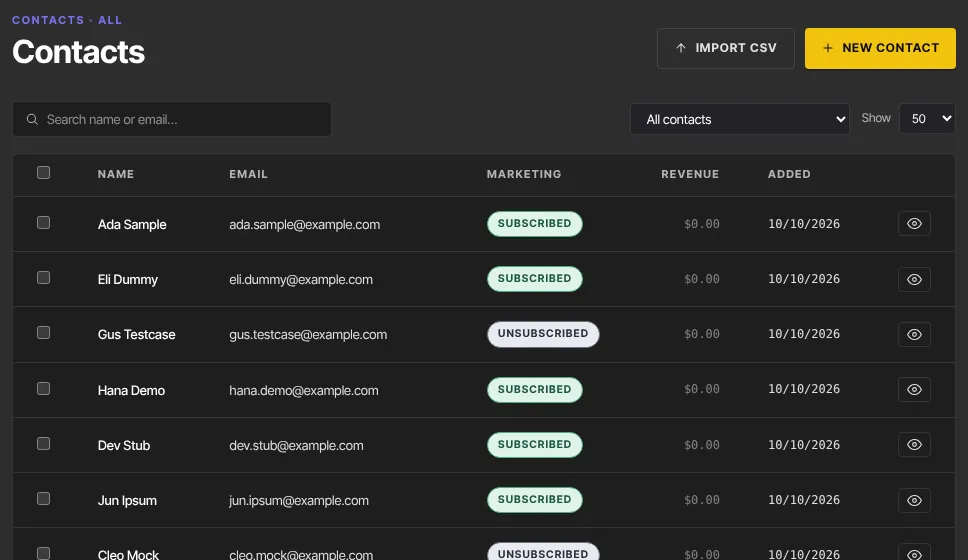
Each row shows the contact's Name, Email, Marketing status (subscribed, unsubscribed, or pending while they confirm a double opt-in), Revenue (their lifetime value) and the date they were Added. Click a name to open the full contact record.
Peek at a contact with Quick view
- Click the eye icon at the end of a row. A Quick view panel slides in.
- It shows their status, their marketing and newsletter flags, Lifetime value, Net revenue, how many Offers and Products they have, Sign-ins, Last sign-in, Added on, Customer since and their tags.
- Click Open full profile to go to their record, Email to write to them in your own email app, or Close (or press Escape).
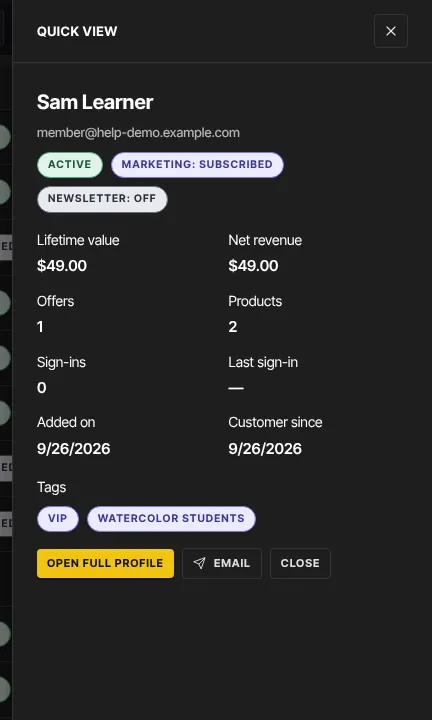
Quick view is read-only. Make changes on the full record.
Contacts and members
A contact is anyone on your list. A contact becomes a member once they have access to a product, through a purchase, a free claim or access you give them, and they sign in to your member area with the same email address. See The member experience.
What happens next
- New buyers, form sign-ups and imported people join the top of the list as they arrive.
- To act on many people at once, tick their rows: see Change many contacts at once.
- To download your whole list, use the Contacts report under Analytics; see Reports and CSV exports.
Common errors
- "No contacts match these filters.": nobody matches your search or segment. Clear the search box, or click Clear on the segment banner.
- "No contacts yet.": your list is empty. Click Add your first contact, or import a CSV.
- "Could not load this contact." in Quick view: try again, or open the record by clicking the name.
- "You don’t have permission for this." or "You don’t have permission to do that.": your role doesn't allow that action. Ask an owner or admin.
- "Your free trial has ended, so your workspace is read-only. Subscribe in Settings → Billing to start creating again — nothing has been deleted.": you can still look at your contacts, but changes are blocked until you subscribe. See Plans and billing.