Every new workspace starts on a free 7-day trial. To keep building after it, the workspace owner picks a paid plan on Settings → Billing and pays on a secure Stripe checkout page. This article covers the trial, choosing a plan, when you're charged, and what Billing shows afterwards. To change or stop a plan you already have, see Manage your plan.
Who can do this
- Only the workspace owner can open Billing, see the plans and subscribe.
- Admins, staff and viewers see only "Only the workspace owner can view billing." The trial banner's Choose a plan button and Upgrade your plan links show for everyone, but lead to that message for anyone but the owner. Ask your owner to subscribe.

Your free trial
- It starts when you finish setting up your workspace and lasts 7 days.
- A banner on every admin page counts down: "… days left in your free trial." with Choose a plan. It turns amber for the last two days and reads "Last day of your free trial — subscribe to keep your workspace." on the final day. It disappears once you subscribe.
- You're on the Trial plan: smaller limits than the paid plans, and features marked "Included from the Core plan up" stay locked. That includes inviting teammates: on the trial, only the owner has a seat. See Plan limits and upgrade prompts.
- We email the owner two days, and again one day, before the trial ends.
- If it ends without a plan, the workspace becomes read-only and, two weeks later, goes offline. Nothing is deleted. See When your workspace is read-only or offline.
Open Settings → Billing
- Click your avatar or initials at the top right to open the account menu.
- Click Subscription & billing. The page (
/settings/billing) is titled Billing.
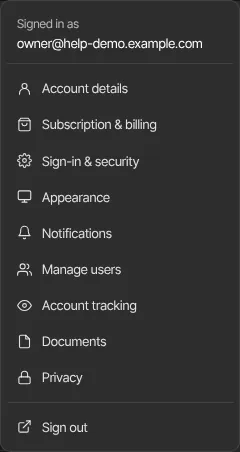
You can also get there from Choose a plan in the trial banner, or from any Upgrade your plan link.
Billing is for the workspace you're in. If you belong to more than one, switch first: pick the other workspace under Workspaces at the top of the account menu.
Choose a plan and subscribe
- The Current subscription panel reads "You're not subscribed to a paid plan. Pick one below to keep your workspace after the trial."
- Below it, each plan has a card with its price, what it includes and its limits. Compare every feature under the cards opens the full comparison on the pricing page.
- On the card you want, choose Monthly or Yearly. The price changes to match. A plan without a yearly price has no switch.
- Click Subscribe monthly or Subscribe yearly (just Subscribe on a monthly-only plan).
- On the secure Stripe checkout page, enter your card. If you have a Zinstruct promo code, add it there.
- Pay. You come back to Billing with the note "Billing state refreshed from Stripe.", and Current subscription shows your plan.
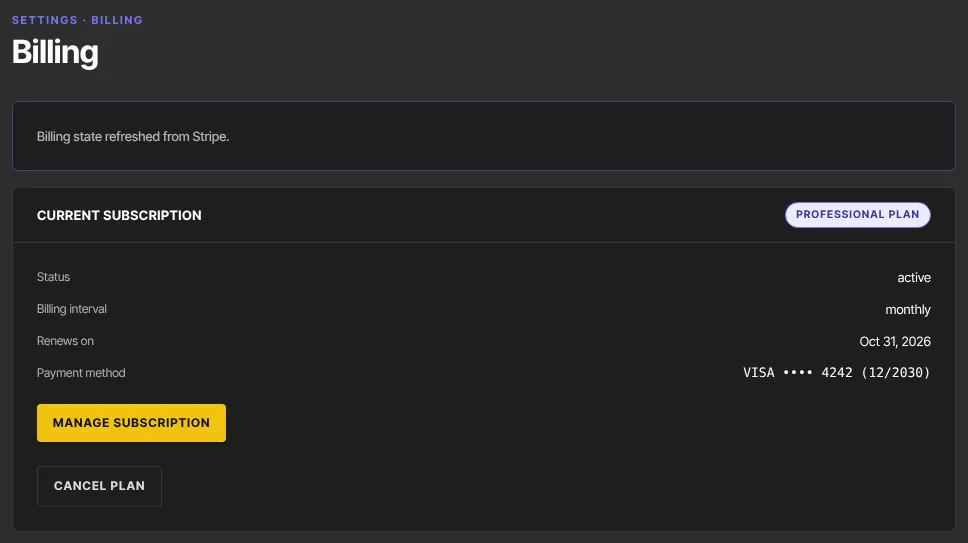
Subscribe only once. If Billing is open in another tab, reload that tab before clicking anything in it.
When you're charged
The line under the plan cards says when your first payment happens:
- During your free trial: "You have … days left in your free trial, and every plan feature unlocks the moment you subscribe. Your card is first charged when the trial ends." The Stripe page shows "$0 due today". You don't get extra free days: the first charge lands when your trial would have ended anyway.
- After your trial has ended, or when you're not on a trial: "… your first payment is charged today."
Either way, the new plan's features and limits start the moment you subscribe.
Fees on your sales
Zinstruct takes a platform fee from each sale you make: a percentage set by your plan, plus 30¢ per sale on every plan.
- Core: 5% + 30¢
- Advanced: 2.9% + 30¢
- Professional: 1.9% + 30¢
- Community (free, by invitation): 7.5% + 30¢
For example, a $50 sale on Core pays $2.50 + $0.30 = $2.80, and you keep $47.20.
- Sales you make during your free trial, before you choose a plan, pay the Core rate.
- Stripe's card-processing fee is included: you keep each sale minus the platform fee.
- The fee is charged on what the buyer actually pays, after any discount code. It is never more than the sale.
- A paid price must be at least $0.99. A $0 offer is free and pays no fee.
- On a subscription or payment plan, the 30¢ comes off each payment. A discount code lowers the 30¢ in step with the price.
- When you refund a sale, the platform fee on it is returned to you.
The fee comes off automatically when the buyer pays. See Connect Stripe to take payments and When your sales money reaches your bank (payouts).
The free Community plan
The Zinstruct team can invite you to run a community for free. The invite link, or a Community access code you type when you set up your workspace, puts a new workspace on the Community plan:
- Included: one community product, with its offers, checkout and discounts, up to 2,500 contacts, your own zinstruct.com web address, Analytics and the Media Library.
- Cost: no monthly fee. Zinstruct keeps 7.5% + 30¢ of each sale.
- Not included: email to your members, every other product type, the website builder, funnels, automations, a custom domain and the other paid features. The menu shows only what the plan includes, and trying to create another kind of product says "Your Community plan includes one community."
- Upgrading: pick a paid plan in Settings → Billing. It replaces the Community plan, and your community, members and offers stay.
- A reserved launch price: if you joined through a page that reserved a launch price for you (such as the Founder's Offer on Core), Billing says so. Choosing that plan starts a 7-day free trial of it with your card on file: nothing is charged today, the reserved price is charged when the trial ends, and you can cancel during the trial. If you cancel, you pay nothing and your free Community plan comes back when the trial ends — but the reserved price is gone for good.
- Cancelling a paid plan later doesn't put you back on the free Community plan. Ask the Zinstruct team if you'd like it back.
Codes are for new accounts only. If the code is refused at setup, the message says why: not valid, no longer active, expired, used up, for a different email address, or "Community access is for new accounts — this email already runs a workspace."
If the Zinstruct team sent you a payment link
If you agreed a quote with the Zinstruct team, the owner gets an email titled "Complete your Zinstruct subscription — …" (with the plan's name) once the team marks the quote accepted.
- Click Complete your subscription in the email.
- Pay on the secure Stripe checkout page. There's no free trial on this link: you pay the quoted price today.
- You come back to Billing, and Current subscription shows the quoted plan.
Your workspace keeps its current plan until you pay. Use the link rather than the plan cards on Billing, which charge the list price, and pay only once. The link works for 24 hours; if it runs out, reply to the email and the team sends a fresh one (the old link then stops working).
If you already pay for a plan, there's no link: the team switches your plan for you, and any price difference is added to your next invoice.
What Billing shows once you've subscribed
- Your plan's name beside Current subscription, then Status ("active", or "trialing" while your free trial runs), Billing interval, Renews on, and Trial ends while the trial is still running.
- Payment method: card brand, last four digits and expiry.
- Manage subscription and Cancel plan. See Manage your plan.
- Plan usage and Recent invoices, your last 10 invoices with a View link each.
If the Zinstruct team set up your plan, Current subscription says "Your … plan is provided by the Zinstruct team. There's nothing to pay and nothing to set up — no trial, no renewal." Contact Zinstruct support to change it.
What happens next
- The trial banner disappears, and anything locked on the trial unlocks.
- If you subscribed during the trial, your card is charged on the trial's end date and Status changes to "active".
- If a plan payment had failed, the owner gets "Payment received — … is current again" once a payment goes through. Ordinary renewals don't send it.
Common errors
- "Checkout was canceled. Nothing was charged. Pick a plan below to try again.": you left the Stripe page without paying. Pick a plan when you're ready.
- "We couldn’t open Stripe Checkout — nothing was charged and nothing changed on your plan. Please try again in a moment; if it keeps happening, contact support.": try again in a few minutes.
- "We couldn’t open checkout for the plan you picked during setup — your workspace is ready and nothing was charged. Pick a plan below to try again.": subscribe from the cards instead.
- "Plans couldn’t be loaded just now. Refresh the page, or see them at zinstruct.com/pricing.": reload the page.
- "Only the workspace owner can view billing.": ask the owner.
- You paid, but Billing still says you're not subscribed: reload after a minute. If nothing changes, contact Zinstruct support from the email you sign in with. Don't subscribe again.
- No plan cards, but you want a different plan: you already have one. See Manage your plan.