Every Zinstruct plan, including the free trial, comes with limits on how many products, contacts, team members and landing pages you can have, and some features are only included from a certain plan up. This article shows where to see your usage, the messages you get at a limit or at a locked feature, how team seats count, and how to get more room. The exact numbers depend on your plan and can change, so check your plan's limit on Billing or the pricing page rather than relying on a fixed figure.
Who can do this
- Limits apply to whoever creates the thing: owners, admins and staff alike.
- Only the owner can see Plan usage and upgrade. Anyone else who clicks Upgrade your plan or Choose a plan sees "Only the workspace owner can view billing." Ask your workspace owner.
- A workspace whose plan the Zinstruct team set up has that plan's limits.
See how much you're using
- As the owner, open Settings → Billing (account menu → Subscription & billing).
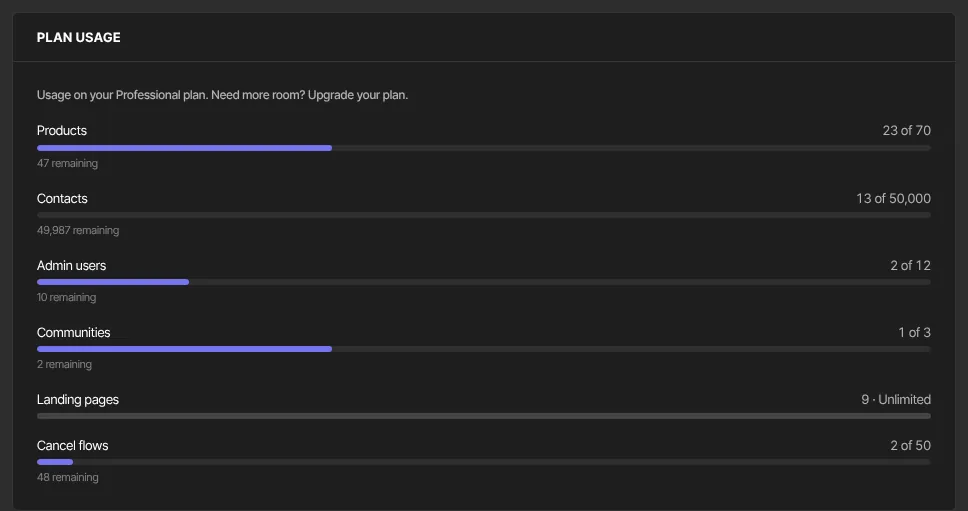
- Find the Plan usage panel: "Usage on your … plan. Need more room? Upgrade your plan."
- Each bar shows Products, Contacts, Team members, Communities, Landing pages or Cancel flows as "… of …" with what's left, or "Unlimited". A red bar with "… over limit" means you have more than your plan allows.
- On the Products list, a chip beside the new-product button shows "… of … products". It turns yellow when you've used most of them and coral when none are left. Click it to go to Billing.

When you reach a limit
These are capped by your plan: new products (including Duplicate on a course), contacts (added one at a time or imported), team members, landing pages and cancel flows.
- Try to add one more at the cap, and you see "You've reached your … plan's limit of … products. Upgrade in Settings → Billing to add more." (with your plan's name, its number and the kind of item).
- A contact import that won't fit says "Adding … contacts would put you over your … plan's limit of … (you have …). Upgrade in Settings → Billing to add more." Nothing from that file is added.
- Duplicate on a course, and a new lead generation page, take you back to their list with a banner instead: "You've reached your plan's product limit. Upgrade your plan to add more." (or "landing page limit").

Nothing you already have is removed. Remove something you no longer need, or upgrade.
A limit the Zinstruct team has set as a soft one works differently: going past it isn't refused. The item is added, and the Plan usage meter turns red with "… over limit" (the Zinstruct team sees the overage too). Remove something, or upgrade, to get back within your plan.
Some monthly allowances, such as emails per month or AI generations, use a different message: "Plan limit reached for … (…). Upgrade or request an override." They aren't shown on Plan usage.
Team seats
On the free trial, only the owner has a seat. Team members are included from the Core plan up, so Manage users (/team) shows a Team members panel with Choose a plan instead of the invite form, and an invitation for any role is refused with "Team members is included from the Core plan up. Subscribe in Settings → Billing to unlock it." Teammates who joined earlier stay.
On a paid plan, Team members counts everyone who has joined the workspace, whatever their role: the owner, admins, staff and viewers. A paused teammate still counts until you remove them. An invitation nobody has accepted yet doesn't count. Core includes 3 team members, Advanced 10 and Professional 25.
- Open Manage users in the account menu (
/team). The top of the page says how many of your plan's team seats are in use. - Enter the email, choose a role, and click Invite. Changing someone's role never uses a seat.
- If no seat is free, you see "You've reached your … plan's limit of … team members. Upgrade in Settings → Billing to add more." and nobody is invited.
- The person shows as Invited and takes a seat only when they press Join the team in their email. If the seats have filled up by then, they see "This workspace has no free team seat on its plan right now. Ask whoever invited you to free one up or upgrade, then press Join again — this link still works."
To make room, remove a teammate who no longer needs access, or upgrade. If you already have more team members than your plan includes (after moving to a smaller plan, for example), nobody loses access: you just can't invite anyone new until you're within the limit. See Invite your team and Team and roles.
Features that need a higher plan
Where a feature isn't on your plan, its screen may show a panel with the feature's name and what it does, "Included from the … plan up. It unlocks the moment your subscription starts — including during your free trial.", and a Choose a plan button in place of the create button.
- From Core (any paid plan): team members, custom domain, removing the "Powered by Zinstruct" line, automations and email sequences, custom sending domain, bulk contact import, discounts, cancel flows, API keys.
- From Advanced: funnels, quiz funnels, checkout upsells and order bumps.
- Professional: affiliate program, webhooks.
Trying to save a new one on a lower plan shows "… is included from the … plan up. Subscribe in Settings → Billing to unlock it." Anything you already made with the feature stays where it is, and teammates who already joined stay on the team.
Cancel flows are the exception: on a plan without them, your flows stay listed under the upgrade panel, where you can only Pause a live flow or Delete one, and members who cancel get the plain cancel confirmation, with no survey or save offer.
Get more room
- On the trial, or with no plan: subscribe from the plan cards on Billing. See Plans and billing.
- Already subscribed: Billing has no plan cards. Click Manage subscription to change plans, or ask Zinstruct support. See Manage your plan.
What happens next
- After an upgrade, the higher limits and any unlocked features apply straight away.
- After a move to a smaller plan, nothing is deleted. Meters over the new limit turn red, and you can't add more of that thing until you're back under, unless that limit is a soft one.
Common errors
- "You've reached your … plan's limit of …": see "When you reach a limit" above.
- "Plan limit reached for … (…). Upgrade or request an override.": you've used up that allowance. A monthly one resets next month; otherwise upgrade, or ask Zinstruct support.
- "Only the workspace owner can view billing.": only the owner can upgrade.
- "Your free trial has ended, so your workspace is read-only. Subscribe in Settings → Billing to start creating again — nothing has been deleted.": this isn't a limit; nothing can be added until you subscribe. See When your workspace is read-only or offline.
- "Team members is included from the Core plan up. Subscribe in Settings → Billing to unlock it.": the workspace is still on its free trial, where only the owner has a seat. The owner subscribes, then you can invite.
- "This workspace has no free team seat on its plan right now. …": shown to someone you invited when they press Join the team. Free a seat or upgrade, then ask them to press Join the team again; their link still works.
- "That teammate could not be found. Reload the page.": the teammate changed while the page was open. Reload and try again.