Bring people in to help run your school by inviting them from the Team page. You type their email address and pick a role, and we email them a link to a Join your team page where they set a password and join. Everyone gets their own login, so you never need to share yours.
Who can do this
- Owners and admins can invite teammates. Staff and viewers who open Team see only "Only owners and admins can manage the team."
- During the free trial, only the owner has a seat. Team members are included from the Core plan up, so on the trial the Team page shows a Team members panel with Choose a plan instead of the invite form. Teammates who joined earlier stay.
- On a paid plan, everyone who joins counts toward your plan's Team members limit, whatever their role, and the owner counts as one (Core 3, Advanced 10, Professional 25). See Plans and billing.
Invite a teammate
- In the sidebar, under Workspace, click Team (
/team). You can also open it from your avatar menu: Manage users. - In the Invite a teammate panel, type their email address.
- Pick a role: Admin, Staff (the default) or Viewer. You can change it later; see Team and roles.
- Click Invite. The button reads Inviting…, then Invitation sent ✓ appears beside it.

- The person appears in the team list straight away, with the role you picked and an Invited badge.
An invited person has no access to your workspace until they press Join the team in the email. When they do, the Invited badge goes away.
What your teammate does: the Join your team page
We email them right away. The subject is "You’ve been invited to join" followed by your workspace name. For someone new to Zinstruct:
- They click Open this link in the email. A page titled Join your team opens. Opening the page doesn't use up the link, so an email security scanner can't spoil it.
- They fill in Create a password (at least 8 characters) and Confirm password.
- They click Join the team. It reads Joining…, then they're signed in and land on your workspace's Dashboard.
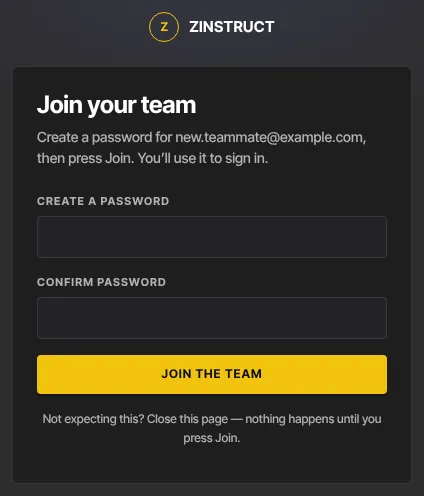
From then on they sign in on the normal sign-in page with their email and that password. See Sign in and sign out.
Inviting someone who already has a Zinstruct login
An address may already have a login: for example, a student at a school on Zinstruct, or someone who works in another workspace. For them, the Join your team page says "Press Join to add this workspace to" their email address. The fields read New password (optional) and Confirm password, with the note "You already have an account. Leave these blank to keep your current password." They click Join the team.
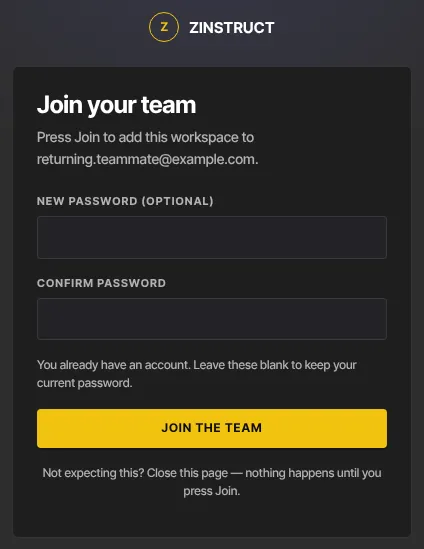
Joining takes them straight to your workspace. If they also work in another Zinstruct workspace, they keep it: they open their avatar menu (top right) and, under Workspaces, click the workspace they want. The one they're in has a tick. They stay in the workspace they last picked, even after signing out and back in.
Send a new invitation link
The link works once and expires after a while. There's no resend button, and inviting the same address again shows "That person is already a member." To send a fresh link:
- On Team, click Manage next to the person.
- In the Remove panel, leave the "Email … to let them know they’ve been removed" box unticked and click Remove from team.
- Back on Team, invite the same address again, with the same role.
What happens next
- After joining, your teammate lands on the Dashboard with the role you chose. What they can do depends on that role. See Team and roles.
- If your workspace requires two-factor authentication, they're asked to set up an authenticator app before they can carry on. See Two-factor authentication.
- An invitation uses a team seat only once they join. If no seat is free when they press Join the team, the page says "This workspace has no free team seat on its plan right now…", and their link keeps working: once a seat is free (or the owner upgrades), they press Join the team again.
- Changed your mind before they join? Remove them from the team. If they then press Join the team, the page says "That invitation was withdrawn. Ask whoever invited you to send a new one."
Common errors
- "Team members is included from the Core plan up. Subscribe in Settings → Billing to unlock it.": the workspace is still on its free trial. The owner subscribes in Subscription & billing, then you can invite.
- "Enter a valid email address.": check the address for typos.
- "That person is already a member.": they're already on your team, perhaps from an earlier invitation. To send a new link, remove them and invite them again (see above).
- "You've reached your … plan's limit of … team members. Upgrade in Settings → Billing to add more.": every team seat is taken. Remove a teammate who no longer needs access, or ask the owner to upgrade.
- "Too many attempts. Please wait a few minutes and try again.": you've sent a lot of invitations, or several to the same address, in a short time. Wait, then try again.
- "We can’t send email right now. Please try again in a few minutes.": a temporary problem on our side. Try again shortly.
- "Could not send the invitation email, so nothing was saved. Please try again.": the email couldn't be delivered, perhaps because an earlier email to that address bounced. Check the spelling, or use another address.
- "Could not invite that email. Please try again.": try again in a moment.
- "Only owners and admins can invite members.": you're signed in as Staff or a Viewer.
- "Your free trial has ended, so your workspace is read-only…": the owner needs to subscribe in Subscription & billing.
Messages your teammate might see on the Join your team page:
- "Use at least 8 characters" or "Passwords don’t match": they fix the password fields and press Join the team again. The link still works.
- "That invitation has expired or was already used. Ask whoever invited you to send a new one.": send them a new link (see above).
- "That invitation link is incomplete. Ask whoever invited you to send a new one.": their email app cut the link short. Send a new one.
- An error about their password after pressing Join the team: they've joined, but the password didn't save. They can set one with Forgot password? on the sign-in page.