The admin app at app.zinstruct.com is where you build and run your school. The sidebar on the left takes you to each part of it, the search box at the top finds any product, lesson or contact, and the account menu at the top right holds your own settings and Sign out. Use this article to find your way around on your first day, or to work out where something lives.
Who can do this
- Every team member sees the same sidebar, search box and Dashboard: owners, admins, staff and viewers. Nothing in the sidebar is hidden by role or plan.
- Some pages the sidebar links to are for owners and admins only. Everyone else sees a message there instead, such as "Only owners and admins can manage the team." on Team or "Only owners and admins can view integrations." on Integrations.
- Viewers can open every other page but can't save changes. A save shows "You don’t have permission to do that."
- Your students don't use the admin app. If a student signs in here, they're taken to their library instead.
Move around with the sidebar
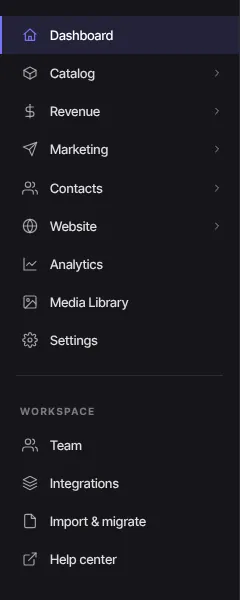
- Click a section in the sidebar to open its main page. From the top:
- Dashboard: your workspace at a glance (see below). - Catalog: all your products, with Courses, Consulting, Community, Podcasts, Newsletters and Files under it. - Revenue: Offers, Transactions, Memberships, Cancel flows, Discounts, Cart, Invoices, Affiliates and Tax. - Marketing: Email (broadcasts, sequences, templates and events), Funnels, Forms and Automations. - Contacts: All people, Segments, Imports and Tags. - Website: Website Pages, Landing Pages, Blog, Navigation, Domain, Style Guide and Site Details. - Analytics, Media Library and Settings.
- Click the arrow beside a section to show or hide the pages under it. Several sections can be open at once.
- At the bottom, under Workspace, are Team, Integrations, Import & migrate and Help center.
- To make more room, click the panel button at the top left, next to the logo, or press
⌘\(Mac) orCtrl+\(Windows). The sidebar shrinks to icons; do the same again to bring it back. Your browser remembers the choice.
On a phone or a narrow window, the sidebar becomes a strip across the top of the page that scrolls sideways.
Your Dashboard
Click Dashboard to see your workspace at a glance. The heading says "Welcome to" your workspace name.
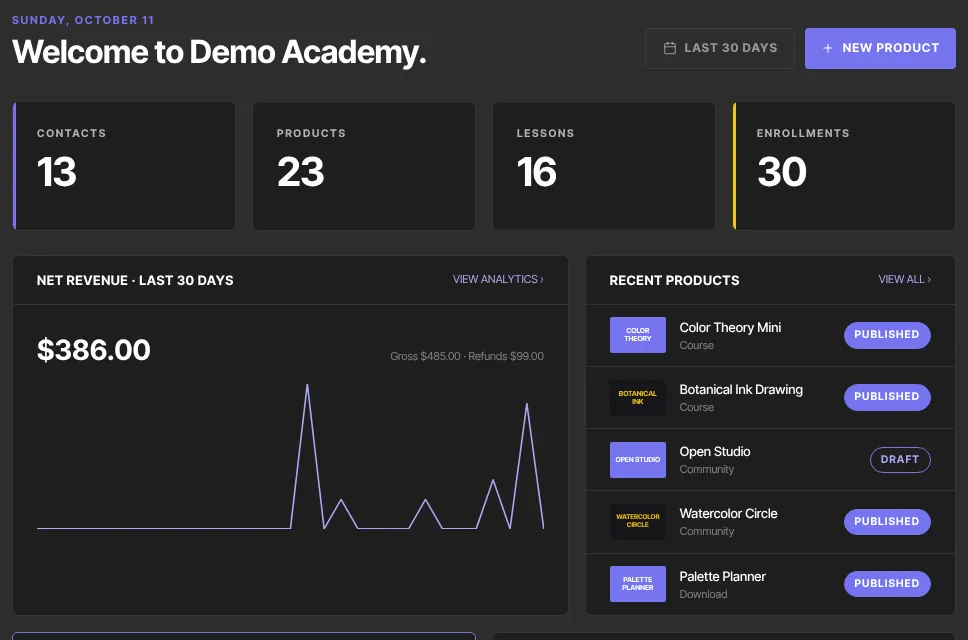
- Contacts, Products, Lessons and Enrollments: how many you have in total.
- Net revenue · last 30 days: a chart of your paid sales, with Gross and Refunds beside the title. VIEW ANALYTICS opens Analytics.
- Recent products: your five newest products. VIEW ALL opens your Catalog.
- Your AI Advisor: the top three points from your latest AI Advisor report, each linking to that area of the report, and SEE THE FULL REPORT. Before your first report it offers Run your first report. The card only shows a saved report; it never runs one.
- Quick create: shortcuts to New course, Add contact, New segment, Import contacts, Add a lesson and Media library.
- Recent activity: your six latest transactions. VIEW ALL opens Analytics.
- New product at the top right starts a new product of any type. The Last 30 days label beside it isn't a button; the revenue chart always covers the last 30 days.
Find anything with search
- Click the search box at the top of any admin page ("Search products, contacts, lessons…"), or press ⌘K (Mac) or Ctrl+K (Windows) from anywhere in the admin app.
- Type part of a product title, a lesson title, or a contact's name or email, and press Enter.
- The results page lists matches under Products, Lessons and Contacts, with how many of each.
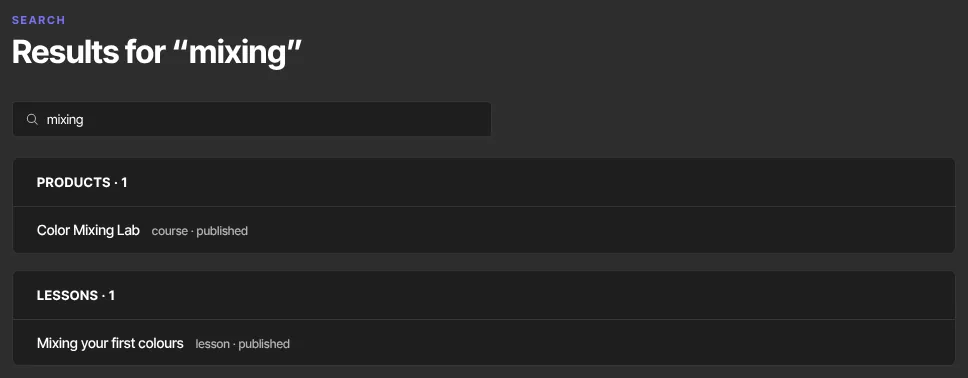
- Click a result to open it. A product or lesson opens in the builder; a contact opens their contact record.
Search finds your text anywhere in the title, name or email, and capital letters don't matter. It shows up to 20 results of each kind. It doesn't look at offers, pages, emails or anything else: use the list on each section's own page for those.
The account menu
Click your email at the top right to open the account menu. It shows who you're signed in as, a Workspaces list if you belong to more than one workspace, your account settings (Account details, Sign-in & security, Appearance, Notifications and more), and Sign out. Find your way around Settings explains each item.
What happens next
- Moving around the app changes nothing. Pages show your latest data each time you open them.
- Whether the sidebar is shrunk to icons is remembered in each browser, so another computer starts with the full sidebar.
Common errors
- "No matches for “…”.": nothing in your products, lessons or contacts contains that text. Check the spelling or type fewer letters. Search doesn't cover offers, pages or emails.
- "Only owners and admins can manage the team.", "Only owners and admins can view integrations." or "Only owners and admins can run imports.": your role can't use that page. Ask an owner or admin.
- "You don’t have permission to do that.": you're signed in as a viewer, who can look but not change anything.
- "Your free trial has ended, so your workspace is read-only. …": you can still look around. Subscribe in Settings → Billing to make changes again.
- "We couldn't find that page": the address doesn't exist, for example one typed by hand. Click Go to dashboard, or use the sidebar.
- "Access paused": an admin has paused your access to this workspace. Contact your team owner.