Your workspace name is how your school is labelled inside the admin app. Your web address is the free yourname.zinstruct.com address where your school's site and member area live. You picked both when you set up your workspace, and you can change either one at any time.
Who can do this
- Owners and admins can rename the workspace and change its web address.
- Staff and viewers see the same Workspace panel on the Settings page, but clicking Save shows "Only owners and admins can rename the workspace." and nothing changes. On the Domain page they get "You don’t have permission to change the address."
- Connecting a domain you own needs a paid plan. See Plans and billing.
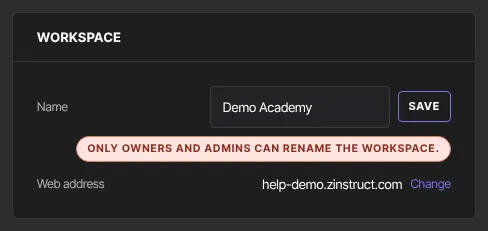
Rename your workspace
- Click Settings in the sidebar. The page is titled Workspace settings (
/settings). - In the Workspace panel, type the new name in the Name box. You can use up to 80 characters.
- Click Save. The button reads Saving…, then a green Saved badge appears.
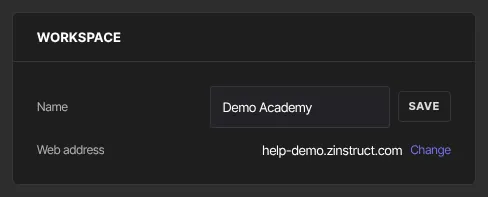
The new name shows straight away in the top bar of the admin app.
Renaming doesn't change the name visitors see on your public site. That's the Site title in Website → Site details, which started out as your workspace name.
Change your web address
- On the Settings page, find Web address in the Workspace panel and click Change. Or go to Website → Domain (
/website/domain). - In the Your address panel, type a new handle in the box before
.zinstruct.com. Use 3 to 63 characters: letters, numbers and hyphens. - Click Save. A green Saved badge appears.
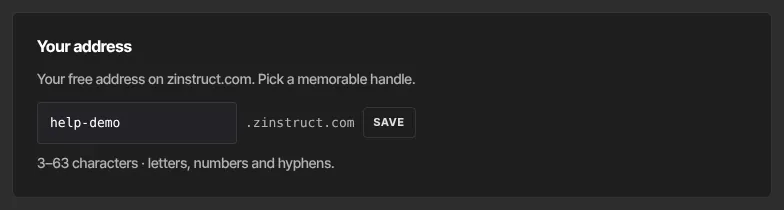
Capital letters become lowercase, and spaces and other symbols become hyphens, so "My School" is saved as my-school. A handle longer than 63 characters is cut to 63.
Your site answers at the new address right away. The old address stops working, and someone else can then claim it, so update any links you've shared. Links in emails your members already received, such as receipts, also stop working.
When your own domain is connected
Once a custom domain is live (Active), the Settings page shows it as your Web address, and the Your address panel shows it, marked Primary. Your free address is listed under it as Reserved · redirects here and can't be edited. That keeps it safe from anyone else, and old links to it keep working. To change the handle, disconnect your custom domain first. While a connected domain is still Pending DNS, the handle can still be changed.
Connect your own domain
On a paid plan you can use a domain you own, like courses.yourbrand.com, from the same Domain page. See Connect a custom domain.
What happens next
- Everyone on your team sees the new workspace name the next time a page loads.
- A new web address applies at once to your site, your blog and your member sign-in page.
- No email is sent to you or your members about either change.
Common errors
- "Enter a workspace name.": the Name box only had spaces in it. Type a name.
- "Only owners and admins can rename the workspace.": you're signed in as staff or a viewer, so ask an owner or admin. If you are the owner and still see this, your free trial has ended and the workspace is read-only. Subscribe in Settings → Billing, then try again.
- "Could not rename the workspace.": a temporary problem. Try again.
- "Use at least 3 characters." or "Use at least one letter.": change the handle so it fits the rules.
- "That address is already taken.", "That address is reserved." or "That address isn’t available.": pick a different handle.
- "Your custom domain is live, so your free address is reserved for you and redirects to it. Disconnect the custom domain to change it.": see "When your own domain is connected" above.
- "Your free trial has ended, so your workspace is read-only. Subscribe in Settings → Billing to start creating again — nothing has been deleted.": choose a plan in Settings → Billing, then change the address.
- "You don’t have permission to change the address.": only owners and admins can change it.
- "Could not update your address.": try again in a moment.