Your site always works at its free yourname.zinstruct.com address. On a paid plan that includes custom domains, you can also serve it from a domain you own, such as courses.yourbrand.com. You connect the domain here, add a few records where your domain's DNS is managed, and verify. Once it's live, your free address forwards to it.
Who can do this
- Owners and admins can connect and disconnect a domain. Anyone on your team can click Verify connection.
- Staff who try to connect see "You don’t have permission to manage the domain." Disconnect shows "You don’t have permission to do that."
- Connecting needs a plan that includes custom domains. Without one, the Domain page shows a Custom domain card with Choose a plan, and the Custom domain panel shows Upgrade to connect a domain instead of the form. Your free address keeps working. See Plans and billing.
- Disconnecting is allowed on any plan, except while your workspace is read-only because its free trial has ended.
- A workspace has one custom domain. To switch to a different one, disconnect the current domain, then connect the new one.
- To change your free
.zinstruct.comaddress instead, see Workspace name and web address.
Connect your domain
- Go to Website → Domain (
/website/domain). - In the Custom domain panel, type the exact address you want into Connect a domain you own, for example
courses.yourbrand.comoryourbrand.com. Leave outhttps://and anything after the domain. Already have a website you want to keep? Enter a subdomain such asmembers.yourbrand.com, neveryourbrand.comitself: see Already have a website? below. - Click Connect domain. It reads Connecting… while it works.
- The panel now shows your domain, its status (Pending DNS until it's verified), a setup guide and the records to add.
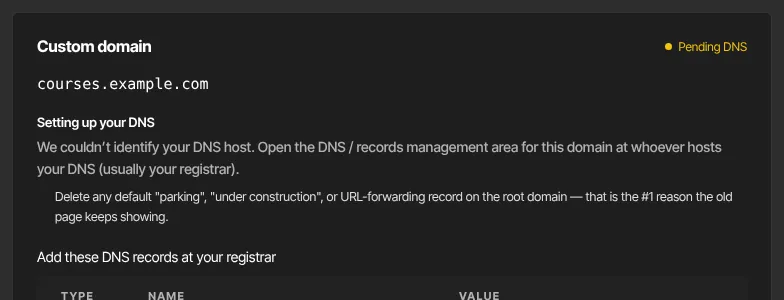
Only the exact address you enter is connected. yourbrand.com and www.yourbrand.com are different addresses, so connect the one you'll share. To send the other one to it, set up forwarding for it where you bought the domain.
Which address should I use?
Until you connect a domain, the yellow Which address should I use? card beside the Custom domain panel answers this in three cases:
- No website, no domain: skip Custom domain and use your free
YourHandle.zinstruct.comaddress. - Own a domain, no website: add your main domain, such as
yourdomain.com, to the Custom domain field, then build your site with Zinstruct's website builder. - Have a working website: add your subdomain + domain, such as
members.yourdomain.com, to the Custom domain field, and link your website's buttons to it. See Already have a website? below.
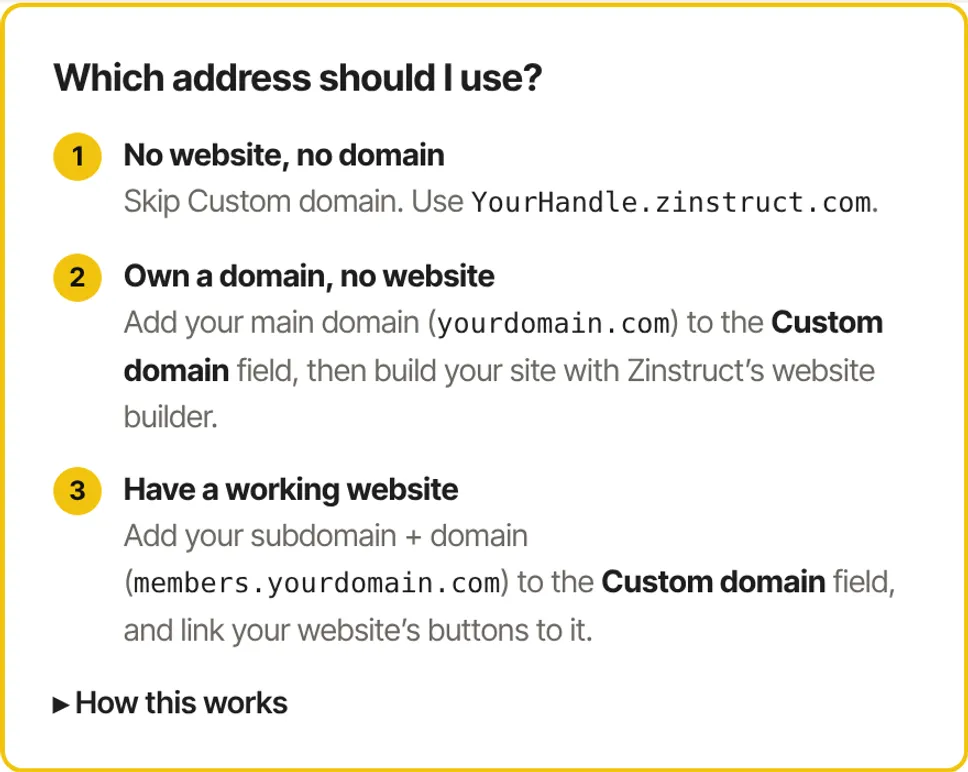
Click How this works in the card for a picture of case 3 and a link to the step-by-step guide (it opens in a new tab).
If you've told us your website's address (see Choose what people see at your address) and then type that same address into Connect a domain you own, a warning says "That’s your website’s address. Connecting it would replace your website." Click Use members.… to switch to the suggested subdomain, or Connect … anyway if you really mean to move your website here.
Add the DNS records
- Sign in wherever your domain's DNS is managed, usually the company you bought the domain from. When we recognise it from your domain's nameservers, the panel says Setup guide for that company and where to find its DNS settings.
- Do any clean-up the guide lists first, such as deleting a parking or forwarding record.
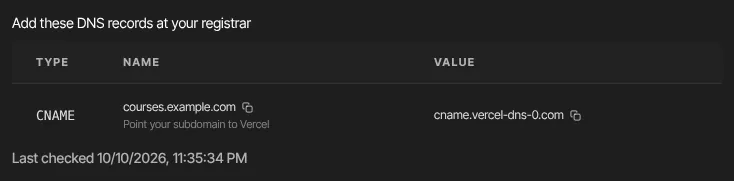
- Add each row of the Add these DNS records at … table with the Type, Name and Value shown. Click a name or value to copy it. A root domain like
yourbrand.comneeds A records (usually two, one row each), a subdomain likecourses.yourbrand.coma CNAME record, and some domains also need a TXT record that proves you own it. Use the values shown on your domain page: they're the ones Vercel, our hosting provider, recommends for your domain, so don't copy them from anywhere else.
- The Name column shows exactly what to type in your host's Name or Host box: @ for the root domain, courses for courses.yourbrand.com, _vercel for the ownership TXT record. The notes under the table give each record's full name and what it does. Most hosts add your domain themselves, so typing the full name would double it. - Step-by-step screens for Cloudflare, GoDaddy, Namecheap, Domain.com, Hostinger, Bluehost and DreamHost are in Add your domain records at your domain host.
- Open Common gotchas (all providers) and check each point, such as removing old AAAA records and leaving your email (MX) records alone.
Verify the connection
- After adding the records, click Verify connection. It reads Verifying….
- You'll see "Verified — your domain is connected." and the status changes to Active, or "Not connected yet — the DNS records above weren’t detected. They can take up to the record’s TTL to propagate." If so, wait and try again later. Last checked shows when we last looked.
Nothing re-checks on its own: your domain goes live only when someone clicks Verify connection after the records have spread. Until then it stays Pending DNS and visitors to it don't see your site. If the records already pointed at us when you connected, it goes straight to Active.

Once your domain is live
- Your site, blog and landing pages answer at your domain, and visitors can sign in to their courses there.
- Anyone who visits your free address is forwarded to the same page on your domain.
- Your address shows your domain marked Primary, and your free address as Reserved · redirects here. It can't be changed while your domain is connected, so nobody else can take it and old links keep working.
- The secure (https) certificate is set up for you. If a browser warns about the certificate in the first few minutes, wait and reload.
- It can take up to a minute for the forward to start everywhere, and the same after you disconnect.
- Member emails link to your domain from now on. Members already signed in at your free address sign in once more on your domain.
- Settings → Workspace shows your domain as your Web address.
- If you change to a plan without custom domains, or cancel, a connected domain keeps working. Only connecting a new one needs the plan.
Disconnect a domain
- Click Disconnect in the Custom domain panel. It happens at once, without asking.
- Your domain stops showing your site, and your free address serves it again and can be edited.
Choose what people see at your address
The Your website and member area panel, under Custom domain on this page, asks two questions. Your member area's address (your connected domain once it's verified, otherwise yourname.zinstruct.com) shows in the second question, When someone opens …. Click Save after changing either. Your other pages, checkout links and member sign-in keep their own addresses and work whichever you choose.
Do you already have a website you want to keep?
- No, I’ll build my website with Zinstruct: your website, sign-in, courses and checkout all live at one address. Own a domain such as
yourname.com? Connect it under Custom domain. No domain? Useyourname.zinstruct.com. Only own a domain name, with no website built yet? This is your answer. - Yes, I have a website built on Squarespace, WordPress, Wix or similar: keep it. Zinstruct becomes your member area, usually on a subdomain such as
members.yourname.com, and your website's buttons link to it. Enter Your website address, starting with https://. The panel then shows your two addresses side by side: Your website, and Your member area (your verified domain, the domain you're connecting, or a suggestedmembers.subdomain of your website until you connect one). Below them, Links to add on your website has a copy button.
When someone opens your address:
- Show my Home page (recommended when your website is here): people see the Home page you built here. Your header's LOG IN link takes members to sign-in.
- Show the sign-in / join page (recommended when your website is somewhere else): your address opens the Join page, where new people enter their email to create their free account. Members tap Already a member? Sign in. Your other pages and blog stay public; lock pages with Members only.
- Show a different page: one of your other pages instead of Home, such as a sales or launch page.
- Send them to your website (only when your website is somewhere else): people are sent to your website. Members then reach sign-in only through the Log in link on your website.
To show a different page:
- Under When someone opens, choose Show a different page. A second box, Page to show, appears.
- Pick the page. It lists your website pages and landing pages except Home, with drafts marked "— draft". If you have none yet, it says "Create a page or landing page first."
- Click Save. A green Saved badge appears beside the button.
Your Zinstruct address then shows that page: a landing page without your header and footer, a website page inside them. It keeps its own address too. Until it's published, or if it's later unpublished or deleted, visitors see your Home page instead. If it's members-only, visitors sign in first and come back to your root.
Already have a website?
You don't have to build your site here. If you already have a built website you want to keep, not just a domain name, keep it where it is and use Zinstruct for members, courses and checkout. Until you connect a domain, the Which address should I use? card beside the Custom domain panel sums this up (case 3): click How this works in it for the picture and a link to the step-by-step guide.
The key is the address: connect a subdomain of your website's domain, such as members.yoursite.com, not your main domain. Your website stays at yoursite.com, and its buttons (Member login, Join) link to members.yoursite.com, where your courses and member area live.
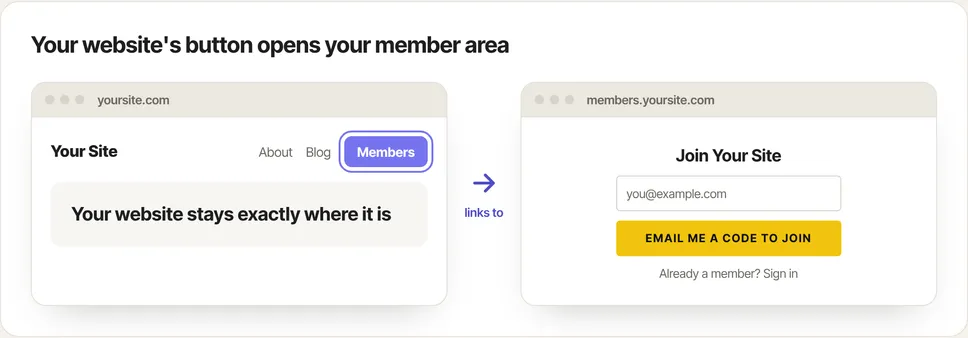
Any name works for the subdomain. Popular ones are members, learn, courses, course, community, class and subscribers.
Connect your own website to Zinstruct walks through it with pictures; in short:
- Connect your subdomain, such as
members.yoursite.com, in the Custom domain panel (see Connect your domain above). Your main website stays where it is. Don't connect your main address, such asyoursite.com: that would show this site there instead of your website. You can also skip this step and use your freeyourname.zinstruct.comaddress. - Under Your website and member area, answer Yes, I have a website built on Squarespace, WordPress, Wix or similar and enter Your website address, starting with https://.
- Under When someone opens, keep Show the sign-in / join page (recommended), and click Save.
- On your own website, add a Log in / Join button that links to your subdomain (the panel shows it with a copy button), and link your Buy buttons to each offer's Checkout link. To collect sign-ups, embed a form: see Form defaults, bot protection and embedding a form.
With Your website address filled in, people can always get back to it:
- the member area's top bar shows a ← <your site title> website link;
- the sign-in page shows ← Back to <your site title> website under the sign-in box;
- your checkout and cart pages show ← Back to <your site title> website under your logo. The pages buyers see right after paying (upsell and downsell offers) don't, so nothing pulls them away mid-purchase.
What happens next
- No email is sent when a domain connects, goes live or is disconnected.
- Links you've shared using your free address keep working through the forward.
Common errors
- "Enter a domain like courses.example.com (no http://, no path).": type just the domain.
- "Enter your own domain, not the platform domain.": you entered the address our records point to. Use a domain you own. An address ending in
.zinstruct.comis already yours: change it under Your address instead. - "That domain is already connected to another site.", or an error saying the domain is already in use: it's connected to another Zinstruct site or another service. Disconnect it there first, or contact support.
- "Could not connect the domain.": nothing was connected. Try again in a moment.
- "Your free trial has ended, so your workspace is read-only…": subscribe in Settings → Billing to connect, change or disconnect a domain.
- "No records yet — re-check status." in the records table: click Verify connection to load them.
- Your records are right but the domain shows nothing: click Verify connection. A domain goes live only when it's verified.
- "Custom domain is included from the Core plan up. Subscribe in Settings → Billing to unlock it." or "Custom domains are available on a paid plan. Upgrade to connect your own domain — your free subdomain keeps working.": choose a plan in Settings → Billing.
- "We couldn’t reach the domain service to verify — nothing changed. Try again in a moment.": a temporary problem on our side. Try again shortly.
- "Not connected yet — the DNS records above weren’t detected…": the records haven't been found yet. Check them against the table, then wait.
- "You don’t have permission to manage the domain.": only owners and admins can connect a domain.
- The www (or non-www) version of your domain shows nothing: only the exact address you connected works. Share that one.
- The old page, a parking page or "too many redirects" shows: an old record, parking or forwarding is still in place, or Cloudflare's proxy is on. See Add your domain records at your domain host.
- "Choose the page to show on your homepage.": you chose Show a different page without picking a page. Pick one in Page to show and click Save again.
- Your address still shows Home after choosing another page: the chosen page is a draft. Publish it.
- "Add your website address to send visitors there.": you chose to send people to your website with Your website address empty. Enter it and save again.
- "Please fix the highlighted fields." after adding your website: the address must be complete and start with https://, such as
https://yourwebsite.com.