Some form settings apply across all your forms. Global form settings hold the default fields new forms use and the bot check that guards your forms and quizzes. The Embed tab on each form gives you code to put that form on a website outside Zinstruct. And every form has its own page on your site, which embedded forms use.
Who can do this
- Global form settings: owners and admins. Staff and viewers see only "Only owners and admins can change this."
- Embed tab: everyone on your team can open it and copy the code.

Change the default fields
- Go to Marketing → Forms and click Global form settings (
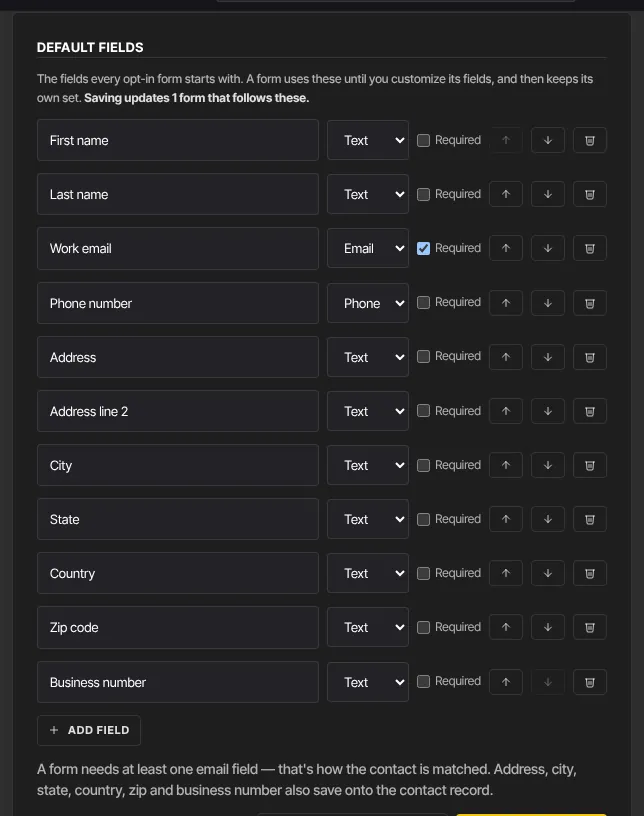
/marketing/forms/settings). - In Default fields, edit the rows: label, Text, Email, Phone, Message (several lines) or Dropdown (with its Choices, one per line), Required, move or remove. Add field adds a row.
- The panel tells you how many forms follow the defaults, for example "Saving updates 2 forms that follow these."
- Click Save default fields.
Every form that uses the defaults changes straight away, including forms already on your pages. Reset to standard fields puts back the original set: First name, Last name, Work email, Phone number, Address, Address line 2, City, State, Country, Zip code and Business number. Click Save default fields afterwards to keep it.
Turn on the bot check
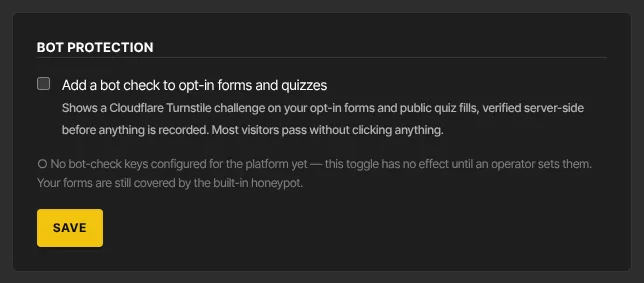
- In Bot protection, tick Add a bot check to opt-in forms and quizzes.
- Click Save.
- Read the status line under the box. "● Ready — the bot check is active on your site when this is on." means it's working. If it says anything else, the check isn't running on your site yet: contact Zinstruct support from the help menu.
With the check on, visitors see a quick Cloudflare check on your opt-in forms and quiz funnels; most pass without clicking anything.
Embed a form on another website
- Open the form and click the Embed tab.
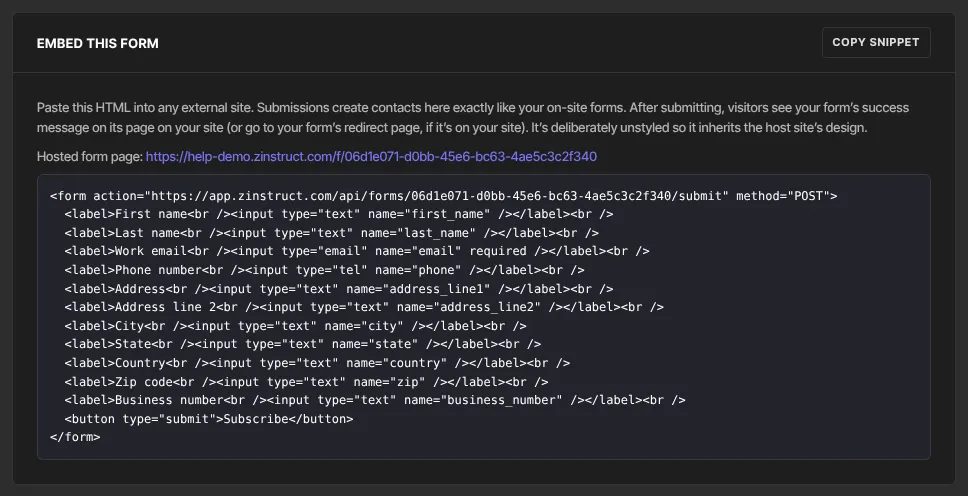
- Under Embed this form, click Copy snippet. It changes to Copied!.
- Paste the code into the other website's HTML.
- Bot check off: the code is a plain, unstyled form with a Subscribe button, so it takes on the other site's look. After submitting, visitors land on the form's own page on your site with your success message, or on your redirect page if that's on your site.
- Bot check on: the code is a frame that shows the form's own page from your site, check included. If you embedded the plain version before turning the check on, replace it: submissions from the old code are refused, and visitors land on the form's page with "Sorry — that didn't go through" so they can try again there.
The form's own page
Every form has its own page on your site, at /f/ followed by the form's ID, such as https://yourname.zinstruct.com/f/…. The Embed tab shows it as Hosted form page. It shows just the form, with a Subscribe button, so you can also link to it directly. Search engines are asked not to list it.
What happens next
- Default field changes apply at once to every form that follows them.
- Embedded submissions create and update contacts, tag them and start automations exactly like forms on your own pages.
- The bot check also covers your quiz funnels' public pages.
Common errors
- "Only owners and admins can change this.": ask an owner or admin.
- "The default set needs an email field." or "Add at least one field.": keep an Email field in the defaults.
- "Label is required.": a row has no label.
- "Could not save." or "Could not read the fields.": reload the page and try again.
- Visitors from your embedded form see "Sorry — that didn't go through. Please check your details and try again.": a required field was empty, the email was invalid, the check failed, or you're still using the plain code with the check on.
- Visitors from your embedded form see a page that isn't found: the form was deleted.