A quiz funnel asks visitors a few questions, one screen at a time, and turns the people who give their email into contacts. It's a friendlier opt-in than a plain form: a "which set suits you" quiz tells you about your audience and gives people a reason to answer. You can score answers, send people to different results, and email each person their result.
Who can do this
- Owners, admins and staff can build, publish, duplicate and delete quizzes. Staff can delete a quiz and all its responses too.
- Viewers can open every tab and the results, but can't change anything. Most buttons show "You don’t have permission for this."; the step arrows, Duplicate quiz and the delete buttons simply do nothing.
- Creating or duplicating a quiz needs the Advanced plan or higher. On a lower plan, the Quiz Funnels list shows a Quiz Funnels panel with Choose a plan instead of New quiz. Quizzes you already have stay editable and publishable.
Create a quiz
- Go to Marketing → Funnels, open the Quiz Funnels tab (
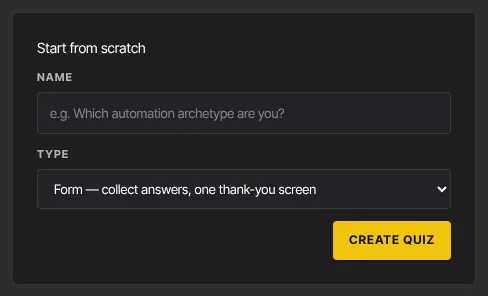
/marketing/quiz-funnels) and click New quiz. - Under Start from scratch, enter a Name and choose a Type: Form — collect answers, one thank-you screen, Scored quiz — points per answer, final score, or Outcome quiz — answers route to a result.
- Click Create quiz. It starts with a Welcome screen, one multiple-choice question and an Ending.
Or, under Create with AI, describe your quiz in Describe your quiz (a sentence or two, up to 4,000 characters) and click Generate with AI. You get a draft quiz to edit.
Add steps and questions
The Content tab lists your steps on the left. Click one to edit it on the right.
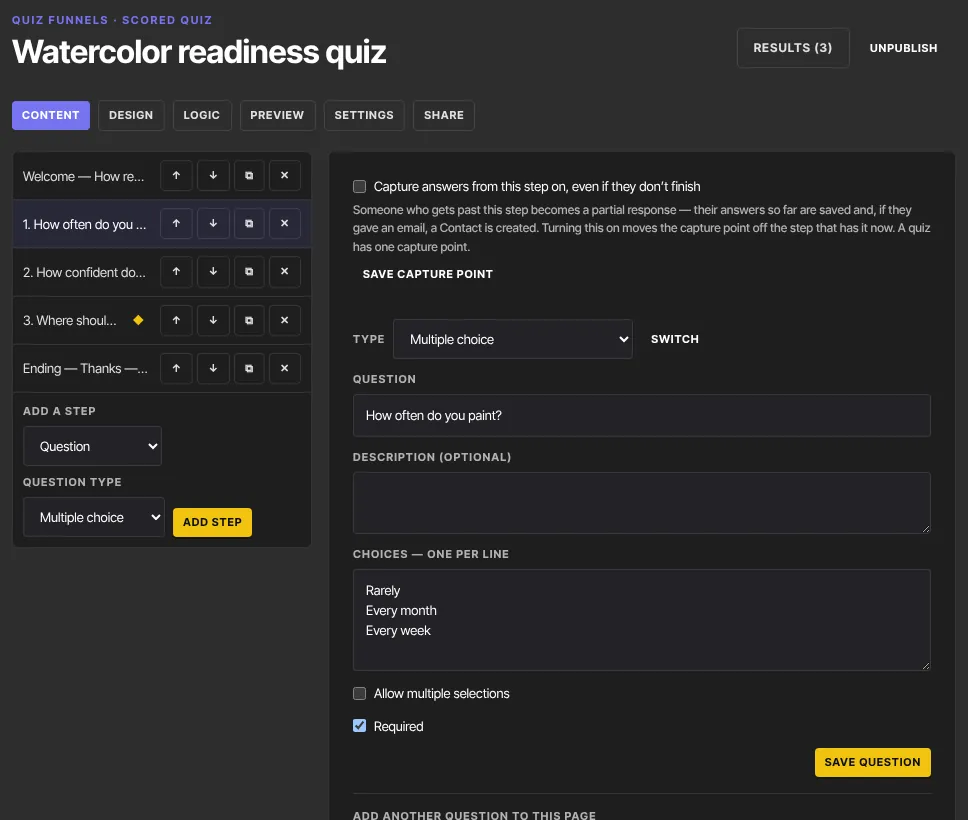
- Under Add a step, choose Question, Contact form, Statement, Welcome screen or Ending. For a question, choose a Question type: Multiple choice, Dropdown, Yes / No, Checkbox, Short text, Long text, Number, Rating or Opinion scale. Click Add step.
- Select the step. Fill in Question, Description (optional) and the type's own options, such as Choices — one per line and Allow multiple selections. Tick Required if it must be answered, then click Save question.
- To change a question's type, pick it next to Type and click Switch. To show several questions on one screen, use Add another question to this page and Add to page.
- Use ↑ ↓ to reorder steps, ⧉ to duplicate and ✕ to delete.
- Contact form: set First name, Last name, Email, Phone, Company and Website to Hidden, Optional or Required. Keep Add respondent to Contacts ticked to create or update a contact.
- Statement: a message between questions, with its own Button label.
- Welcome screen and Ending: Heading and Body, a Button label on the welcome screen, and on an ending an optional Redirect URL and a result email. Click Save screen.
Set the capture point
- Select the step from which answers should be kept even if people don't finish.
- Tick Capture answers from this step on, even if they don’t finish and click Save capture point. The step shows ◆ in the list. A quiz has one capture point.
A partial response becomes a contact once the person has given their email, on the capture step or any later one. People who stop before giving it stay anonymous.
Design, preview and settings
- Design: typefaces, text size and colours (blank uses your site theme), then Save design.
- Logic: scoring, outcomes and branching. See Quiz scoring, outcomes and branching.
- Preview: try the draft, logic and scoring included. Nothing is recorded.
- Settings: Rename, then under Behavior: Quiz type, Show progress bar, Show question numbers, Question button text (blank shows "Next"), Email me when someone completes the quiz, Response limit (blank = unlimited), Close at (blank = never), Closed message and Hidden fields (web address parameters to store, such as utm_source). Click Save settings.
Publish and share
- Click Publish in the header. The quiz shows as Live.
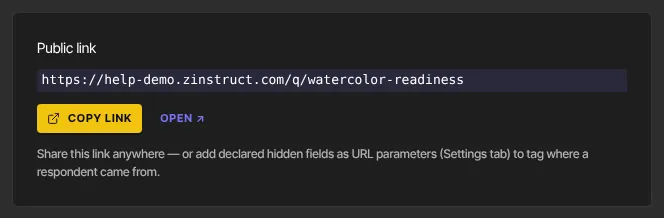
- Open the Share tab. Public link shows its address on your site, such as
https://yourname.zinstruct.com/q/your-quiz. Click Copy link or Open ↗. - Changes to steps, questions, logic and the quiz type reach visitors when you click Publish again. Design changes, and Settings such as the progress bar, button text, limit, close date and hidden fields, apply straight away.
Unpublish, duplicate or delete
- Unpublish in the header: the public link stops working, and anyone part-way through sees "This quiz is closed." when they finish. Responses are kept.
- Duplicate quiz (Settings tab, Danger zone): makes a draft "(copy)" with the steps and logic, but without the Design and Settings choices or any responses. Set those again.
- Delete, then Confirm delete quiz: permanently removes the quiz and all its responses. Automations that start from it stay Live but can't run again.
What happens next
- Respondents who give their email become contacts and, by default, join your marketing list. Turn off Subscribe respondents to marketing emails in the quiz's Settings tab if your quiz doesn't ask for that consent. See Quiz results, responses and leads.
- A quiz past its Close at time or Response limit shows your Closed message to visitors, but still shows as Live in your list.

Common errors
- "Name the quiz and pick a type.": fill in both.
- "Add at least one question before publishing.": add a question step.
- "Quiz Funnels is included from the Advanced plan up. Subscribe in Settings → Billing to unlock it.": your plan doesn't include quiz funnels.
- "Describe the quiz you want in a sentence or two.", "Keep the brief under 4000 characters." or "Could not generate the quiz — try again.": adjust the description and try again, or create it manually.
- "Check the settings — a value is invalid.": check the response limit and close date.
- "Set up your website first (Website → Site Details) — the quiz link lives on your site’s address.": open Website once to create your site.
- "Publish the quiz to get its public link.": publish first.
- "You don’t have permission for this.", or a button that does nothing: you're a viewer.