Every quiz funnel has a Results page with three views: Insights for completions and drop-off, Summary for how each question was answered, and Responses for each person's answers. This article also explains how respondents end up in your contacts, and how to follow up with them.
Who can do this
- Everyone on your team, viewers included, can open the results and export them.
- Owners, admins and staff can delete a response. For viewers, the ✕ button does nothing.
Open the results
- On the quiz's page, click Results (…) in the header, or click the number in the Responses column of the Quiz Funnels list.
- Choose a tab:
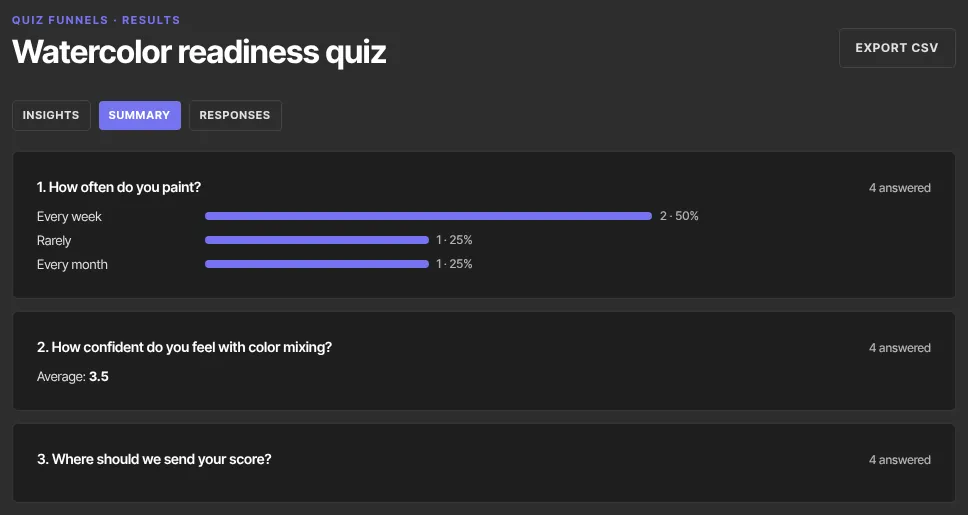
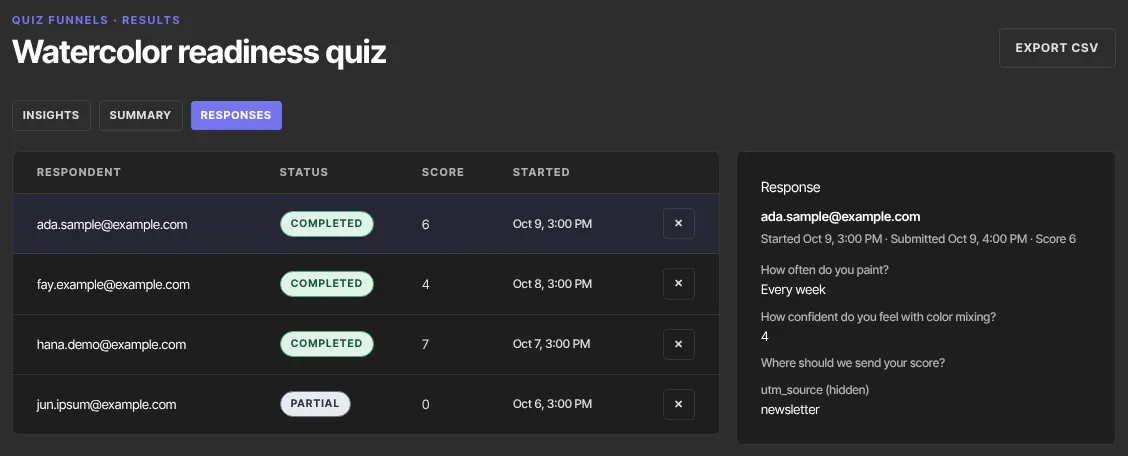
- Insights: Starts, Completions, Completion rate, Avg. time to complete, and Drop-off by question: of the people who saw each question, how many answered it. With branching, later questions are reached by fewer people, so read the Drop-off column. - Summary: each question with how often each answer was chosen, the average for number questions, and the latest text answers. - Responses: the latest 100, with Respondent (their email, or "Anonymous" and a short code), Status (started, partial or completed), Score and Started.
- On Responses, click a respondent to see every answer, their score and any hidden fields.
Export responses
- On the Results page, click Export CSV.
- A file named after the quiz downloads, such as "your-quiz-responses.csv". It holds up to the latest 5,000 responses, with one column per question plus your hidden fields.
Delete a response
- On the Responses tab, click ✕ on the row. It's deleted at once, with no confirmation.
The Results (…) count in the header and the Response limit still include deleted responses. Deleting test responses doesn't reopen a quiz that has reached its limit; raise or clear the limit on the Settings tab instead.
How respondents become contacts
- When someone gives their email in a Contact form step with Add respondent to Contacts ticked, they become a contact with the source "quiz". If the contact already exists, empty first name, last name and phone details are filled in; nothing already there is overwritten.
- By default a respondent who gives their email also joins your marketing list, so the Quiz funnel completed automation, sequences and broadcasts can reach them. If your quiz doesn't ask for that consent, turn off Subscribe respondents to marketing emails in the quiz's Settings tab: respondents are then saved as contacts but not subscribed, and marketing email won't reach them. Respondents captured before this setting existed stay as they were.
- To send someone their result or a freebie, use the ending's result email: it goes to everyone who gave an email. See Quiz scoring, outcomes and branching.
- Someone who passes the capture point and stops is saved as a partial response. If they gave their email, at the capture point or on a later step, they become a contact too.
- People who never give an email stay anonymous.
Follow up with automations
Two automation triggers start from a quiz: Quiz funnel completed and Quiz funnel abandoned after capture. In the target menu, pick your quiz (the default reads Any survey).
- Quiz funnel completed fires when someone finishes and gave their email.
- Quiz funnel abandoned after capture fires once per response, the first time someone moves on from a step at or after the capture point with their email given, whichever step they gave it on. It doesn't wait to see whether they finish, so someone who goes on to complete the quiz can start it too.
- Email actions and sequences reach respondents who joined your marketing list, which is the default. If Subscribe respondents to marketing emails is off, use actions such as Add a tag, Grant an offer or Register for an event, and send results with the ending's result email.
See Automation triggers and actions.
What happens next
- With Email me when someone completes the quiz ticked (Settings tab), you get a New form submission email each time someone finishes, when that notification is switched on. See Choose which notification emails you get.
- Responses appear on the Results page as soon as they're submitted.
Common errors
- "Unauthorized" when exporting: you were signed out. Sign in again.
- "Not found" when exporting: the quiz was deleted.
- A deleted response still counts toward the limit: change the Response limit on the Settings tab.
- Respondents aren't getting your sequence or automation email: Subscribe respondents to marketing emails is off for that quiz, or they were captured before the setting existed. Turn it on if your quiz asks for consent, or use the ending's result email.
- The abandoned trigger didn't fire for someone: they never gave their email, or left on the step where they typed it without moving on. It fires only once per response.