The Logic tab is what turns a quiz into more than a form. A scored quiz adds up points for each answer, an outcome quiz picks the result that best fits someone's answers, and branching rules skip people ahead based on what they chose. Each Ending can also email the person their result.
Who can do this
- Owners, admins and staff can change a quiz's logic. Viewers can read it; Save logic shows "You don’t have permission for this."
- Logic changes reach visitors when you click Publish again.
- The quiz Type decides which panels you see. Change it under Quiz type on the Settings tab. After changing it, check the Logic tab and save it again.
Score answers (Scored quiz)
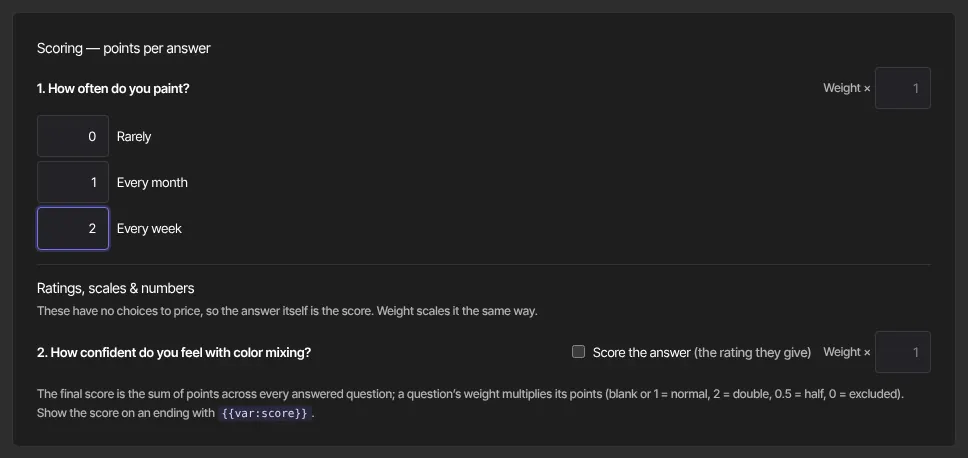
- Open the Logic tab. Under Scoring — points per answer, every multiple-choice and dropdown question lists its choices.
- Type the points for each choice. Values from −1,000 to 1,000 are saved; anything outside that is dropped.
- Optional: set a Weight × for a question: blank or 1 is normal, 2 doubles it, 0.5 halves it, 0 leaves it out (up to 100).
- Under Ratings, scales & numbers, tick Score the answer to use the answer itself as points: the number entered, the rating, the scale point, 1 for Yes and 0 for No, or 1 when a checkbox is ticked.
- Click Save logic.
The final score is the sum across every answered question. Visitors see it under the ending. Show it in an ending's text or result email with {{var:score}}.
Route answers to a result (Outcome quiz)
- On the Content tab, add an Ending for each possible result, and give each a heading. That heading is how the result is named in the Logic tab.
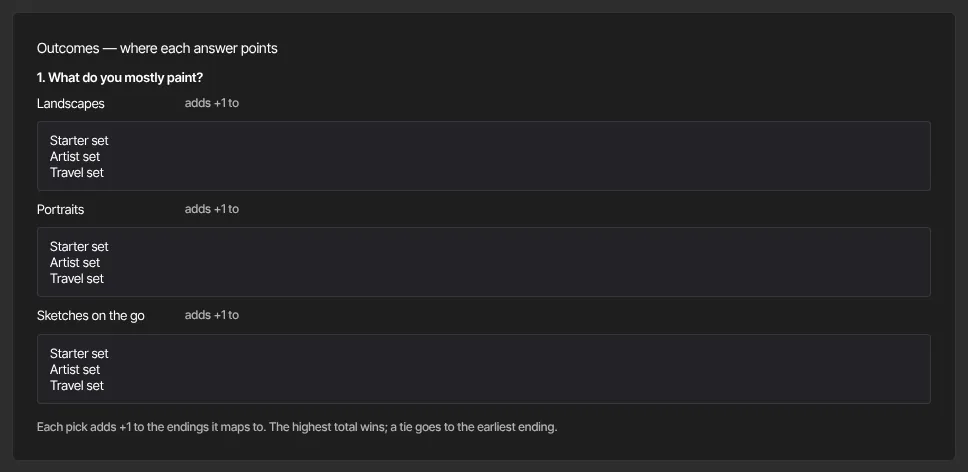
- On the Logic tab, under Outcomes — where each answer points, each choice has a list of endings. Pick the ending (or several) that the choice "adds +1 to".
- Click Save logic.
The ending with the highest total wins. A tie goes to the earliest ending. The panel asks for at least two endings and a choice question first.
Skip ahead with branching
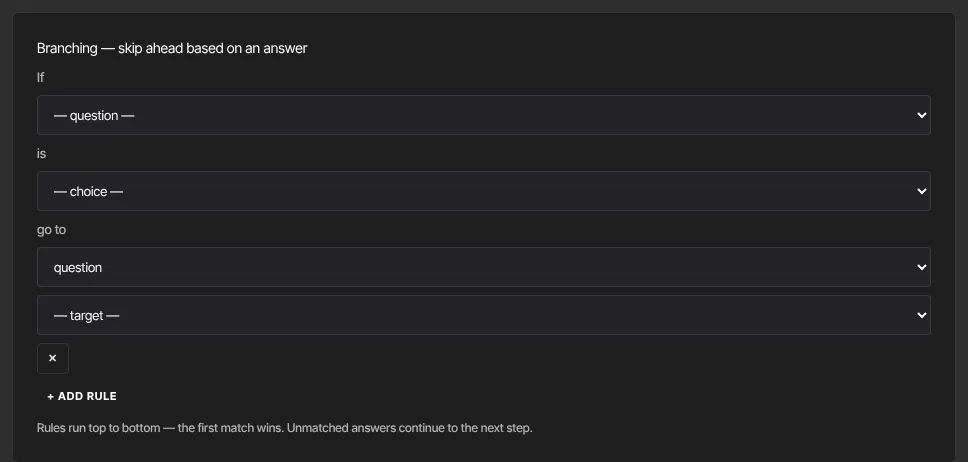
- Under Branching — skip ahead based on an answer, click + Add rule.
- Build the rule: If a question is a choice, go to a question or an ending, then pick which one.
- Add more rules as needed; ✕ removes one. Click Save logic.
Rules run top to bottom, and the first match wins. Answers that match no rule carry on to the next step. A rule missing its question, choice or target is dropped when you save. Branching works with multiple-choice and dropdown questions.
Email each person their result
- On the Content tab, select an Ending.
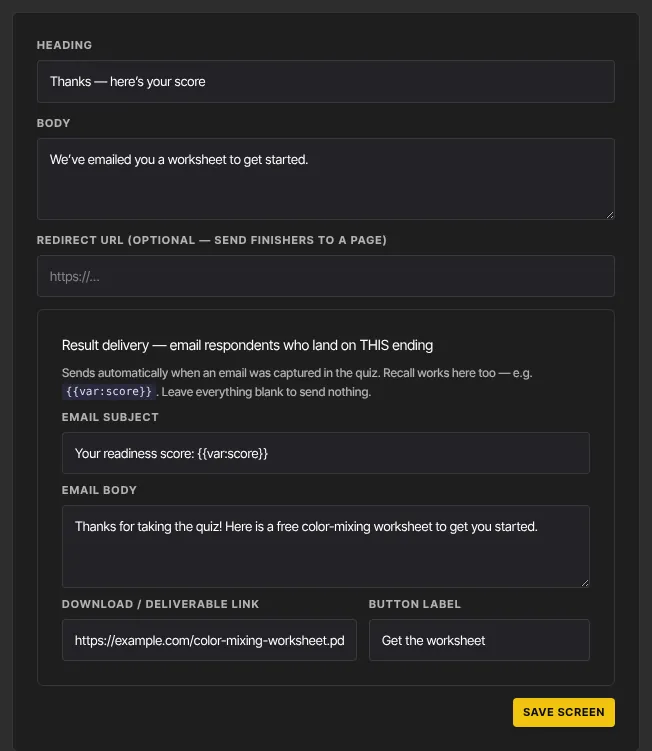
- Under Result delivery — email respondents who land on THIS ending, fill in Email subject, Email body and, if you have one, a Download / deliverable link with its Button label.
- Click Save screen.
It sends automatically when the person gave their email. Leave everything blank to send nothing. Without a subject it reads "Your … results", and the link button reads "Get your download" unless you name it. {{var:score}} and hidden fields such as {{hidden:utm_source}} work here too. This email goes to everyone who gave an email, whether or not they're subscribed to your marketing, so it's the reliable way to deliver a result or a freebie.
What happens next
- Each response's score and ending are worked out on our side when it's submitted, using the version that was published when the person started.
- The Responses tab of the results shows each person's score. See Quiz results, responses and leads.
- An ending with a Redirect URL sends the person to that page instead of showing the ending.
Common errors
- "Could not save the logic.": try again in a moment.
- "Add at least two endings on the Content tab — each outcome is an ending.": add another Ending.
- "Add a question with choices (multiple choice or dropdown), or a rating, scale, number or yes/no question, to score answers.": add a scorable question.
- Points disappeared after saving: the value was above 1,000 or below −1,000, or the quiz type was changed.
- Visitors still see the old logic: click Publish again.