A funnel is a short path of pages that leads a visitor to one goal: joining your list, registering for a webinar, applying to work with you, or buying. Instead of building each piece by hand, you pick a blueprint, and Zinstruct creates the pages, form, email sequence and automation for you, already wired together as drafts. Or pick Blank and add your own steps. You then customise everything and publish the funnel.
Who can do this
- Owners, admins and staff can create, rename and publish funnels, and add, move and remove their steps. Only owners and admins can delete one.
- Viewers can open funnels. Create funnel and Add step show "You don’t have permission for this."
- Creating a funnel needs the Advanced plan or higher. On a lower plan, Marketing → Funnels shows a Funnels panel saying it's included from the Advanced plan up, with a Choose a plan button instead of New funnel. Funnels you already have stay listed, editable and publishable. See Plans and billing.
- Each step you add is a landing page, so it counts toward your plan's limit of landing pages.
Create a funnel
- Go to Marketing → Funnels (
/marketing/funnels) and click New funnel. - On Choose a blueprint, type a Funnel name.
- Click a blueprint card. Each card lists what it generates.
- Click Create funnel. The button reads Building… while it works.
- You land on the funnel's page with its steps, its Funnel Checklist and its stats. Carry on with Customise and publish a funnel.
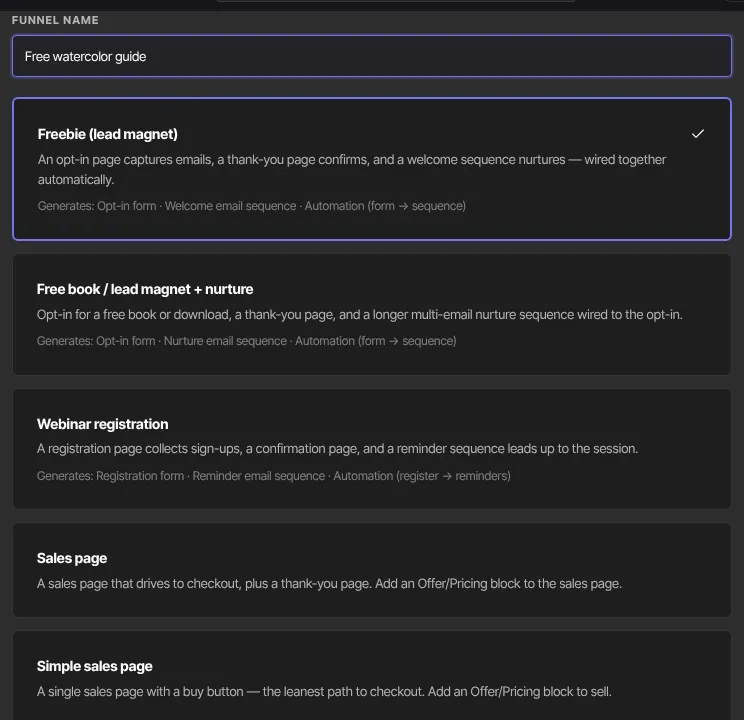
What each blueprint builds
Everything is created as a draft. Page addresses are made from the funnel name plus a short random code.
- Freebie (lead magnet): an Opt-in page with a form (button Send it to me), a Thank You page, a two-email welcome sequence, and an automation that subscribes everyone who submits the form to that sequence.
- Free book / lead magnet + nurture: the same, with a three-email nurture sequence and a Send me the book button.
- Webinar registration: a registration page (Save my seat), a confirmation page, a two-email reminder sequence and the automation. It uses a form and emails, not Events.
- Consulting campaign: a Sales page, an Apply page with an application form (Name, Email and "What do you want to achieve?", button Apply now), a Thank You page, a two-email follow-up sequence and the automation.
- Sales page: a Sales page and a Thank You page.
- Simple sales page: one Sales page.
- Product launch: a launch page, a Sales page and a Thank You page.
- Blank: no steps, form, sequence or automation. The funnel's page says "This funnel has no steps yet — add the first one below."
Sales pages come with a Buy now button that doesn't link anywhere yet, and no offer attached. Add an Offer or Pricing block, or link the button, in the page builder. See Landing pages.
Add, move or remove steps
You can change any funnel's steps, whether it came from a blueprint or started blank.
- On the funnel's page, find Add a step below the last step.
- Choose Opt-in, Sales page, Thank You or Content, and click Add step. It reads Adding… while it works.
- A new draft page with starter text for that kind is added as the last step, named after the funnel and the kind, such as "My guide — Opt-in". The Funnel Checklist gains a "Customize …" item for it.
- Click the step's Customize button to edit it in the page builder.
- To reorder, use the ↑ and ↓ buttons under a step. The first step is the page your funnel link opens.
- To take a step out, click Remove under it, then Confirm remove (or Cancel). The rest move up. The page itself isn't deleted: it stays under Website → Landing pages, and stays live if you had published it.
A page you add doesn't come with a form, a sequence or an automation. An added Opt-in page needs a Form block, which you add in the page builder. The Opt-ins figure counts only submissions of the funnel's own form, so it stays at 0 on a funnel that has none, such as a Blank funnel. To follow up with people, add an automation (see Customise and publish a funnel).
Rename a funnel
- On the funnel's page, click Rename next to its name.
- Edit Funnel name and click Save, or Cancel to keep the old name.
Only the funnel's own name changes. Its pages keep their titles and web addresses, so links you've already shared keep working, and the form, sequence and automation keep their names.
Delete a funnel (owners and admins)
- At the bottom of the funnel's page, click Delete, then Confirm delete. The note beside it reads "(generated pages/form/sequence stay in place)".
- You return to the Funnels list.
Only the funnel is removed. Its pages, form, sequence and automations stay, and anything you published stays live. Remove them from Website, Forms, Sequences and Automations if you don't want them any more.
What happens next
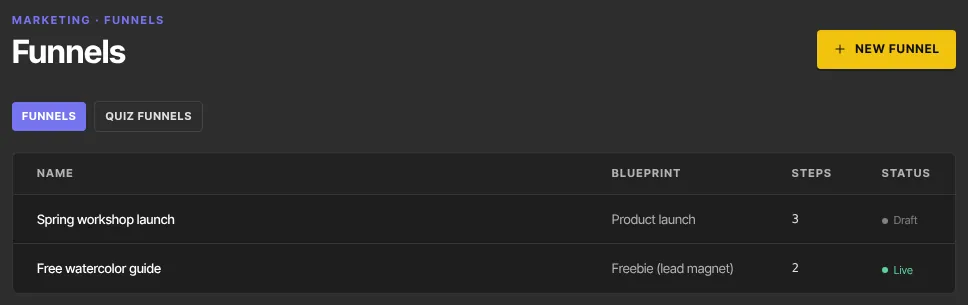
- The funnel appears in the Funnels list with its Blueprint, number of Steps and Status (Draft until you publish).
- Visitors see nothing until you publish it. Publish funnel publishes every step page, the sequence and every automation the funnel lists, including steps and automations you added yourself. A funnel can have several automations. See Customise and publish a funnel.
- The generated pieces also appear in your other lists, named after the funnel: the form as "… opt-in" (or "… application"), the sequence as "… welcome", "… nurture", "… reminders" or "… follow-up", and the automation as, for example, "… — opt-in → welcome".
Common errors
- "Please name the funnel and pick a blueprint.": type a name, then create.
- "Could not create the funnel. Try a different name.": something failed part-way. Some pieces may already exist as drafts, so check Forms, Sequences, Automations and your website pages for leftovers before you try again.
- "Funnels is included from the Advanced plan up. Subscribe in Settings → Billing to unlock it.": your plan doesn't include funnels.
- "You don’t have permission for this.": you're a viewer.
- "Please give the funnel a name (200 characters or fewer)." or "Could not rename the funnel.": when renaming. Fix the name and try again.
- "You've reached your … plan's limit of … landing pages. Upgrade in Settings → Billing to add more." when adding a step: each step is a landing page. Nothing was added. Delete a landing page you no longer need under Website → Landing pages, or upgrade.
- "That page URL is taken — try again." or "Could not add the step.": click Add step again.
- "That funnel no longer exists.": the funnel was deleted, perhaps in another tab. Go back to the Funnels list.
- A step's arrows or Remove did nothing: the step was already moved or removed in another tab. The page refreshes to show the funnel as it is now.
- "You don’t have permission to do that.": staff and viewers can't delete a funnel.