A landing page is a standalone page for one job: a launch, an opt-in, a link in your social bio, a thank-you page. It's built with the same block builder as your website pages, but it shows only your content, without your site's header, menu or footer, so visitors focus on one action. You start from a template or from the lead generation wizard.
Who can do this
- Staff, admins and owners can create and edit landing pages and save drafts.
- Only owners and admins can publish, unpublish or delete them. See Publish, unpublish or delete a page.
- Viewers can look but not create. A template card or the wizard's Continue shows "You don’t have permission to do that."
- Your plan sets how many landing pages you can have. Every landing page counts, draft or live, including pages your funnels created. See Plans and billing.
Create a landing page from a template
- Go to Website → Landing Pages (
/website/landing-pages) and click New landing page. Older links to Marketing → Landing pages bring you here too. The Templates page opens on its Landing pages tab, headed New landing page. ← Landing pages takes you back. - Pick a card. Search templates, the category tabs and the sort menu narrow the list. Blank (first, top left) and Lead generation page (the wizard below) always show first, whatever you search for, filter or sort by. After All, the tabs are grouped by job:
- My templates: landing pages you saved with Save as template in the builder, when you have any. They also come right after the first two cards. - Sales: Sales page, Long-form sales, Product launch, Video sales letter, Book launch, Workshop / cohort, Wall of love, Flash sale, Course sales page and Apply to work with me. - Pricing: Pricing plans, Two plans + proof, One plan, Monthly or yearly and Join the community. - Opt-in: Opt-in / lead magnet, Webinar registration, Free challenge, Newsletter sign-up, Free course opt-in, Form first, Free resource library and Webinar replay. - Podcast: Podcast, Single episode, Sponsor / advertise, Be a guest and Listen & subscribe. - Link in bio: Link in bio, Link in bio — minimal, Link in bio — shop, Link in bio — video and Link in bio — book a call. - Thank you: Thank you, Thank you — with offer, Thank you — book a call, Thank you — download and Thank you — start the course. - Coming soon: Coming soon, Waitlist, Launch teaser and Beta / early access. - Events: Event registration. - Partners: Partner / affiliate program.
Each card shows the top of the layout itself, with photos where the layout has them. While your site still has the default look, each one shows in its own example palette. Rest your mouse on a card (or tap it on a phone) to preview the whole page first. See Templates: find, preview and use them for how previews and palettes work, and Every template, by category for what each layout contains.
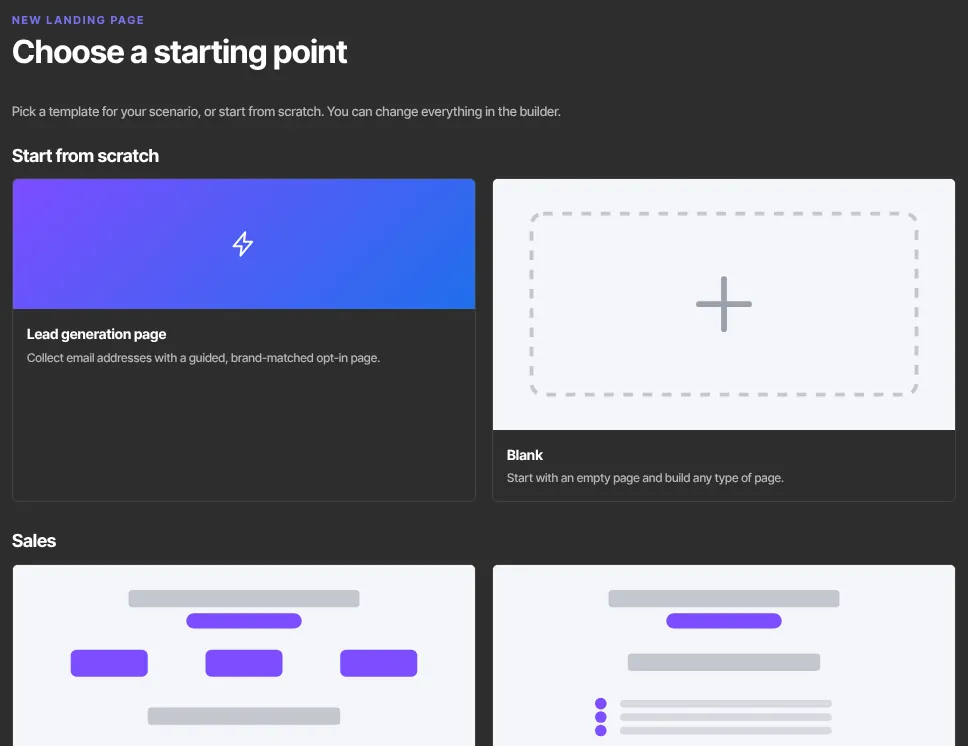
The Website pages and Blog posts tabs work too: any template can start a landing page.
- The card shows Creating…, then the builder opens with a draft named after the template and a URL like
sales-page-1a2b3c. If the page can't be created, you're told why: see Common errors below.
Create a branded opt-in page with the wizard
- On the Landing pages tab, click Lead generation page (the second card). The page is titled New lead generation page, with the heading Match it to your brand.
- Paste a Logo image URL (a square logo works best, about 640×640).
- Pick a Button color and Background color, then a Font and Font color. The preview on the right updates as you go.
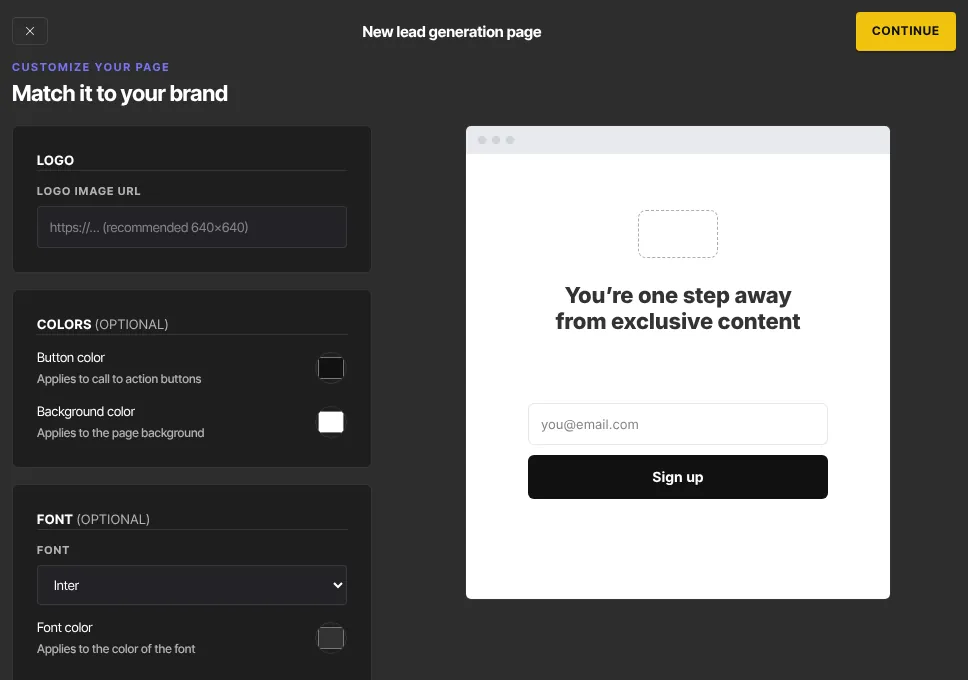
- Click Continue. A page called "Lead generation page" opens in the builder with your logo, a headline, a short line, a Form block and a privacy line.
- Select the Form block and choose your form in its Form setting. Until you do, the page can't collect sign-ups. See Forms and opt-ins.
Your choices are saved as this page's own design. Change the background, button colour and font later with Design in the builder.
Edit and publish
- Edit in the builder as you would any page. See Edit a page in the builder. Templates in the toolbar opens the Templates page for this landing page (see Create a web page from a template).
- Connect the blocks that need your data: pick an offer in Offer and Pricing blocks, a form in Form blocks, a date in Countdown blocks and a course in Course outline blocks. Paste a link into Video blocks, an audio file link into Text & audio blocks and your booking page link into Scheduling blocks. Each Pricing card shows the name and price of the offer you pick; a template's badge ("Most popular") and billing note ("per month") stay on their card, and you can change them under the plan. Dashed Add an image boxes are empty image slots: click one to upload.
- Rename the page and set its URL in the toolbar.
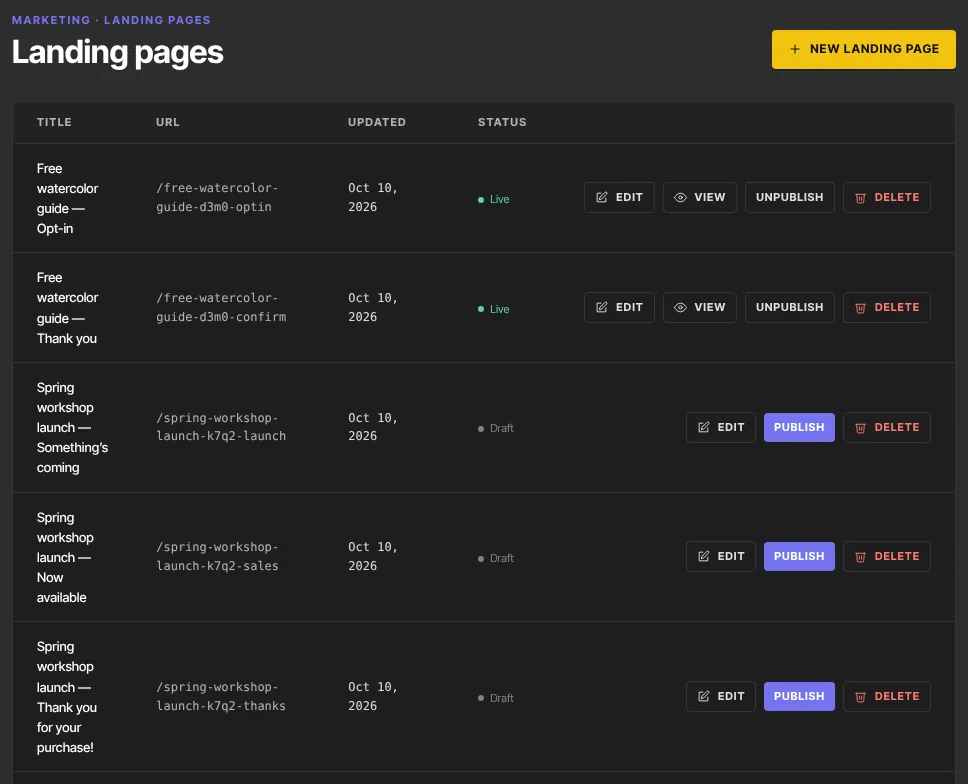
- An owner or admin clicks Publish in the builder, or on the page's row in Landing Pages.
How landing pages behave
- A published landing page lives at
yourname.zinstruct.com/plus its URL, or on your own domain, with no header, footer or menu. - They're never added to your menus automatically. Link to them from ads, emails, a button, or a menu item if you want.
- They don't appear in Website Pages; they have their own list.
- You can use landing pages as variants in an A/B test.
What happens next
- Visitors who fill in the page's form are added to your contacts. See Forms and opt-ins for what happens after that.
- No email is sent when you publish.
Common errors
- "You've reached your plan's landing page limit. Upgrade your plan to add more.": you clicked a template card or the wizard's Continue after reaching your plan's landing-page limit, so no page was created and you're back on Landing Pages with this banner. Delete a landing page you no longer need, or click Upgrade your plan to choose a plan in Settings → Billing.
- "That template isn’t available any more. Pick another one.": shown above the templates. Choose a different card.
- "A page with that address already exists. Try the template again.": click the card again. Each try gets a new address.
- "We couldn’t create the page. Try again in a moment.": a temporary problem. Click the card again shortly.
- The wizard returns you to Landing pages with no new page and no message: try Continue again.
- "You don’t have permission to do that.": you're a viewer.
- "Your free trial has ended, so your workspace is read-only. Subscribe in Settings → Billing to start creating again — nothing has been deleted.": subscribe in Settings → Billing.
- The form on your landing page does nothing: pick a form in the Form block's setting, save, and publish the change.