After you create a funnel, its page in Marketing → Funnels is where you finish it. Each step card opens its page editor, the email sequence and the form open in place, and the Funnel Checklist tracks what's left. When everything is ready, one click publishes the whole funnel and gives you a link to share.
Who can do this
- Owners, admins and staff can edit and publish funnels.
- Viewers can look around. Publish funnel shows the message "You don’t have permission to do that."
- Publishing a funnel counts each of its automations that isn't live yet toward your plan's limit of live automations.
Find your way around the funnel page
- Header: Live or Draft, Publish funnel (it becomes Re-publish once live), Copy Link once live, and Rename.
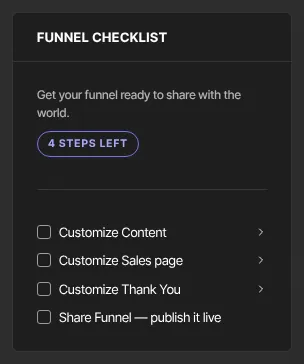
- Funnel Checklist (left): "… steps left" until everything is done, then "Ready to share 🎉". It has one "Customize …" item per page, ticked once that page has been published, "Add emails & publish the sequence", and "Share Funnel — publish it live". Click an unticked item to go and fix it.
- Step cards (middle): each shows its page address and views. The first card also shows opt-ins and the conversion rate; later cards show the share of visitors who reached them. The sequence card sits after the first step with its email count and status. On a Webinar registration funnel the two cards are labelled "registration" and "confirmation". Under each card, ↑ and ↓ move it and Remove takes it out of the funnel; Add a step sits below the last card. See Create a funnel from a blueprint.
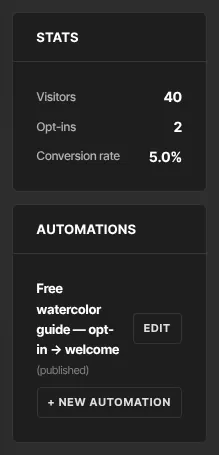
- Right: the form's name and fields with Edit form, Stats (Visitors, Opt-ins, Conversion rate) and Automations, which lists every automation the funnel owns.
Customise the pages
- Click a step's Customize button, or its thumbnail.
- The page builder opens, with a Funnel link to come back. Edit the page, click Save draft, then publish it. See Edit pages with the builder.
- Back on the funnel, the checklist ticks that page. Published pages get a View button that opens them on your site.
Edit the emails
- Click the sequence card, or "Add emails & publish the sequence" in the checklist.
- Write the emails and publish the sequence. See Email sequences.
Publish funnel doesn't check the emails, so make sure every one has a subject and content first.
Edit the form
- Click Edit form. The form editor opens with its Form details, Submissions and Embed tabs and a Funnel link back.
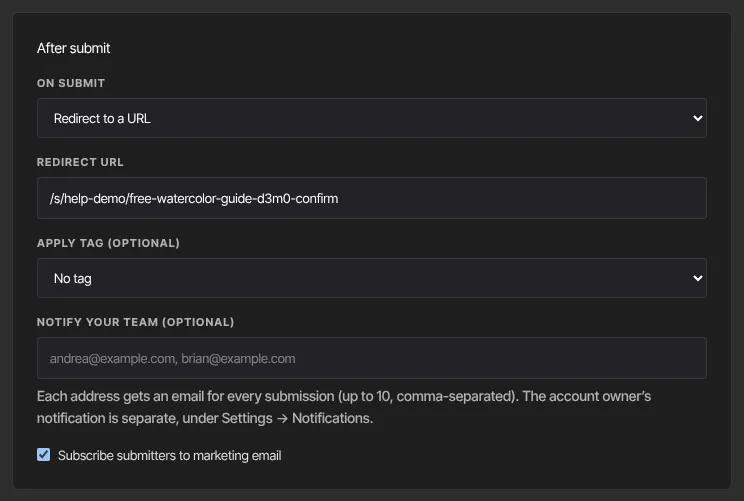
- Under After submit, the form is already set to Redirect to a URL, with a Redirect URL starting with
/that points at the funnel's thank-you page. Leave it as it is. To send people somewhere else, type a full address starting with https://, or a page on your site starting with/. - Make any other changes (see Create an opt-in form) and click Save form.
Add more automations
A funnel can have several automations, for example one that tags new leads and one that grants a bonus.
- Click + New automation in the Automations panel, or Add Automation in the funnel's form editor.
- The automation builder opens, already set to Form is submitted with the funnel's form. On a funnel without a form, pick the trigger yourself.
- Build it and click Save draft or Publish. You return to the funnel.
The new automation belongs to the funnel: it's listed in the Automations panel with its status and an Edit button, and Publish funnel publishes it with everything else. It also appears in Marketing → Automations.
Automations added from a funnel before 10 October 2026 weren't attached to it. They don't appear in the panel and aren't published with the funnel. Find them in Marketing → Automations, or in the funnel form's Automations table ("When this form is submitted"), and publish them there.
Publish and share
- Click Publish funnel. Every step page, the sequence and all the automations in the Automations panel are published, and the header shows Live.
- Click Copy Link to copy the first page's address on your site: your connected domain if you have one, otherwise
yourname.zinstruct.com. Share it anywhere. - After later changes, click Re-publish. It publishes every step page's current draft again, including steps you've added, together with the sequence and the automations.

What happens next
- Visitors who submit the opt-in form become contacts subscribed to your marketing email, see the thank-you page, and start receiving the sequence through the automation.
- Visitors counts views of the first page. Opt-ins counts every submission of the funnel's form, wherever it's placed. Conversion rate is opt-ins divided by visitors.
- Someone who submits the same funnel form again isn't added to the sequence a second time.
Common errors
- "Use a full https:// address, or a page on your site starting with /." when saving the funnel's form: the Redirect URL you typed isn't accepted. Use a full address starting with https://, or a page on your site starting with a single
/. - "Cannot publish: automation issue — …" under Publish funnel: one of the funnel's automations has a problem, for example an action with no target. With several automations, the message names the one to fix. Click Edit next to it in the Automations panel, fix it, then click Publish funnel again. Nothing is published until every automation is valid.
- "Plan limit reached for automations active (…). Upgrade or request an override." under Publish funnel: publishing the funnel's automations that aren't live yet would take you past your plan's limit of live automations. Unpublish another automation, or see Plans and billing. Automations that are already live don't count again, so Re-publish works even at your limit.
- "Could not publish the funnel. Try again in a moment.": a temporary problem. Click Publish funnel again.
- "That funnel no longer exists." when saving an automation from the funnel: the funnel was deleted while you were building, and nothing was saved. Build the automation in Marketing → Automations instead.
- No Copy Link button: it appears once the funnel is published.
- "You don’t have permission to do that.": viewers can't publish.