An email sequence is a series of emails that each contact receives on their own schedule: a welcome series, an onboarding course, a nurture drip. You write the emails and set the wait before each one. Contacts enter the sequence through an automation, and each one moves through it from the moment they join.
Who can do this
- Owners, admins and staff can create, edit, publish and unpublish sequences.
- Only owners and admins can delete a sequence. Staff who try see "You don’t have permission to do that."
- Viewers can open sequences but can't save or publish them: "You don’t have permission for this."
- Plan: creating a sequence needs the Core plan or higher. On the trial, saving a new sequence shows "Automations & sequences is included from the Core plan up. Subscribe in Settings → Billing to unlock it." Sequences you already have stay editable whatever your plan. See Plans and billing.
Create a sequence
- In the sidebar, open Marketing → Email, then click the Sequences tab (
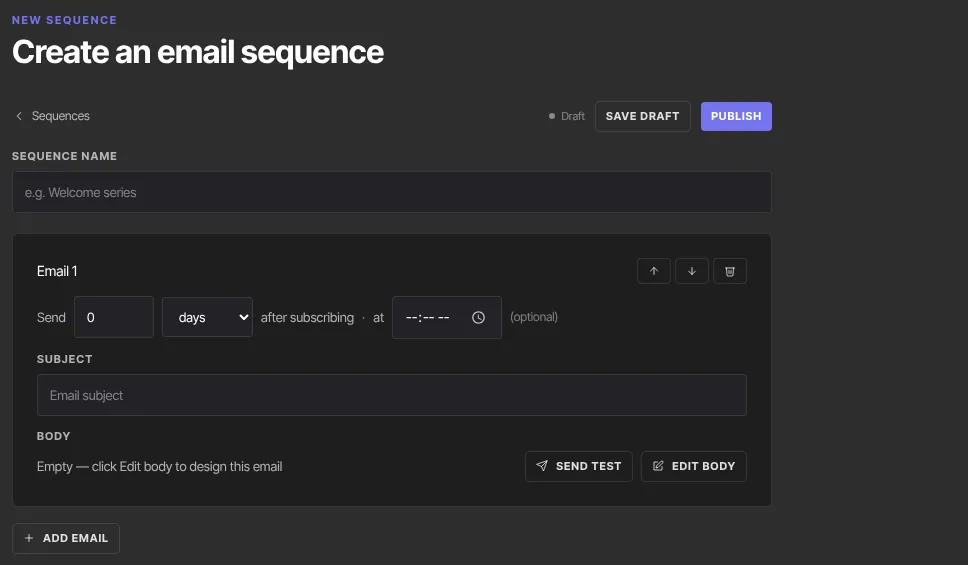
/marketing/sequences). - Click New sequence. The page is titled Create an email sequence.
- Type a Sequence name, such as "Welcome series".
- Email 1 is ready for you. "Send 0 days after subscribing" sends it as soon as someone joins. You can pin it to a time of day with at; see When sequence emails actually go out.
- Type the Subject, then click Edit body. A full-screen email editor opens. Click Back to sequence when you're done.
- Click Add email for the next one. A new email starts at "Then wait 3 days after the previous email". Use the arrow buttons on a card to move it up or down, and the trash button (Remove) to delete it.
- Click Save draft. The sequence is saved, but sends to nobody until you publish it.
Body edits are kept only when you click Save draft or Publish on the sequence, as the email editor reminds you.
Test, then publish
- On any email card, click Send test. We send that email as written to the address you sign in with, with "[Test]" before the subject. The card shows "Sent to" and your address.
- Click Publish. We save the sequence, then check that every email has a subject and content, and that no button is missing its link.
- The status beside the buttons changes to Published, and the Sequences list shows it as Live.

Publishing doesn't email anyone by itself. It makes the sequence available to your automations.
Enroll contacts with an automation
There's no button to add people to a sequence by hand. Contacts enter through an automation:
- In Automations, choose a trigger, such as Form is submitted, Offer is purchased or Tag is added.
- Add the action Subscribe to an email sequence and pick your sequence. Only published sequences are listed.
- Each contact the automation reaches starts at email 1.
To take someone out of one sequence, use the action Unsubscribe from an email sequence. The full list is in Automation triggers and actions.
Edit a live sequence
- Open it from the Sequences list.
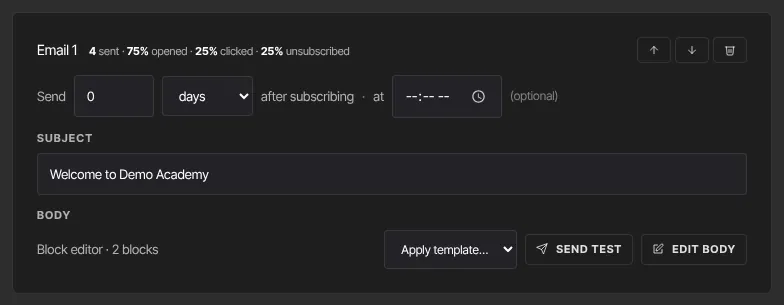
- Once an email has gone out, its card shows how it's doing, for example "4 sent · 75% opened · 25% clicked · 25% unsubscribed". Unsubscribed counts people whose last email before unsubscribing was this one.
- Change what you need and click Save draft. A published sequence stays published.
Your changes reach contacts who enter the sequence after you save. Contacts already partway through may keep getting the earlier version of the emails they haven't received yet.
Once the sequence has been saved and you have at least one saved template, each card has an Apply template… menu. If the email already has content, confirm with Apply.
Unpublish, then publish again
- Click Unpublish. The status goes back to Draft, and the list shows Draft.
- While it's unpublished, contacts an automation tries to add are skipped, and everyone partway through pauses before their next email.
- Click Publish again and each paused contact picks up where they stopped, with the next email they hadn't received. Nobody gets an email twice.
Delete a sequence (owners and admins)
- On the Sequences list, click Delete on the sequence's row, then Confirm delete.
- The sequence and its emails are removed, and contacts partway through stop receiving it. This can't be undone.
What happens next
- Each enrolled contact gets each email after its wait, on their own clock.
- A contact who unsubscribes with the link in your email leaves all your sequences. If their marketing status is set to unsubscribed another way, their sequence pauses at the next email and carries on within a day of them being subscribed again.
- If your workspace reaches its plan's monthly email limit, sequence emails pause where they are and carry on once sending is allowed again (a new month, or an upgrade). A daily check restarts them; no notice is sent to you.
- If marketing email from your sending domain is paused after spam complaints, sequence emails wait the same way and carry on once our team resumes sending. See Sending domains and deliverability.
- When a contact finishes, their Lifecycle tab shows "Sequence completed", and the Email sequence completed automation trigger can start something else. Enrolling them again starts them at email 1.
- The Subscribers column counts everyone ever enrolled, including people who finished or left.
Common errors
- "Automations & sequences is included from the Core plan up. Subscribe in Settings → Billing to unlock it.": new sequences need a paid plan.
- "Add at least one email." or "Add at least one email before publishing.": click Add email.
- "Email 2 has no subject — add one before publishing." or "Email 2 has no content — design its body before publishing.": the number tells you which email to finish.
- "Email 2: A button has no link, so it will not appear.": give the button a link, or remove it.
- "Use 24h HH:MM": the time of day isn't valid. Pick it again, or click Clear.
- "Could not save the sequence.": try again in a moment.
- "You don’t have permission for this." or "You don’t have permission to do that.": your role can't make this change.
- "Your free trial has ended, so your workspace is read-only…": subscribe in Settings → Billing to edit again.