A saved template is a reusable email design: a body built from email blocks, plus an optional default subject. When you apply one to a broadcast or a sequence email, it's copied in, ready to edit, so changing that email never changes the template. You can start from one of the built-in starters, and every template keeps its earlier versions so you can put an old one back.
Who can do this
- Owners, admins and staff can create, edit, copy, duplicate and restore templates, and apply them to emails.
- Only owners and admins can delete a template. Staff who try see "You don’t have permission to do that."
- Viewers can open templates but can't change them. Saving shows "You don’t have permission for this." If a viewer clicks Make my copy or Duplicate, nothing is created and the Templates list shows "You don’t have permission to create or copy templates. Ask the workspace owner or an admin."
- Templates aren't limited to a plan.
Create a template
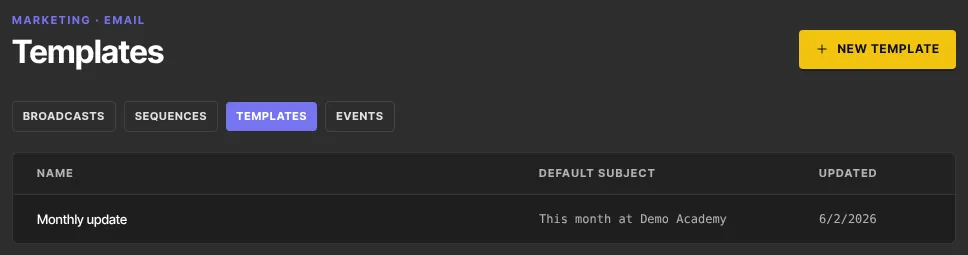
- In the sidebar, open Marketing → Email, then click the Templates tab (
/marketing/templates). - Click New template.
- In the toolbar, type a Template name, and a Default subject (optional) if you want one.
- Build the body with email blocks: heading, text, image, button, link list, countdown, divider and spacer.
- Click Create template. The template opens, and it now appears in your list and in the Apply template… menus.
Start from a built-in template
- On the Templates tab, scroll to Start from a template. The starters are Welcome, New course launch, Weekly newsletter, Last chance, Free lesson and Plain personal note.
- Click Make my copy on the one you want. It shows "Copying…" for a moment.
- Your own copy opens, ready to edit. The built-in original never changes, so it's always there to start from again.
Images, links and dates in the starters are left blank on purpose. Fill in the ones you want: anything left empty simply doesn't appear in the email. A button with no link stops a broadcast or sequence from sending until you add one.
Edit a template
- Open the template from the list. The toolbar says "Updates this template in place".
- Make your changes and click Save changes. The toolbar shows Saved.

Broadcasts and sequence emails already built from the template keep their own copy, so saving doesn't change them.
Get an earlier version back
- Each save that changes something keeps the previous content under Version history, below the editor. Each row shows the version number, when it was saved over, and whether by you or a teammate. The 20 most recent versions are kept.
- Click Restore on the version you want, then Confirm restore.
- The editor reloads with that version and shows "Version … restored."
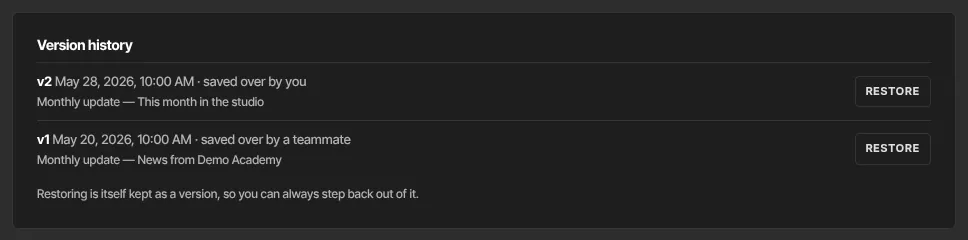
Restoring is kept as a version too, so you can step back out of it the same way.
Duplicate a template
- Open the template and click Duplicate in the toolbar.
- A copy named with "copy" at the end opens. The original stays exactly as it is.
Duplicate when you want two templates that go their separate ways; use version history when you want this template's past.
Apply a template to an email
- To a broadcast: open the draft, pick from the Apply template… menu (your templates and the built-in ones), then click Apply. See Create and send an email broadcast.
- To a sequence email: pick from the email card's Apply template… menu, which lists your saved templates. If the email already has content, confirm with Apply. The menu appears once the sequence has been saved. See Build and publish an email sequence.
Delete a template (owners and admins)
- Open the template and click Delete below Version history.
- Click Confirm delete. The template and its version history are removed. Emails already built from it keep their copies.
What happens next
- A new or edited template is available in the Apply template… menus straight away.
- Changing or deleting a template never changes an email you've already built or sent.
Common errors
- "Name is required.": give the template a name, then save again.
- "Could not save the template.": try again in a moment.
- "That version is no longer available.": only the 20 newest versions are kept. Pick a more recent one.
- "Pick a version to restore." or "Could not restore that version.": reload the page and try again.
- "Template not found." or "Could not apply the template." (in the composer): the template was deleted or couldn't be copied. Reload and pick again.
- "You don’t have permission to create or copy templates. Ask the workspace owner or an admin.": viewers can't make copies. Ask a teammate with a higher role.
- "That starter template isn’t available any more. Pick another one below.": choose a different starter.
- "We couldn’t save your copy of that starter. Please try again." or "We couldn’t duplicate that template. Please try again.": try again in a moment.
- "That template no longer exists, so there was nothing to duplicate.": a teammate deleted it. Reload the list.
- "You don’t have permission for this." or "You don’t have permission to do that.": your role can't make this change. If you're the owner and your trial has ended, your workspace is read-only: subscribe in Settings → Billing.