Once a broadcast is sent it becomes a permanent record: you can read its results, but not edit it or send it again. This article explains the Broadcasts list and the results page, the limits on a send, how to send the same email again by duplicating it, and how to delete a broadcast.
Who can do this
- Everyone on your team, viewers included, can see the Broadcasts list and each broadcast's results.
- Owners, admins and staff can duplicate a broadcast. Viewers who try see "You don’t have permission to do that."
- Only owners and admins can delete a broadcast. Staff and viewers who try see "You don’t have permission to do that."
Find your broadcasts
- In the sidebar, open Marketing → Email. The Broadcasts tab (
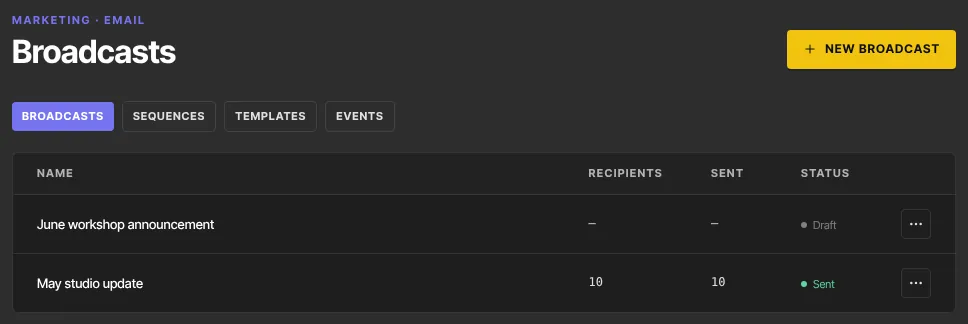
/marketing/broadcasts) lists every broadcast, newest first. - Each row shows Recipients, how many were Sent, and the Status: draft, sending, sent or failed.
- Click a name to open it. A draft opens in the composer; anything else opens its results.
Read a sent broadcast's results
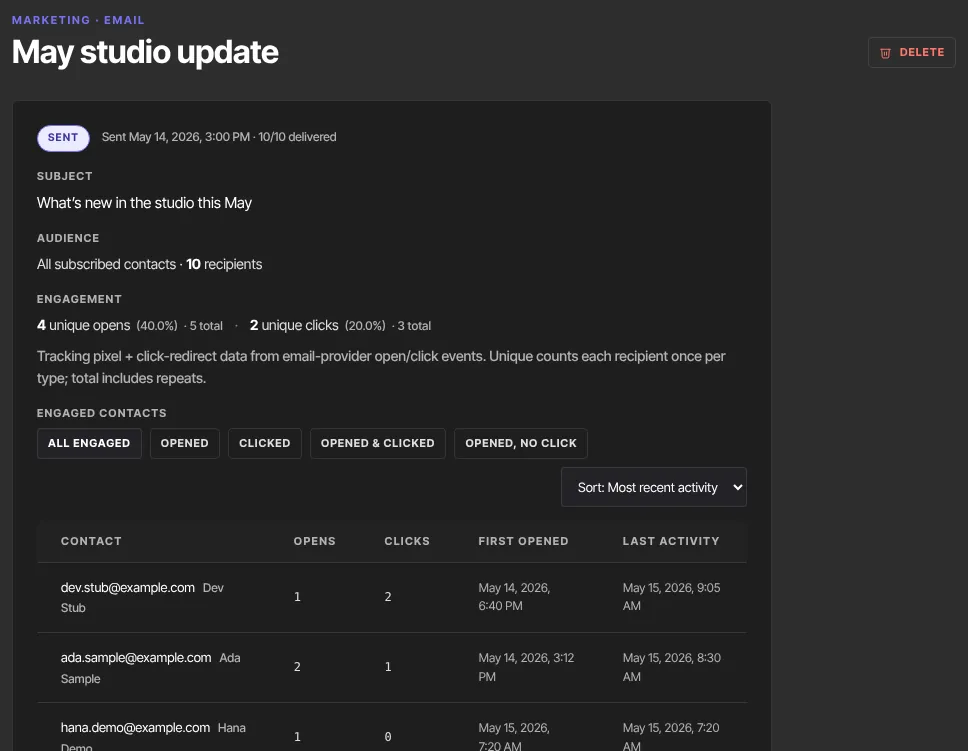
The results page shows:
- the status, and Sent with the date and time, followed by how many were sent out of the recipients, such as "118/120 delivered". When some weren't sent, a line underneath says how many and why, for example "2 not sent — the address bounced before, marked your email as spam, or the email provider refused it.";
- the Subject and the Audience (all subscribed contacts, or the segment), with the number of recipients;
- Engagement: unique opens and unique clicks, each with a rate. Each person counts once. When people open or click more than once, a total appears too;
- Engaged contacts: everyone who opened or clicked, with their opens, clicks, first open and last activity. Filter with All engaged, Opened, Clicked, Opened & clicked or Opened, no click, and change the order with the sort menu. Click an address to open that contact.
Read the numbers this way:
- The delivered count is the emails we actually handed to our email service. An address we no longer email (an earlier bounce or spam complaint), or one the email service refused, isn't counted. The open and click rates are measured against the delivered number.
- Opens can read high, because some email apps load images automatically, and low, because others block them. Clicks are the more reliable signal.
Limits on a send
- Send now only. A broadcast goes out when you confirm. There's no scheduling.
- 2,000 recipients per broadcast. If more contacts match, the composer warns "… match — only the first 2,000 will be emailed." The rest get nothing from that send. Split a bigger list into segments and send one broadcast per segment.
- Your plan's monthly email limit. If a send would go past it, nothing is sent and the broadcast stays an editable draft. See Plans and billing.
- Subscribed contacts only. If nobody in the audience is subscribed, nothing is sent and the draft stays editable.
- No edits after sending. The results page says "Broadcasts cannot be re-sent — create a new one to send again."
Send it again: duplicate
- On the Broadcasts list, click the ⋯ button at the end of the broadcast's row.
- Click Duplicate. It shows "Duplicating…" for a moment.
- A new draft opens in the composer, named with "copy" at the end, with the same subject, audience and body. Results aren't copied.
- Change what you need, then send it as usual. See Create and send an email broadcast.

Delete a broadcast (owners and admins)
You can delete a broadcast in any state: draft, sending, sent or failed.
- From the list: click ⋯, then Delete. The menu asks "Delete “…”? Its stats go with it. This cannot be undone." Click Confirm delete.
- From a draft: click Delete in the composer toolbar. It asks "Delete this draft? This cannot be undone." Click Confirm delete.
- From a sent broadcast: click Delete at the top of its page, then Confirm delete.
Deleting removes the broadcast and its results. It doesn't take back emails that were already sent.
What happens next
- Opens and clicks keep arriving as people read the email, so check back over the following days.
- A duplicate is an ordinary draft: nothing goes out until someone with permission clicks Send now and Confirm send.
- A deleted broadcast disappears from the list for everyone on your team.
Common errors
- "This broadcast has already been sent.": it was sent from another tab or by a teammate. Reload the page to see its results.
- "Could not resolve recipients.": the send stopped before anything went out, and the broadcast shows failed. Duplicate it and send the copy.
- "This send did not finish.": the broadcast is marked failed. The page says how many emails went out before it stopped, or that some recipients may already have it. A send that stays at sending for more than 30 minutes is marked failed this way within the hour. A copy goes to the whole audience, so check who already has it before you duplicate and send it again.
- "Plan limit reached for emails per month (…). Upgrade or request an override.": the send would go past your plan's monthly limit. See Plans and billing.
- "You don’t have permission to do that.": your role can't duplicate or delete broadcasts.