A broadcast is a one-off email to your list: a launch, an announcement, a weekly note. You write it in the email composer, choose who receives it (everyone subscribed to your marketing, or one of your saved segments), send yourself a test, then send it. A broadcast goes out the moment you confirm; there's no option to schedule one for later.
Who can do this
- Owners and admins can create, write, test and send broadcasts.
- Staff can create drafts, write them, apply templates and send themselves tests, but can't send to your list: Confirm send saves their edits and shows "You don’t have permission to send broadcasts." An owner or admin sends it.
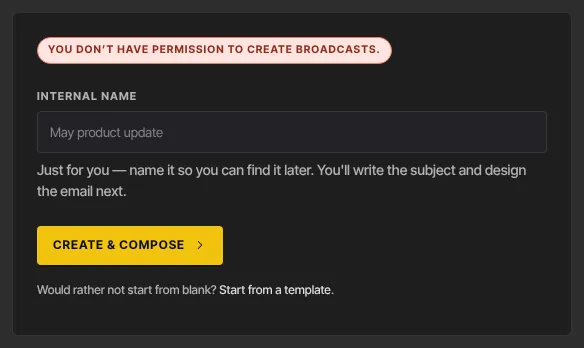
- Viewers can open broadcasts and send themselves a test, but can't create or change one. Creating a broadcast shows "You don’t have permission to create broadcasts."
- Broadcasts aren't limited to a plan, but a send that would take you past your plan's monthly email limit is stopped. See Plans and billing.
Create a draft
- In the sidebar, open Marketing → Email. The Broadcasts tab opens (
/marketing/broadcasts). - Click New broadcast.
- Type an Internal name, such as "May product update". Only your team sees it.
- Click Create & compose. The draft opens in the composer.
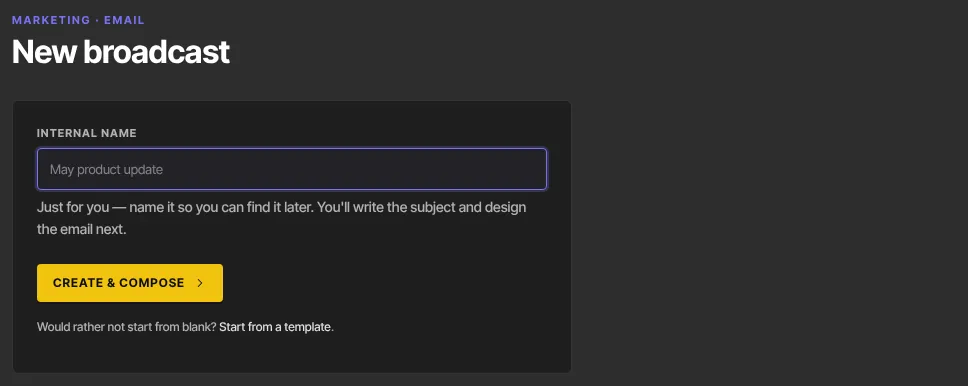
If you leave the name blank, the draft is called "Untitled broadcast". Rather not start from a blank page? The Start from a template link under the button opens your templates.
Write the email
- In the toolbar at the top of the composer, type the subject your recipients will see in the Subject line box.
- Choose the audience: All subscribed contacts, or Segment: followed by one of your saved segments. Next to it, the composer says how many people will get it, for example "120 subscribed contacts will receive this." Only contacts subscribed to your marketing are ever counted or emailed. An address that bounced before or marked your email as spam is skipped when you send, and isn't counted as sent.
- Build the body below the toolbar. Email blocks are heading, text, image, button, link list, countdown, divider and spacer. Text is formatted as you type. An older plain text block becomes one the first time you click it, keeping its bold, italic, links and line breaks. To write in a Text block, click it and type right on the email. A toolbar above the block has bold, italic, underline, H2 and H3, lists, a quote, a link (Ctrl+K, or ⌘K on a Mac) and { } for merge tags. Press Esc or click outside the block when you're done. The composer shows the email on a white page at inbox width, with the type it is sent in, and the selected block's settings in the panel on the right. Click > at the top of the panel to slide it out of the way while you write (the block stays selected), and < to bring it back; selecting any other kind of block (a button, an image, a plain Text block) brings it back by itself, because that block's settings and formatting are there. A template's prompts, such as "[Your answer]", are highlighted: click one to type over it, and press Tab for the next. Any left in the email, subject or preview text are listed before you send. In a rich text block, type
{{to pick a merge tag, or/on an empty line to add a heading, list, image, button or divider. - Personalize the subject or body with merge tags:
{{ first_name }},{{ last_name }},{{ full_name }},{{ email }}, and{{ settings_name }}for your business name. A tag with no value for a contact comes out blank; a misspelled one is sent as typed, so a test shows it up. - The draft saves itself a moment after you stop typing (the toolbar shows Draft · Saved), or click Save draft. The toolbar shows Saved.

Start from a template
- Open the Apply template… menu in the toolbar. Your templates lists the templates you've saved; Built-in templates lists the starters every school gets.
- Pick one. The toolbar asks "Replace the draft body (and subject if the template has one) with “…”?"
- Click Apply, or Cancel to keep what you have. The body is replaced with a copy of the template, and the subject too when the template has a default subject.
Click Save draft before you apply: the composer reloads with the template, and anything you hadn't saved is lost. Editing the broadcast afterwards never changes the template. See Saved email templates.
Send yourself a test
- Click Send test.
- We email the draft as it is on screen, saved or not, to the address you sign in with. The subject starts with "[Test]", merge tags are filled with a sample name (Alex Sample), and the unsubscribe link in the footer does nothing.
- The toolbar shows "Test sent to" and your address.
A test goes out from the same address your real send will use.
Send it now
- Click Send now. Before anything is sent, we check the email.
- No subject: "Add a subject line before sending." appears under the subject line.
- Nothing that can be sent, or a button with no link: a Fix before sending box lists what to fix, and the send doesn't start.
- An empty image, text block or countdown: a Worth a look before you send box lists it. You can still send; those blocks are left out of the email.
- The toolbar asks for confirmation, for example "Send to 120 recipients now? This cannot be undone."
- Click Confirm send, or Cancel. Your latest edits are saved, then the email goes out.

- The toolbar shows "Sent to" with the count, and the page switches to the broadcast's results.
Set your writing voice
Every workspace has a Voice tab under Marketing → Email (/marketing/voice). It holds one writing voice for the whole workspace: samples of your own writing, and a style guide that Draft with AI and Topic ideas follow, so drafts sound like you. Owners, admins and staff can change it; viewers can look.
- Add up to 10 samples, the emails or posts that sound most like you: Paste text, Upload a file (.txt, .md or Word .docx), or Pick a post from your newsletters. A sample keeps up to 20,000 characters; a longer file keeps its first 20,000.
- Click Write it from my samples. The AI describes your voice in the Style guide box, with a few traits under it. Nothing is saved yet.
- Edit the guide, or write your own (up to 4,000 characters), then click Save.
Writing the guide from your samples uses your plan's monthly AI writing allowance, like the Writer's other AI tools.
AI writing on the email page
Broadcasts open in the Writer, with AI tools in its toolbar: Topic ideas, Format text, Draft with AI, ✨ AI rewrite… and Check writing, plus ✨ Suggest for the subject line. In Design, select text and click ✨ Rewrite, or type / on an empty line and pick Draft with AI. Each use counts toward your plan's monthly AI writing allowance. Step-by-step instructions for every tool are in Write newsletters and emails with AI.
What happens next
- Each recipient gets their own copy, with your sender name, reply-to address and footer and an unsubscribe link of their own.
- Opens and clicks appear on the broadcast's page as people read it. See Broadcast results, limits and re-sending.
- A sent broadcast can't be edited or sent again. To send the same email again, duplicate it.
Common errors
- "This email has no content that can be sent yet.": add a heading, text or another block with content.
- "A button has no link, so it will not appear.": give the button a link, or remove it.
- "No subscribed contacts match this audience — nothing was sent. The broadcast is still editable.": pick another audience and send again.
- "Marketing email from your sending domain … is paused after too many spam complaints, so nothing was sent. The broadcast is still a draft — contact support to resume sending, then send it again.": your sending domain is paused. Nothing changed; contact support, then send the draft again.
- "Something went wrong before any email went out, so nothing was sent. The broadcast is still a draft — try again in a minute.": nothing was sent. Wait a minute and click Send now again.
- "The send could not be completed: … of … emails went out. The broadcast is marked failed — check who received it before sending a copy.": the send stopped partway. See Broadcast results, limits and re-sending before you send a copy.
- "Plan limit reached for emails per month (…). Upgrade or request an override.": this send would go past your plan's monthly limit. Nothing was sent and the draft is kept.
- "Too many test emails — try again in a few minutes.": wait a few minutes between batches of tests.
- "… is on your suppression list, or your sending domain is paused, so the test was not sent.": we won't email your sign-in address (for example, it bounced before), or your sending domain is paused.
- "You don’t have permission to send broadcasts." or "You don’t have permission for this.": your role can't do this. If you're the owner and your trial has ended, your workspace is read-only and shows these too: subscribe in Settings → Billing.
- "Could not save the broadcast." or "Could not send the test email.": try again in a moment.
- "You already have 10 samples — delete one to add another.": delete a sample on the Voice tab first.
- "Upload a .txt, .md or .docx file." or "That file is too large — paste the text instead.": copy the text out of the file and use Paste text.
- "You’ve used this month’s AI writing allowance": the allowance resets on the 1st, or upgrade your plan for more. You can still write and save the guide yourself.