Out of the box your email goes out from our shared address. On a paid plan you can send from your own domain instead: your brand in the "From" line, and a sending reputation that belongs to you. You add the domain, publish a few DNS records where your domain is managed, and verify. This page is also where you'll learn if marketing email from your domain has been paused.
Who can do this
- Owners and admins can add, verify and remove a sending domain and change the sending addresses.
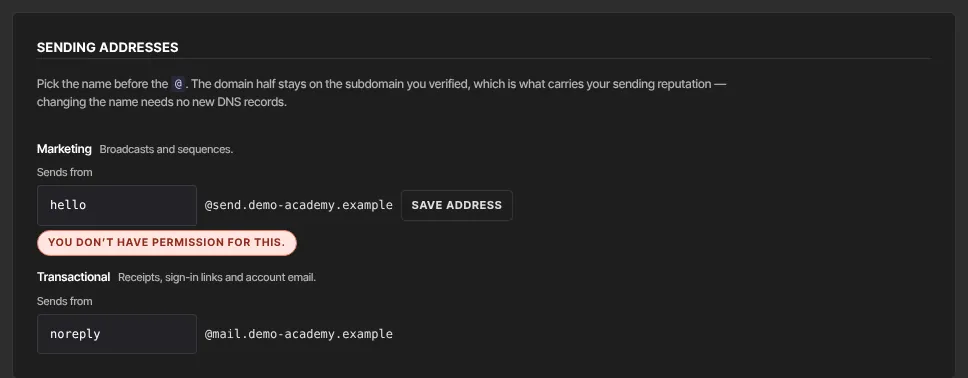
- Staff and viewers can see the page. Saving an address or adding a domain shows "You don’t have permission for this."; Verify and Remove show "You don’t have permission to do that."
- Plan: sending domains are included from the Core plan up. On the trial, the panel shows "Custom sending domains are available on paid plans — upgrade to send from your own domain." See Plans and billing.
- Each workspace sends from one domain. Once yours is connected, the panel says so; to use a different one, remove it first.
Add your domain
- Go to Settings and click Email sending (
/settings/marketing), then scroll to Sending domain. - Read the three steps at the top. In Add a sending domain, type a domain you own and manage, such as
yourdomain.com. - Click Add domain. It shows "Provisioning…" while we set things up.
- A card for your domain appears, marked Pending DNS. We create two subdomains under it: Marketing (
send.yourdomain.com, for broadcasts and sequences) and Transactional (mail.yourdomain.com, for receipts and sign-in links). Keeping them apart protects your receipts from anything your marketing does to your reputation.
Publish the DNS records
You publish the DNS records yourself — this is the step that's easy to miss.
- Sign in to the service that manages your domain's DNS (Cloudflare, GoDaddy, Namecheap, Squarespace, Google Domains…).
- For each row in the card, create a record with the same Type, Name (host) and Value. The copy buttons put each name and value on your clipboard. Names are relative to your domain: a name like "send.send" means "send.send.yourdomain.com". If your DNS host wants the full name, use the "Full host name" shown under the record.
- Come back and click Verify. It shows "Checking DNS…", then the card says what it found and when it last checked.
The records are a mix of CNAME, MX and TXT records. Together they set up SPF (which servers may send for the domain), DKIM (a signature that proves the email wasn't changed) and DMARC (what inboxes should do with mail that fails those checks). You don't need to understand them; copy each one exactly. For where to add records at Cloudflare, GoDaddy, Namecheap, Hostinger, Bluehost and others, see Add your domain records at your domain host; the names on this card are already relative to your domain, so use them as shown.
While you work, the card says how far you've got, for example "2 of 6 DNS records verified — add the rest at your DNS host, then click Verify." Each record is marked Verified, Pending or Not found, and a message lists the ones Not found at your DNS host. When one subdomain is done before the other, it says, for example, "Marketing is verified; mail.yourdomain.com is still pending."
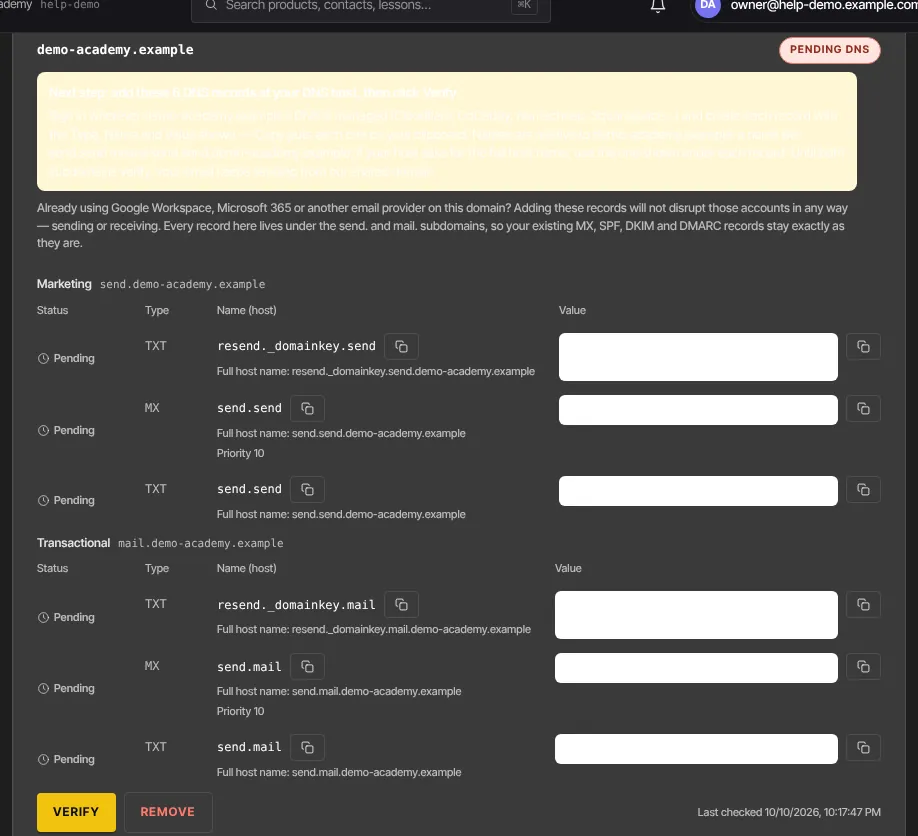
DNS changes take anywhere from a few minutes to 48 hours to reach everyone, so a domain can stay Pending DNS for a while after you've added everything. Click Verify again later. Each subdomain verifies on its own; the card reads Verified once both do, and the button changes to Re-check. Until then nothing breaks: your email keeps going out from our shared address, with your sender name and reply-to.
Already using Google Workspace, Microsoft 365 or another email provider?
Adding these records will not disrupt those accounts in any way — sending or receiving. Every record we ask for lives under the send. and mail. subdomains, so the MX, SPF, DKIM and DMARC records your mailbox provider put on your main domain stay exactly as they are.
Choose your sending addresses
- In the Sending addresses card, find Marketing ("Broadcasts and sequences.") and Transactional ("Receipts, sign-in links and account email.").
- In Sends from, change the part before the @. The domain half stays on your verified subdomain, so no new DNS records are needed.
- Click Save address, which appears once you change it. The card shows Saved.
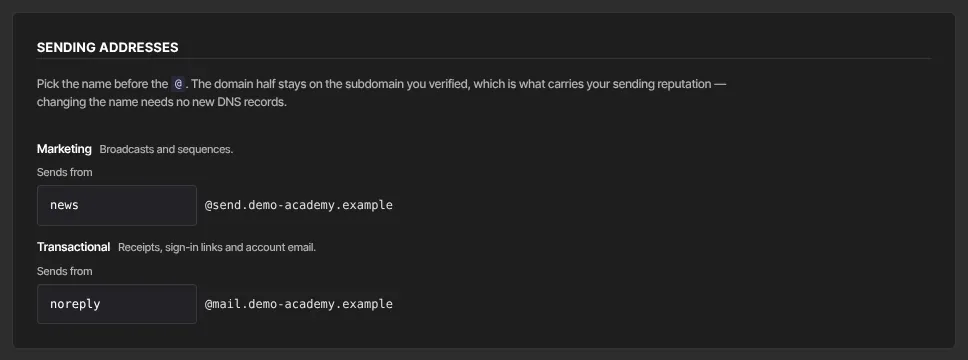
The addresses start as news@send.yourdomain.com and noreply@mail.yourdomain.com. A changed address is used once the domain verifies. When the marketing subdomain verifies, its address also becomes the "From" address in your marketing settings.
Remove your domain
- On the domain card, click Remove. There's no confirmation step: one click removes it.
- Both subdomains are removed and your email goes back to our shared address. To use the domain again, add it, publish the new records and verify again.
If sending is paused
If too many people mark your email as spam, we pause marketing email from your domain to protect its reputation. We check once a day: a domain is paused when more than 1 in 1,000 of the emails it sent in the last 7 days were marked as spam, once it has sent at least 100. Bounces alone never pause a domain.
When it's paused:
- You get an email titled "Marketing email from … is paused", and the domain card shows Sending paused — too many spam complaints.
- Broadcasts aren't sent. Sending one says "Marketing email from your sending domain … is paused after too many spam complaints, so nothing was sent. The broadcast is still a draft — contact support to resume sending, then send it again."
- Sequences are held: each contact's next email waits, and their sequence carries on from that email once sending resumes.
- Automation emails wait too. We try each one again every day and send it once sending resumes, as long as the contact is still subscribed. The rest of the automation carries on without waiting. An email still held after about a month isn't sent.
- Test emails fail with "… is on your suppression list, or your sending domain is paused, so the test was not sent."
- Receipts, sign-in codes and other account email keep going out, from our address instead of yours.
Reply to that email, or contact support, and our team reviews the domain with you and resumes sending. Resuming is done by our team; there's no button for it on your side.
What happens next
- Once verified, broadcasts, sequences and automation emails go from your marketing address, and receipts and sign-in links from your transactional address. A test email shows which address is in use.
- Bounces and spam complaints are handled for you: a complaint unsubscribes that contact from your marketing, and a hard bounce stops all email to a dead address. See Email preferences and unsubscribes.
- A new domain starts slowly. Inbox providers trust a domain once they've seen it send good mail for a while, so sending volume ramps up gradually over the first weeks. Start with your most engaged contacts.
- Good habits matter more than DNS: email people who asked to hear from you, remove addresses that never open, and watch each broadcast's open and click rates.
- If an email didn't reach someone, see Why an email didn't reach someone.
Common errors
- "Enter a valid domain, e.g. acme.com": type just the domain, without "https://" or "www".
- "That domain is already added.": it's already on this page.
- "Custom sending domain is included from the Core plan up. Subscribe in Settings → Billing to unlock it." or "Custom sending domains are available on paid plans — upgrade to send from your own domain.": choose a plan in Settings → Billing.
- "You’ve reached your sending-domain limit (1)." or "Plan limit reached for custom sending domain (1). Upgrade or request an override.": a workspace sends from one domain. Remove the current one to use another.
- "Email sending isn’t configured yet — DNS records are shown for preview only.": sending isn't switched on for this workspace yet. Contact support.
- "Could not add the sending domain.": try again. If it keeps happening, contact support.
- "We couldn’t set this domain up with our email provider — this is on us, not your plan. The team has been alerted; please try again shortly.": try again later.
- Still Pending DNS: compare each record with what's published at your DNS host; the card names any record it couldn't find. After a check it may say "We checked and the records aren’t visible yet — DNS can take up to 48 hours to propagate, so try Verify again later."
- "Use letters, numbers, dots, hyphens or underscores — for example “hello” or “no-reply”.": fix the part before the @.
- "Could not save the address." or "Domain not found.": reload the page and try again.
- "You don’t have permission for this." or "You don’t have permission to do that.": only owners and admins manage sending domains.