Events are for webinars, workshops and live calls. Each event has a time, a time zone and a place (a link or an address), its own confirmation, reminder and follow-up emails, and a list of registrants. An event can happen once, repeat on a schedule that people register for once, or offer time slots that each person books one of.
Who can do this
- Owners, admins and staff can create, edit and publish events, register people and set up the emails. No plan is needed.
- Only owners and admins can delete an event.
- Viewers can open events, but every button shows "You don’t have permission for this."
- Letting people register themselves through a form uses an automation, which needs the Core plan or higher.
Create a one-time event
- Go to Marketing → Email, open the Events tab (
/marketing/events) and click New event. - Fill in Title, Date & time, Time zone (the date and time are in this zone), Duration (min), Location (a link for an online event, or an address) and Description.
- Under Schedule, leave Type on One-time event.
- Click Save draft, or Publish to save and publish it. You're taken to the event's page.
Set up a recurring series or time slots
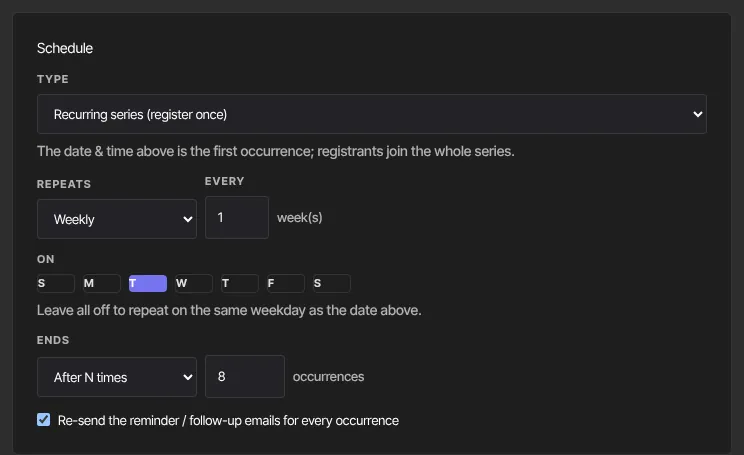
- Under Schedule, choose a Type:
- Recurring series (register once): the date and time above are the first session, and registrants join the whole series. - Bookable time slots (book one): each registrant books one of the times.
- Set Repeats (Daily, Weekly or Monthly) and Every. For weekly, pick the days under On, or leave them all off to repeat on the same weekday. For monthly, choose Monthly by the day of the month or the same weekday position, such as the 3rd Tuesday.
- Set Ends: Never, On a date, or After N times.
- For time slots, set Capacity per slot (blank means unlimited).
- For a series, tick Re-send the reminder / follow-up emails for every occurrence to remind registrants before every session. Otherwise they're reminded about the next session only.
- Save. "Occurrences are generated when you save."
Manage upcoming times
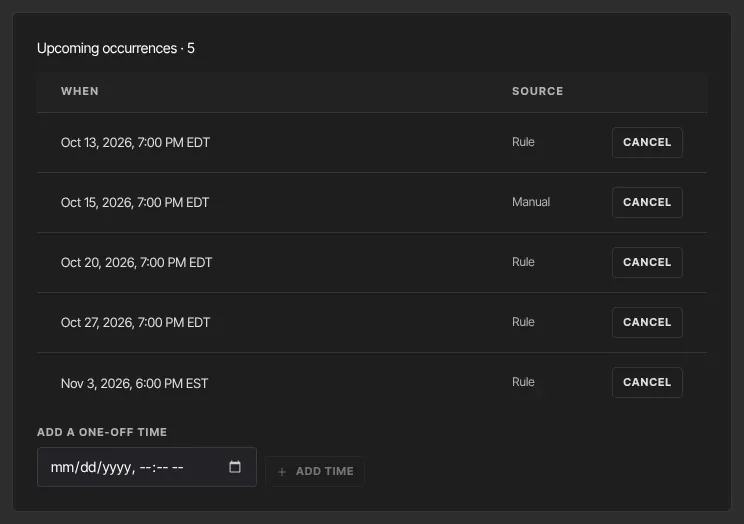
Series and time-slot events have an Upcoming occurrences panel with When, Booked (for slots) and Source (Rule or Manual).
- Click Cancel on a time to drop it. A slot with bookings can't be cancelled until you deregister them.
- To add an extra time, pick it under Add a one-off time and click Add time. It must be in the future.
Times are created about six months ahead and topped up daily. Times you added yourself, and slots with bookings, are always kept. Registrants aren't told when a time is cancelled; its reminders simply don't go out.
Publish, unpublish and calendar links
- Registrations only work on published events.
- Once published, the event page shows Add to calendar with Google Calendar and .ics download. The same links go into confirmation and reminder emails automatically.
- Unpublish keeps the registrants but stops their remaining emails, and the calendar links stop working.
Delete an event (owners and admins)
- Click Delete on the event's row in the list, or on the event's page, then Confirm delete.
- Its registrants, emails and times are removed, and no more emails go out. Automations that start from Deregistered from an event don't run for these registrants.
What happens next
- The Events list shows each event's Title, When (a series shows its rule and "Next: …"), Registered and Status.
- To add registrants, see Register people for an event. To set up the emails, see Event emails.

Common errors
- "Give the event a title." or "Pick a valid date and time.": fill in both.
- "A repeating event needs a recurrence rule.": set how it repeats.
- "Could not save the event." or "Could not update the event.": try again in a moment.
- "Deregister its bookings before canceling this time.": deregister the people booked into that slot first.
- "Pick a time in the future.", "Could not cancel that time." or "Could not add that time.": check the time and try again.
- "You don’t have permission for this.": you're a viewer. "You don’t have permission to do that." appears when staff or viewers try to delete.