Each event has its own email plan, sent automatically to every registrant: one confirmation when they register, as many reminders before the start as you like, and follow-ups after the event ends, such as the replay, your next offer or a survey. Confirmation and reminder emails also carry add-to-calendar links.
Who can do this
Owners, admins and staff can add, change and delete event emails. Viewers see "You don’t have permission for this."
Add an email
- Open the event and find Event emails.
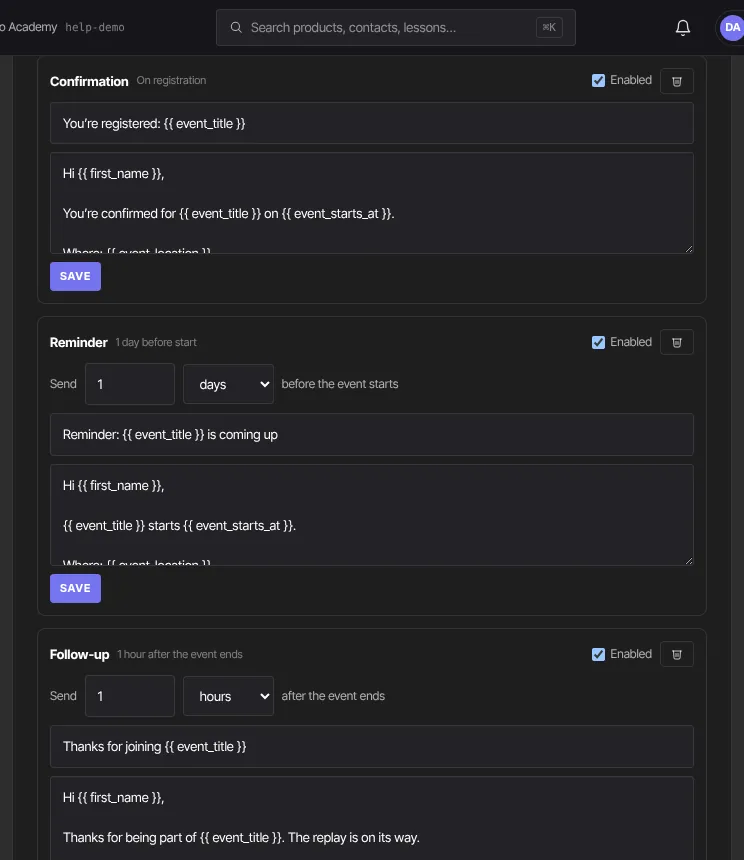
- Click + Confirmation (one per event), + Reminder or + Follow-up. Each starts with a ready-made subject and body.
- For a reminder or follow-up, set Send a number of minutes, hours or days "before the event starts" or "after the event ends", up to 14 days. The label next to the email's type shows the timing, such as "1 day before start".
- Edit the subject and body. You can use the merge tags
{{ first_name }},{{ event_title }},{{ event_starts_at }},{{ event_location }},{{ event_google_calendar_url }}and{{ event_ics_url }}. - Keep Enabled ticked, then click Create (or Save for an existing email).
- To remove an email, click its trash button.
Once an email has gone out, it shows "· sent" and how many times.
Calendar links
- Confirmation and reminder emails end with "📅 Add to calendar: Google · Apple / Outlook (.ics)". Follow-ups don't.
- For a one-time event or a booked slot, the calendar file holds that one time. For a recurring series, it holds the whole series.
- The same links are on a published event's page, under Add to calendar.

When each email goes out
- Confirmation: straight after someone registers. Each registrant gets it once, even if they're deregistered and registered again.
- Reminders count back from the start time, and follow-ups count on from the end (start time plus duration).
- For a one-time event, that's the event's time. For a time-slot event, it's the slot they booked. For a series, it's the next upcoming session, or every session if Re-send the reminder / follow-up emails for every occurrence is ticked.
- Someone who registers late only gets the emails still in the future. The confirmation always goes.
- If you change the event's time, reminders follow the new time.
{{ event_starts_at }}shows the time in the event's time zone.
What happens next
- Event emails go to every registrant, whether or not they're subscribed to your marketing email.
- Nothing is sent when the event is unpublished, the email isn't enabled, the person was deregistered, the session was cancelled, or the contact has no email address.
- On a series that runs close together, such as daily, keep follow-up delays short. A follow-up timed after the next session has started can push that session's reminders past their time, and late reminders are skipped.
Common errors
- Create or Save is greyed out: give the email a subject ("Give the email a subject.").
- "Could not save the email." or "Could not delete the email.": try again in a moment.
- A registrant didn't get a reminder: they registered after the reminder's time, the email wasn't enabled, or the event was unpublished.
- A calendar link says "Not found": the event was unpublished or deleted, or that session was cancelled.
- "You don’t have permission for this.": you're a viewer.