Registrants are the contacts signed up for an event. They receive the event's emails, and you see them all on the event's page. People are registered in two ways: you add them on the event's page, or an automation registers them when they submit a form, buy an offer or do anything else it reacts to. There's no separate public registration page: a form plus an automation is how people sign themselves up.
Who can do this
- Owners, admins and staff can register and deregister people. Viewers see "You don’t have permission for this."
- Automations need the Core plan or higher.
- The event must be published.
Register a contact by hand
- Open the event from Marketing → Email → Events.
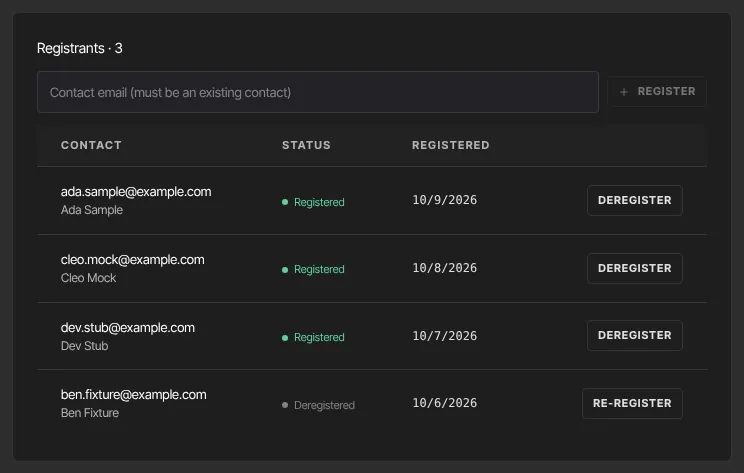
- In Registrants, type their email in Contact email (must be an existing contact).
- Click Register. "Registered" appears, and they're listed with the status Registered.
Type the address in lower case. A contact whose saved address contains capital letters isn't found this way ("No contact with that email."); register them through an automation instead.
Book a contact into a time slot
On a Bookable time slots event:
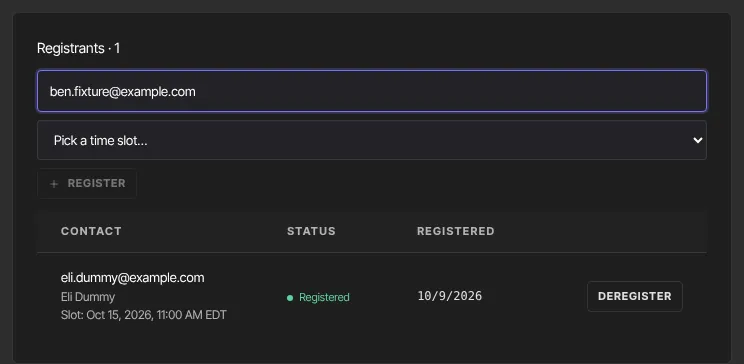
- Type their email and choose a time in Pick a time slot…. Each time shows how many are booked out of its capacity.
- Click Register.
Only future times that aren't cancelled and still have room are listed. Each contact can hold one slot per event. To move someone, click Deregister, then register them again with the new time. Slots can only be booked here: automations can't book a slot.
Let people register themselves with a form
- Create a form and put it on a page. See Create an opt-in form.
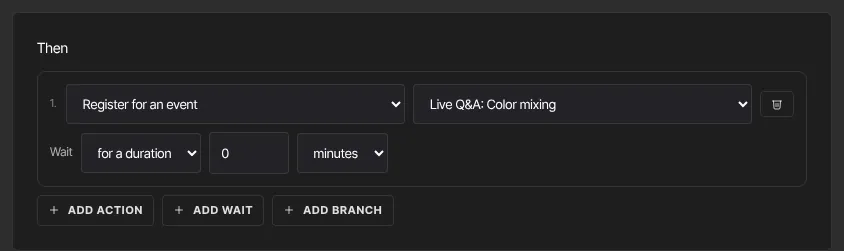
- Create an automation: under When, Form is submitted with your form; under Then, Register for an event with your event. Publish it. See Build an automation.
- Everyone who submits the form is registered and gets the event's emails. On a double opt-in form, that happens once they confirm.
The same works with Offer is purchased for a paid event. Check that the event is published, is a one-time event or a recurring series (not time slots), and is picked in the action: left on Any event, the action does nothing.
Deregister or re-register
- Deregister stops all their remaining emails for this event and runs any automation that starts from Deregistered from an event.
- Re-register signs them up again: reminders and follow-ups start again, but the confirmation email isn't sent a second time.
- On a time-slot event, Re-register shows "Pick a time slot to book this registrant into." Register them again from the email box above, with a slot, instead.
What happens next
- Each new registrant gets the confirmation email straight away, then reminders and follow-ups on schedule. See Event emails.
- Automations that start from Registered for an event run for them.
- Registering someone who is already registered changes nothing.
- The Registered count in the Events list goes up.
Common errors
- "Publish the event first — registrations only apply to published events.": publish the event.
- "No contact with that email.": check the spelling, add them as a contact first, or register them through an automation if their saved address has capital letters.
- "Enter a contact’s email.": the email box is empty.
- "Pick a time slot to book this registrant into.": choose a time for a time-slot event.
- "That time slot is no longer available." or "That time slot is full.": pick another time.
- "No bookable slots — add or free up a time first.": add a time or deregister someone.
- "Registration not found.": refresh the page.
- "You don’t have permission for this.": you're a viewer.