Every Zinstruct workspace comes with a public website at your free yourname.zinstruct.com address, or at your own domain once you connect one. You build it under Website in the sidebar: pages, landing pages, a blog, menus, your domain and your brand. This article is the map. It also explains the pages list, your Home page, and what visitors see.
Who can do this
- Owners and admins can do everything under Website: create and edit pages, publish, unpublish and delete them, and change the Style Guide, Site Details, Navigation and domain.
- Staff can create website pages, landing pages and blog posts, and save drafts of them. They can't publish, unpublish or delete. See Publish, unpublish or delete a page.
- Viewers can open every Website screen but can't change anything. Saving shows "You don’t have permission for this." and the list buttons show "You don’t have permission to do that."
Find your way around Website
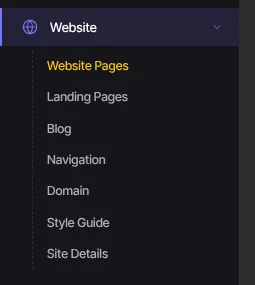
- Click Website in the sidebar. You land on Website Pages (
/website). - Use the menu under Website to move between its screens:
- [Website Pages](/website): your site's pages, including Home. - [Landing Pages](/website/landing-pages): standalone pages for campaigns. See Landing pages. - [Blog](/website/blog): posts. See Write, schedule and publish blog posts. - [Navigation](/website/navigation): header and footer menus. - [Domain](/website/domain): your free address and your own domain. - [Style Guide](/website/style-guide): colours, fonts and buttons for the whole site. - [Site Details](/website/site-details): site title, logo, SEO, tracking and code.
The pages list
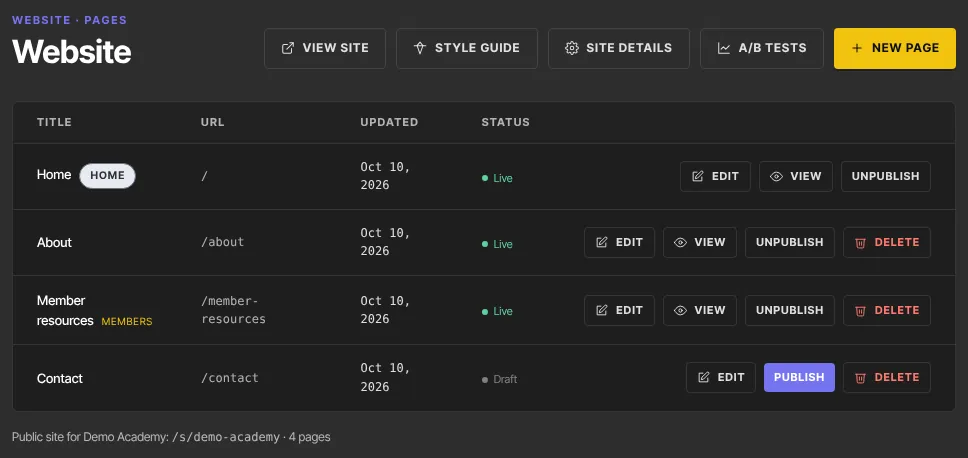
The Website screen lists your site's pages with their Title, URL, Updated date and Status (Live or Draft). Your Home page carries a Home badge, and members-only pages show Members.
- Each row has Edit, then View and Unpublish for a live page, or Publish for a draft, and Delete (not on Home).
- The buttons at the top are View site (your live address in a new tab), Style Guide, Site Details, A/B tests and New page.
- Under the table, "Public site for" names your workspace and counts its pages. A short list usually means you're signed in to a different workspace.
Landing pages have their own list under Landing Pages.
Your Home page
Your site is set up the first time an owner, admin or staff member opens Website or Settings. It starts with a default Style Guide and a draft Home page holding your workspace name, a welcome line and a Get started button.
- On Website Pages, click Edit on the Home row. While Home is a draft, a yellow panel at the top says your home page isn't published and names the address visitors use. Its Finish your home page button opens the same page.
- Replace the starter content with your own. See Edit a page in the builder.
- An owner or admin clicks Publish.
Home has no URL box and can't be deleted. Your site's root address shows it, unless you choose member sign-in or another page under Homepage on the Domain page.
What visitors see
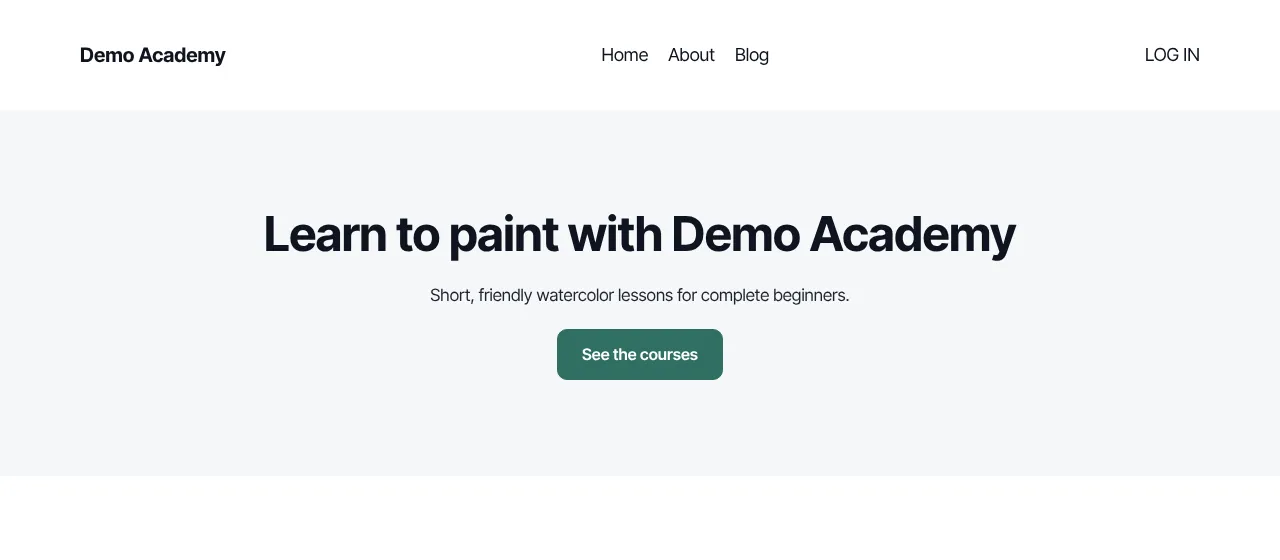
- A published page lives at
yourname.zinstruct.com/its-url, inside your header (logo or site title, header menu and a LOG IN link to member sign-in) and footer (footer menu, footer text, social icons and the "Powered by" line). - Landing pages show your content only, with no header or footer.
- Until Home is published, your address shows a holding page with your site title. If you chose another page under Homepage, the root shows that page once it's published. Any other address shows "not found" until a page is published there.
- Drafts and unpublished pages show "not found" to visitors. To see a draft yourself, use Preview in the builder.
- Once your own domain is live, your free address forwards to it. See Connect your own domain.
- If your workspace is suspended, for example over an unpaid bill, every page of your site shows "This site is temporarily unavailable" until it's back in service. A closed workspace's site shows "not found".
What happens next
- Changes in Style Guide, Site Details and Navigation reach your live site as soon as you save. Page content waits until someone publishes it.
- Before anyone on your team opens Website or Settings for the first time, your address shows "not found". Open Website once to set it up.
Common errors
- "You don’t have permission to do that.": you clicked Publish, Unpublish or Delete in a list as staff or a viewer. Ask an owner or admin.
- "You don’t have permission for this.": you tried to save as a viewer, or as staff on a screen that needs an admin.
- "Your free trial has ended, so your workspace is read-only. Subscribe in Settings → Billing to start creating again — nothing has been deleted.": choose a plan in Settings → Billing. Some Website screens show "You don’t have permission for this." instead, even for the owner: the cause is the same.
- A page shows "not found" on your site: it's a draft or was unpublished. Publish it, or check the URL in the builder.