Navigation controls the links in your site's header and footer. You can keep several named menus, pick which one shows in the header and which in the footer, and place any menu on a page with the Menu block. Links can point at your pages or at any web address, and some can be shown only to members.
Who can do this
- Owners and admins can change navigation.
- Staff and viewers can open the screen, but Save navigation shows "You don’t have permission for this."
Choose the header and footer menus
- Go to Website → Navigation (
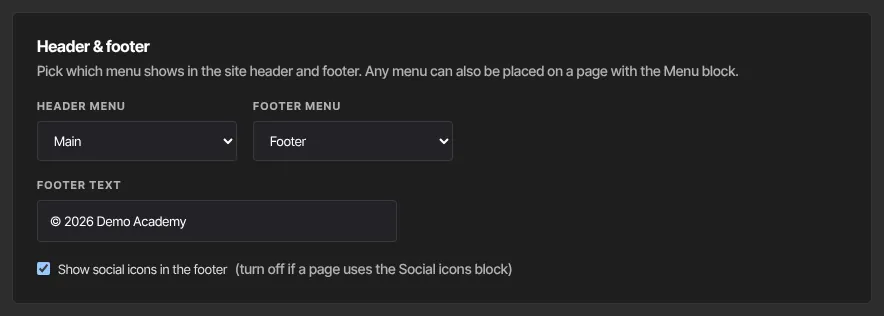
/website/navigation). - In the Header & footer panel, pick a Header menu and a Footer menu.
- Type your Footer text, such as a copyright line.
- Tick or untick Show social icons in the footer. The icons come from the social links in Site Details. Untick it if a page uses the Social icons block instead.
Add and arrange links
- Under Menus, each menu has a card. New sites start with Main and Footer. Rename a menu in its name box.
- Click Add link. A row appears.
- Type the Label, then choose Page or URL:
- Page: pick from Select a page…. Drafts are marked "(draft)". - URL: type a full web address starting with https://, an email link starting with mailto:, or a path on your site such as /blog.
- Tick Members to show the link only to signed-in members. See Members-only pages.
- Use the up and down arrows to reorder links, and the bin to remove one.
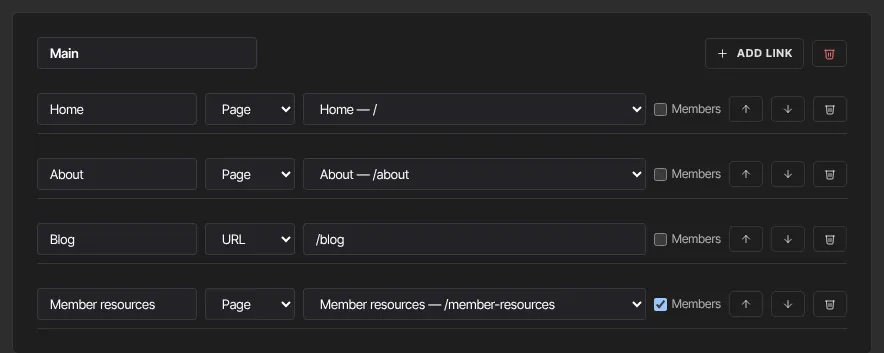
- Click Add menu for another menu. The bin at the top right of a card deletes that menu. You always keep at least one.
- Click Save navigation. "Saved" appears beside the button.
What happens next
- Your live site updates as soon as you save. There's no publish step.
- A link to a page shows only while that page is published. Draft, unpublished or deleted pages drop out until they're live again.
- New pages aren't added to any menu automatically.
- Landing pages never show the header or footer.

Common errors
- "Please fix the navigation items.": every link needs a label of up to 80 characters, a menu can hold up to 30 links, and you can have up to 12 menus.
- "Could not save navigation.": try again.
- "You don’t have permission for this.": only owners and admins can save navigation.
- A link doesn't show on your site: the page it points to isn't published, Members is ticked and you're not signed in as a member, or the address doesn't start with https://, mailto: or /.
- Your changes disappeared: you left the screen without clicking Save navigation.