Site Details is your site-wide settings page: the title, contact details and language, your instructor card, logo and favicon, footer social links, search defaults, Google Analytics, custom code, blog comments, a cookie banner and the "Powered by" line. Everything is on one form and saved together.
Who can do this
- Owners and admins can change Site Details.
- Staff and viewers can open the page, but Save settings shows "You don’t have permission for this."
- Removing the "Powered by" line needs a plan that includes it. Without one, its box is locked on. See Plans and billing.
Edit your site details
- Go to Website → Site Details (
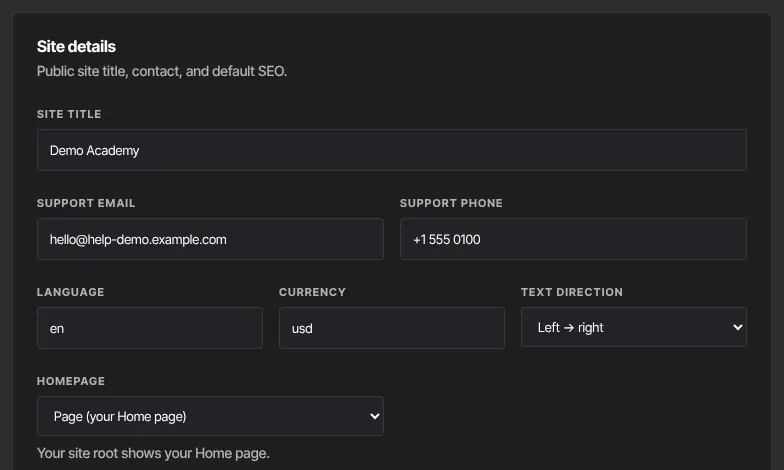
/website/site-details). The form is the Site details panel. - Enter the Site title. It shows in your header when you have no logo, and on your holding page before Home is published.
- Add a Support email and Support phone to keep them with your site's details. The reply-to address on receipts is set separately, in Settings.
- Set Language (for example
en), Currency (for exampleusd) and Text direction (Left → right or Right → left).
- Scroll to the bottom and click Save settings. A green Saved badge appears.
Instructor, header and footer
- Instructor: a Name, Title, Photo URL and Bio. They fill the Instructor block on your pages.
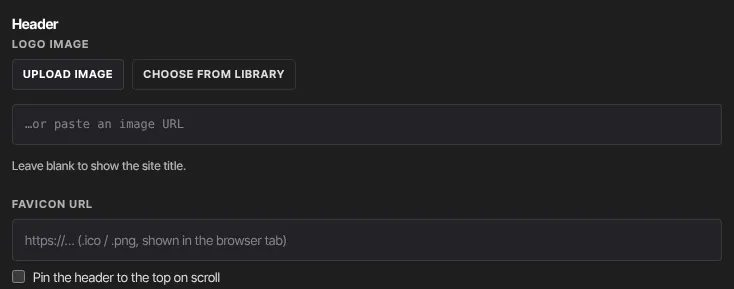
- Header: the Logo image (click Upload image, Choose from library, or paste a link; leave it blank to show your site title), a Favicon URL for the browser tab (.ico or .png), and Pin the header to the top on scroll.
- Footer social links: full links for X / Twitter, Instagram, YouTube, LinkedIn, Facebook and TikTok. Blank ones are hidden. To hide the whole row, untick Show social icons in the footer in Navigation.
Search and analytics
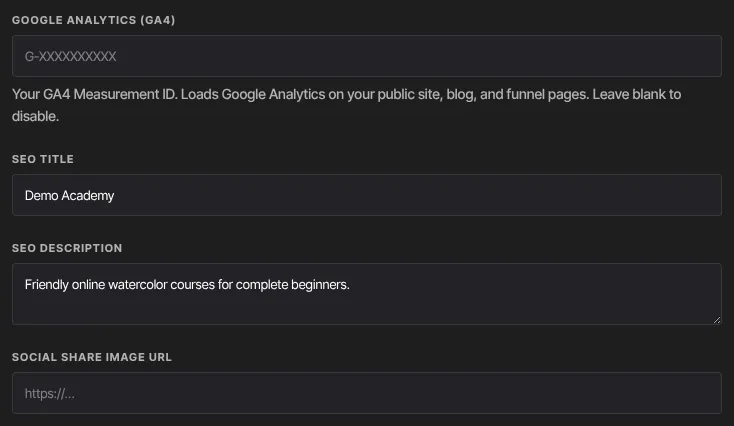
- Google Analytics (GA4): your Measurement ID, like
G-XXXXXXXXXX. It loads Google Analytics on your site, blog and funnel pages. Leave it blank to turn it off. Your workspace's tracking preference can stop it loading. - SEO description: the search description for your home page. Your other pages use a snippet of their own text, so each page has its own description in search; a page with no text uses this one. Your RSS feed uses it too.
- SEO title: the title of your home page in search results and browser tabs. If it's blank, your Site title is used. Every other page is titled with its own name followed by your site title, such as "About — Your School".
- Social share image URL: the picture shown when someone shares a link to your site on social media or in a chat. Use a 1200 × 630 image. It's used on every page that has no share image of its own. A post uses its own share image or blog image first, and the blog page uses the one in Blog settings first.
How search engines see your site
Zinstruct sets these for every site. There's nothing to turn on.
- One address in search: your site is indexed only on its live address, which is your own domain once it's connected, or your free address before that. The free address forwards to your domain, and the copy under
app.zinstruct.com/s/…is hidden from search. - Checkout and member pages stay out of search: checkout, cart, invoices, member sign-in and everything in the member area are hidden from search on your domain. Your own pages and your blog stay in.
- Sitemap and robots.txt: your site has a
/sitemap.xmlthat lists your home page, your published pages, your blog and its posts, and a/robots.txtthat points to it. Members-only pages, draft pages and scheduled posts are left out. To get found sooner, add your site to Google Search Console and submithttps://yourdomain.com/sitemap.xml. - Structured data: your home page tells search engines your site's name, address, logo and the social profiles in your footer links. Each blog post tells them its title, date, author and image. This helps search results show your brand and posts correctly. It comes from your Site title, Logo image and Footer social links above, so keep those filled in.
- One main headline per page: the first Hero on each page is its main headline (H1) for search engines. Later heroes look the same but count as section headings. See the Block catalog for pages without a hero.
Code, comments and cookies
- Custom CSS: styles added to your public pages, blog and funnels. Use your Style Guide tokens, such as
var(--site-primary), where you can. - Header tracking scripts: paste tracking tags exactly as the vendor gives them, such as Google Tag Manager or a Meta Pixel. Only
<script>,<noscript>,<link>and<meta>tags are allowed. They load first on every page of your live address, never in the builder preview. Your tracking preference can stop these too. - Custom JS: your own JavaScript, without
<script>tags. It runs after each page loads, on your live address only. - Disqus shortname (blog comments): turns on comments under blog posts. See Blog settings.
- Cookie banner text: shows a banner with a Got it button on your public pages.
- Show “Powered by Zinstruct” in the footer: untick it to remove the line, if your plan includes that. If it doesn't, the box is ticked and locked, and a Remove Zinstruct branding note under it names the plan that includes it, with a Choose a plan button. If you later move to a plan without it, the line comes back on your site straight away.
What happens next
- Changes reach your live site on the next page load. There's no publish step.
- Tracking scripts and Custom JS run only on your live address (your free address or your own domain), not in previews.
Common errors
- "Please fix the highlighted fields.": the fields aren't marked, so check that the Support email is a real address, every link (photo, logo, favicon, social image) starts with https://, and the GA4 ID looks like
G-XXXXXXXX. - "Could not save settings.": try again.
- "You don’t have permission for this.": only owners and admins can save. If you're the owner, your free trial may have ended and the workspace is read-only; subscribe in Settings → Billing.
- You can't untick the "Powered by" box: your plan doesn't include removing it. Click Choose a plan under the box.
- "⚠ The saved value contains a tag that isn’t allowed here, so nothing is being injected. Remove it and save again.": remove anything other than script, noscript, link and meta tags from Header tracking scripts.
- A social link disappeared after saving: it didn't start with http:// or https://.