Account tracking is one switch for how much third-party analytics runs on your public site. It controls Google Analytics and the tracking tags you paste into Site details, such as a Meta Pixel or Google Tag Manager. Use it to turn tracking down or off, for example for privacy reasons, without deleting your tracking codes.
Who can do this
- Owners and admins can change Account tracking.
- Staff and viewers see "Only owners and admins can change this." instead of the options.

Choose a tracking mode
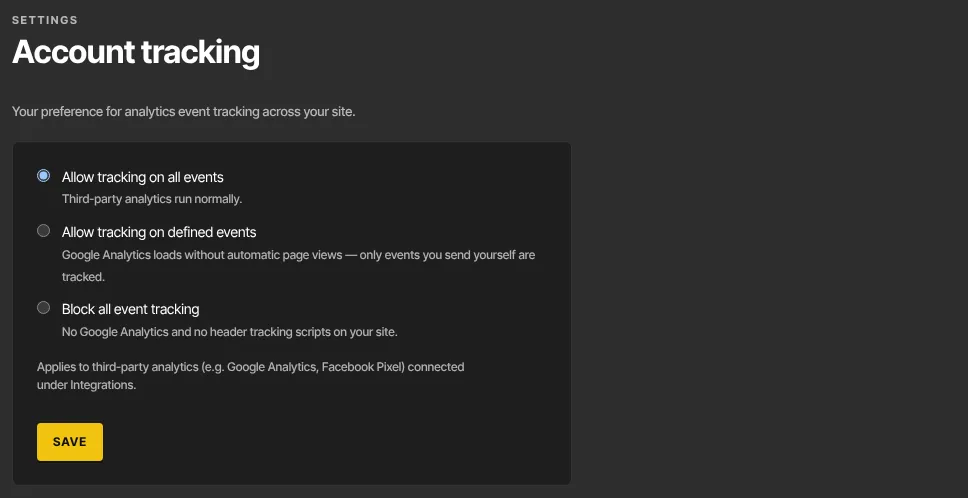
- Click your avatar or initials at the top right, then Account tracking (
/settings/tracking). - Pick one of the three options described below.
- Click Save. A green Saved badge appears.
What each option does
- Allow tracking on all events: Google Analytics runs normally, including automatic page views, and your header tracking scripts run. This is the default.
- Allow tracking on defined events: Google Analytics loads, but automatic page views are off. Only events you send yourself are recorded, for example with
gtag('event', …)in Custom JS. Header tracking scripts still run. - Block all event tracking: no Google Analytics and no header tracking scripts on any page of your site.
The mode covers your site's pages, your blog, your hosted forms and your quiz pages.
Where your tracking codes live
Account tracking doesn't hold any codes. You add them in Website → Site details:
- Google Analytics (GA4): your measurement ID, which looks like
G-XXXXXXXXXX. If it's blank, Google Analytics never loads, whatever mode you pick. - Header tracking scripts: tags from vendors such as Meta Pixel, Google Tag Manager or a consent banner, pasted exactly as the vendor gives them. They run on your live site only, never in the editor preview.
- Custom JS: your own JavaScript. Account tracking doesn't switch it off, because it's your site's code rather than a tracking tag.

The note under the options says they apply to analytics "connected under Integrations". Integrations only shows whether a Google Analytics ID is set; there's nothing to connect there. Everything is added on Site details.
What it doesn't change
- Your own page-view counts. Zinstruct counts visits to your site and blog pages itself, without a third-party script, so the page views in your Analytics keep counting in every mode.
- Your cookie banner. The Cookie banner text on Site details shows a notice with a Got it button. It doesn't hold analytics back until a visitor clicks it.
- Your Custom JS, as described above.
What happens next
- The new mode applies from the next page a visitor loads. A page that's already open keeps what it loaded.
- Your tracking codes stay saved on Site details, so you can switch back at any time.
- Nothing is sent to your visitors or members.
Common errors
- "Only owners and admins can change this.": you're staff or a viewer. If you're the owner and see this when saving, your free trial has ended and the workspace is read-only: subscribe in Settings → Billing.
- "Pick a valid option.": choose one of the three options, then save.
- "Could not save.": a temporary problem. Try again.
- Google Analytics shows no data: check the mode isn't Block all event tracking, and that the measurement ID on Site details starts with
G-. With Allow tracking on defined events, page views only appear if you send them yourself.