Account details holds two kinds of information. The top half is about you as a person: your name, photo, social handles and phone number. The bottom half is about your business: its name, support email, address and locale defaults. Fill it in so your photo shows in the top bar and your emails can show your business details.
Who can do this
- Owners and admins can open Account details and change everything on it. The personal panels are yours alone: each owner or admin sets their own.
- Staff and viewers see only the heading and "Only owners and admins can edit account details." That includes the personal panels, so staff and viewers can't set their own name, photo or phone. Their top-bar button shows your workspace's initials instead of a photo.

Open Account details
- Click your avatar or initials at the top right, then Account details (
/settings/account). - The first panel shows your workspace Account ID and the Email you sign in with. To change that email, click Change. It opens Sign-in & security; see Change your password, login email or connected Google account.
Set your personal profile
- In the Your profile panel, fill in First name and Last name.
- For Instagram and LinkedIn, type just your handle, not the full profile link. A leading "@" is fine.
- Under Avatar, click Upload image (Replace image if you already have one) or Choose from library, or paste an image URL into the box below them. A preview shows the picture at its actual size.
- To frame it, click Adjust crop, drag the picture and use Zoom, then click Apply crop.
- Click Save profile. A green Saved badge appears.
- In the Contact panel, type your Phone number and click Save contact. This is your own number, not your business's.
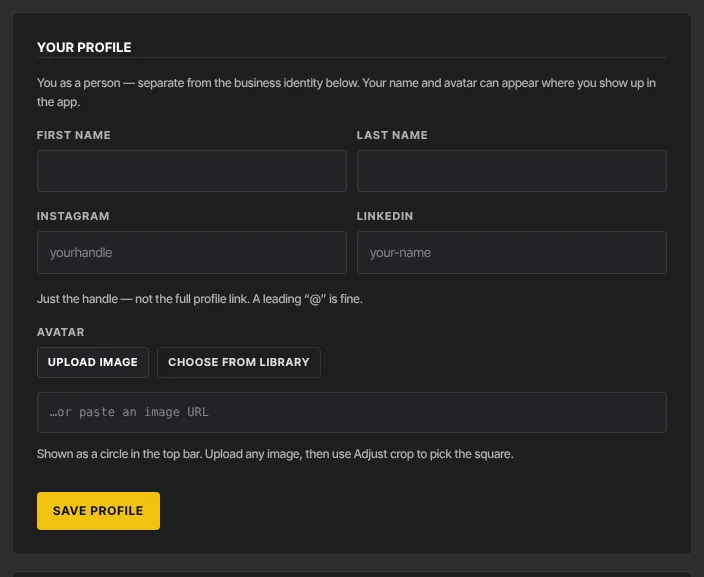
Each panel saves on its own, so saving one never clears the other. Your avatar appears as a circle in the top bar, on the button that opens the account menu.
Set your business profile and address
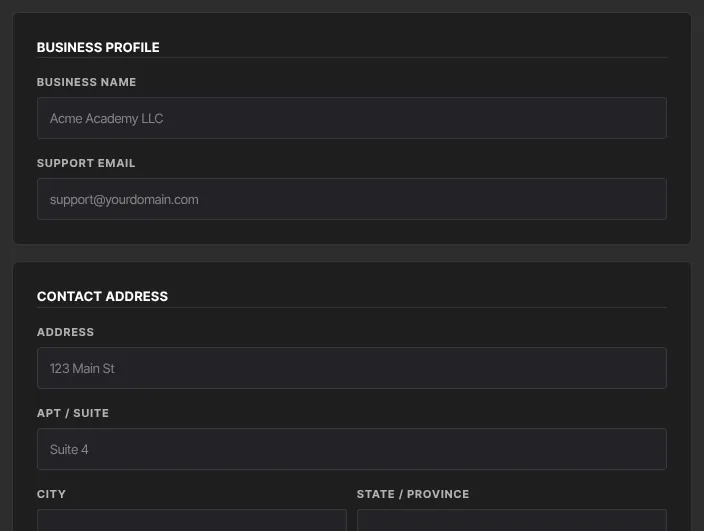
- In Business profile, fill in Business name and Support email.
- In Contact address, fill in Address, Apt / Suite, City, State / Province, Zip / Postal code and Country (2-letter), such as
US. - Scroll down and click Save account details. A green Saved badge appears above Business profile.
Set your locale defaults
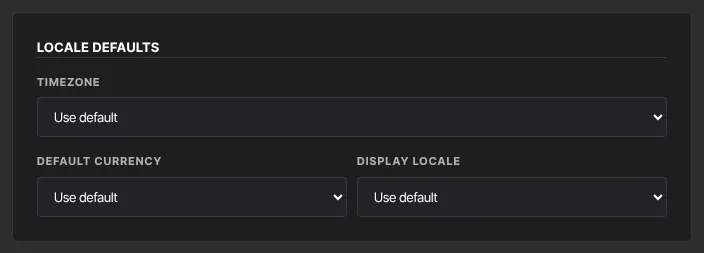
- In Locale defaults, pick your Timezone, or leave it on Use default.
- Pick a Default currency and a Display locale if you like.
- Click Save account details.
What these details are used for
Some of these fields feed other parts of Zinstruct. Others are only stored here.
- Business name fills the
{{ settings_name }}merge tag in event emails. In broadcasts and sequences it fills that tag only when Email sending has no business name of its own. - Address, City, State / Province and Zip / Postal code fill the address merge tags in broadcasts and sequences:
{{ settings_address_street }},{{ settings_address_city }},{{ settings_address_state }}and{{ settings_address_zip }}. - Timezone is the clock for sequence emails set to go out at a time of day, and for the start and end times of community challenges. On Use default, both use UTC.
- Support email, Apt / Suite, Country (2-letter), Default currency and Display locale are saved but aren't used anywhere else today, and each carries a grey badge that says so. Your prices are always charged in US dollars, and dates and numbers look the same whatever you pick.
The postal address in the footer of your marketing emails doesn't come from this page. Set it in Mailing address on Settings → Email sending.
Dripped lessons don't follow this timezone either: they unlock at a set hour in UTC. See Set the time dripped lessons unlock.
What happens next
- Your new avatar shows in the top bar the next time a page loads.
- Business details and the timezone are used from the next email or challenge that relies on them.
- Nothing is emailed to you, your team or your members when you save.
Common errors
- "Please fix the highlighted fields.": one or more fields has a red note under it. Fix those, then save again.
- "Enter your handle, not a URL.": type only the handle, like
yourname, not a link to your profile. - "Handles can only use letters, numbers, dots, dashes and underscores." or "That handle is too long.": correct or shorten the handle.
- "Enter a valid image URL": a pasted avatar link must start with
http://orhttps://. Or upload the picture instead. - "Enter a valid email address": check the Support email.
- "Pick a valid timezone", "Pick a supported currency" or "Pick a supported locale": choose an option from the list.
- "Could not save your profile.", "Could not save your contact details." or "Could not save account details.": a temporary problem. Try again.
- "Only owners and admins can edit account details.": you're staff or a viewer. If you're the owner and see this when you click Save account details, your free trial has ended and the workspace is read-only: subscribe in Settings → Billing. Your personal profile can still be saved.
- "No tenant in session.": sign out, sign in again, and retry.