Your settings live in two places. The Settings page in the sidebar holds everything about your school: your site, email, payments and connected services. Your account pages, such as billing, notifications and privacy, sit in the account menu under your avatar at the top right. This article shows what's in each place so you can find a setting quickly.
Who can do this
- Everyone on your team (owner, admin, staff and viewer) can open the Settings page and the account menu.
- Most pages they link to are for owners and admins. Staff and viewers who open one see a short message instead, such as "Only owners and admins can change this."
- A few pages are for the owner only: Subscription & billing, Privacy, connecting a payment processor on Payment setup, and creating API keys.
- Sign-in & security and Appearance are personal, so everyone can use them.
Open the Settings page
- Click Settings in the sidebar. The page is titled Workspace settings (
/settings). - At the top, the Workspace panel shows your workspace Name and Web address. See Workspace name and web address.
- Beside it, Your account shows the Email you sign in with and your Account ID. Support may ask you for the Account ID.
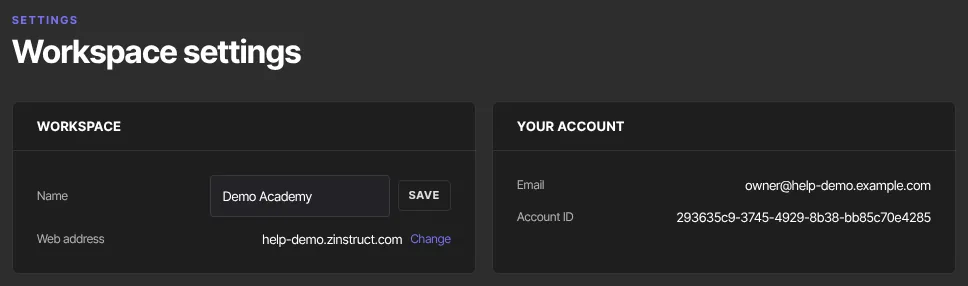
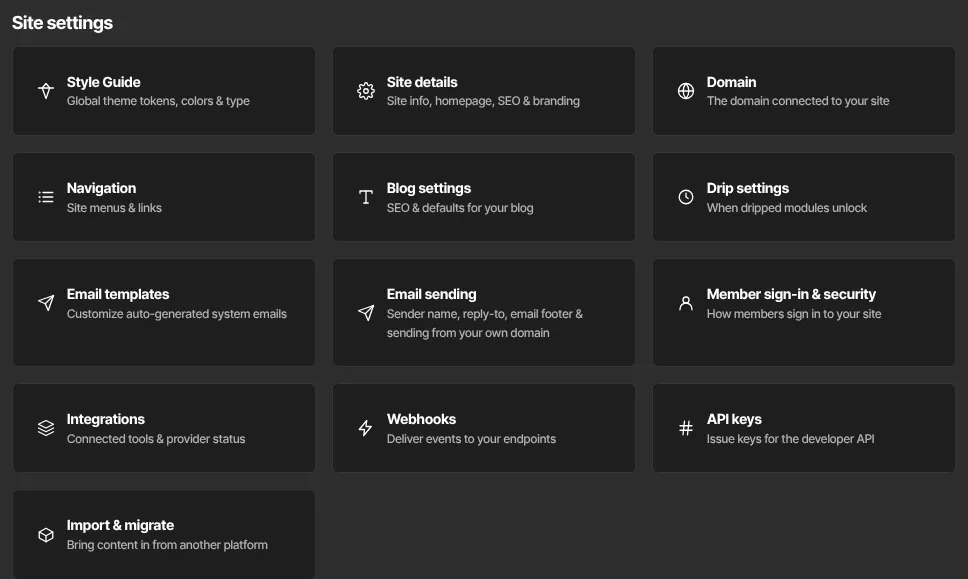
- Below are two groups of cards, Site settings and Payment settings. Click a card to open that page.
Site settings
- Style Guide: colors and fonts for your site.
- Site details: site information, homepage, SEO, branding and tracking codes.
- Domain: your web address and custom domain.
- Navigation: your site menus.
- Blog settings: SEO and defaults for your blog.
- Drip settings: the time of day dripped lessons unlock. See Set the time dripped lessons unlock.
- Email templates: the wording of automatic system emails.
- Email sending: sender name, reply-to, email footer and sending from your own domain.
- Member sign-in & security: how members sign in to your site.
- Integrations: the status of your connected services (see below).
- Webhooks: send events to your own systems.
- API keys: keys for the developer API.
- Import & migrate: bring content in from another platform.
Payment settings
- Payment setup: connect a payment processor so you can take payments.
- Checkout: customize your checkout page.
- Customer payments: purchase receipts and their reply-to address.
- Tax: collect and manage sales tax on your offers.
Two pairs are easy to mix up. Payment setup is how you get paid by your customers, while Subscription & billing in the account menu is how you pay for Zinstruct. Checkout styles the page buyers pay on, while Customer payments controls the receipt email they get afterwards.
Find your account settings
- Click your avatar or initials at the top right of any admin page.
- The account menu opens, with these pages above Sign out:
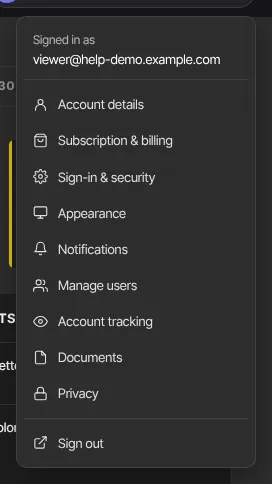
- Account details: your personal profile, business details and locale. See Account details.
- Subscription & billing: your Zinstruct plan and invoices.
- Sign-in & security: password, login email and two-factor authentication.
- Appearance: a light or dark theme for your admin app.
- Notifications: which workspace emails you get.
- Manage users: your team.
- Account tracking: how much third-party analytics runs on your site.
- Documents: see below.
- Privacy: export your data or close the workspace.
Integrations
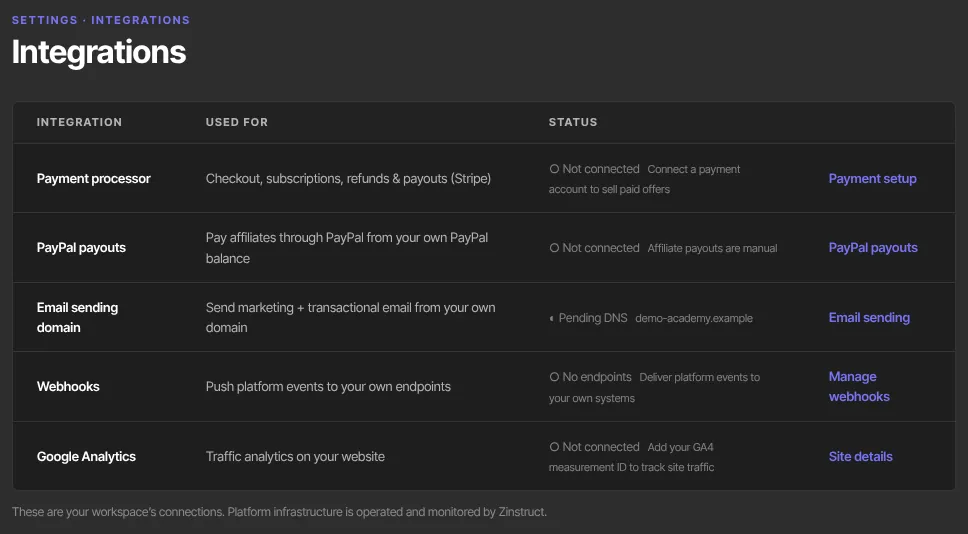
Integrations is on the Settings page and in the sidebar under Workspace. It's a status board: it doesn't connect anything itself. It lists five rows, each with its status and a link to the page where you manage it:
- Payment processor: whether your Stripe account is connected and can take payments. Links to Payment setup.
- PayPal payouts: whether your own PayPal account is connected for paying affiliates (without it, affiliate payouts are manual). Links to PayPal payouts on the affiliate Payouts page. See Pay your affiliates.
- Email sending domain: whether you send from your own verified domain. Links to Email sending.
- Webhooks: how many endpoints you have. Links to Manage webhooks.
- Google Analytics: whether a GA4 measurement ID is set. Links to Site details.
Documents
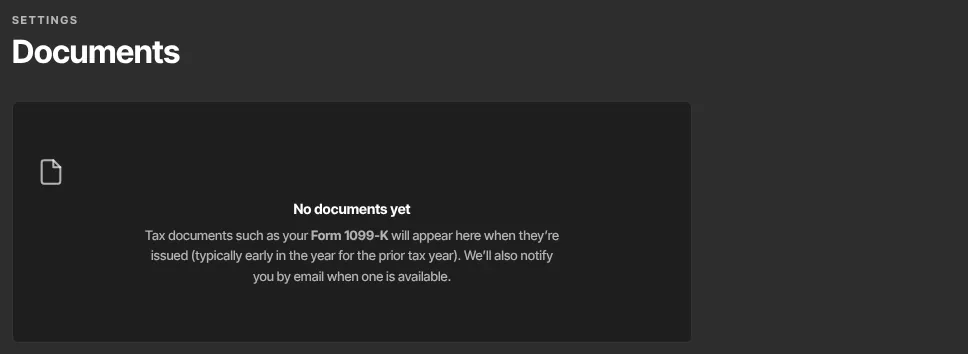
Documents in the account menu shows No documents yet. The page describes tax documents such as Form 1099-K, but none are issued through it and no email is sent about them. There's nothing to set up there. For records of your sales, use Reports and CSV exports.
What happens next
- Changes on each settings page apply as soon as you save them there.
- If a page shows only an "Only owners and admins …" message, ask your workspace owner or an admin to make the change, or to change your role on Team.
Common errors
- "Only owners and admins can change this.", or a similar "Only owners and admins can …" message: you're signed in as staff or a viewer.
- "Only the workspace owner can view billing.": billing is owner-only.
- "Only owners and admins can view privacy settings." or "Only the workspace owner can export or delete workspace data.": Privacy is owner-only.
- "Only owners and admins can view integrations." or "Only owners and admins can view documents.": these pages are for owners and admins.
- You're the owner and a save says "Only owners and admins can …": your free trial has ended and the workspace is read-only. Subscribe in Settings → Billing.
- Can't find Privacy, Notifications or Billing on the Settings page? They're in the account menu under your avatar.