This is the order to do things in for a first launch, from an empty workspace to a product someone can buy. Each step says where to click and links to the full article. There's no checklist inside the app to tick off, so use this page as yours.
Who can do this
- The owner can do every step. Only the owner can connect Stripe: everyone else sees "Only the account owner can connect a payment processor." on Payment setup.
- Admins can do every other step.
- Staff can create products, but can't create offers or publish pages. Creating an offer shows "You don’t have permission to manage offers."
- Viewers can look at everything but can't create anything: "You don’t have permission for this."
- It works on any plan, including the free trial. Each plan has a product limit; the free trial allows 5 products.
1. Create a product
- In the sidebar, click Catalog, then New product. (The Dashboard has a New product button too.)
- Under "What do you want to create?", pick a type: Course, Podcast, Community, Consulting, Newsletter or File. Click Get started.
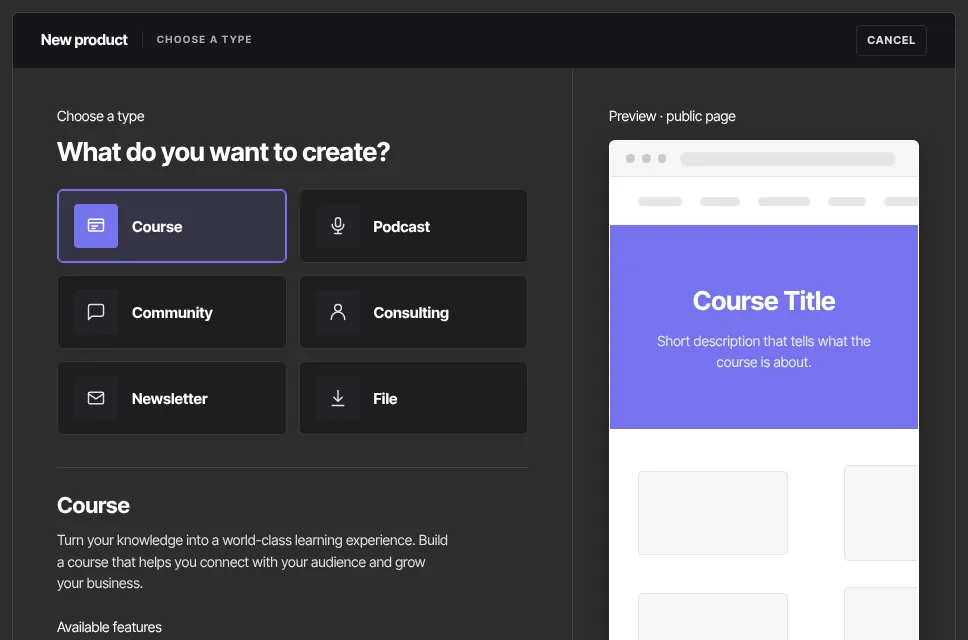
- For a course, choose Start from scratch or Import existing course under "How do you want to start?", fill in the details, and click Create course (or Review outline for an import).
- You land in the course builder. Add your lessons there. See Create a course.
2. Connect Stripe to take payments
- Go to Settings, then Payment setup (
/settings/payment-setup). - Click Connect with Stripe and complete Stripe's sign-up.
- Back in Zinstruct, the status reads Active — ready to sell once Stripe lets you take payments. If it says Onboarding incomplete or Action needed, click Finish Stripe onboarding. Refresh status checks again.
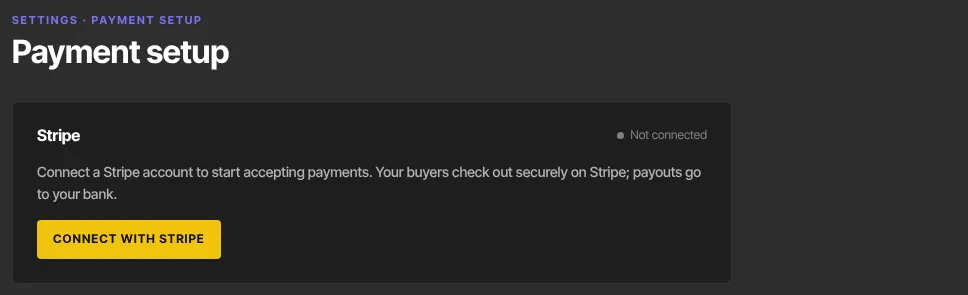
If your first offer is free, you can leave this step for later: free offers work without Stripe. A paid offer can be created and published without Stripe, but its checkout refuses every buyer until Stripe is connected, so connect it before you share a paid link. See Connect Stripe to take payments.
3. Put a price on it with an offer
A product can't be bought until it's on a published offer. The offer sets the price and terms.
- In the sidebar, click Revenue, then Offers, then New offer.
- Choose the Product to sell, type an Offer name, and click Continue to pricing.
- Under Pricing plan, pick One-time payment, Subscription, Payment plan (installments) or Free, and set the price. A paid price must be at least $0.99. Click Continue.
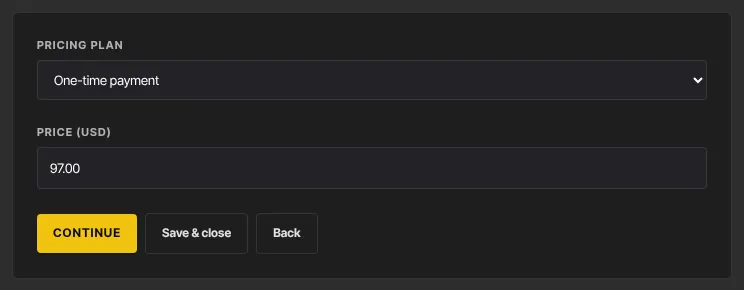
- Go on through How it presents to Review & publish, and click Publish offer.
Once it's published, the offer page has a Checkout link with a Copy link button: that's the address you can send people. To sell several products together, add them under Products in this offer on the offer's page. See Create and publish an offer.
4. Add the offer to your website
- In the sidebar, click Website, and click Edit on your Home page (or any page).
- Click Add block and search for Offer, a price card for one offer, or Pricing, several offers side by side. In the block's Offer box, pick your offer.
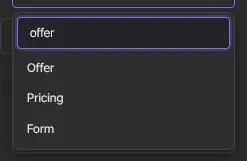
- Click Publish (or Publish changes) in the page builder.
The card's button reads Buy now, or Get access for a free offer, and opens checkout. Your site is at yourname.zinstruct.com, or your own domain once you connect one. Until your Home page is published, visitors there see a "coming soon" placeholder, and the Website page shows a Coming soon note with a Finish your home page button. See Publish, unpublish or delete a page.
5. Buy it yourself to test
- Open your site in a private browser window, so you aren't signed in as yourself.
- Click your offer's button.
- Free offer: click Sign up for free, open the one-time sign-in link from the email on the same device, then click Get free access. You land in your library, headed "Keep learning", with the product in it. - Paid offer: pay with a real card. Zinstruct has no test mode for your own sales, so refund yourself afterwards from Revenue → Transactions. The confirmation page points you to the receipt email, which has a link straight to your library.
- Check that the "You're in" email arrives, named after your product. It isn't sent if Send purchase receipts is off in Settings → Customer payments.
A 100% discount code doesn't get around Stripe: a paid offer still needs Stripe connected at checkout, even when the code takes the price to $0.
What happens next
- Buyers get access straight away. They appear on the product's Customers tab and in Contacts, and paid sales show in Revenue → Transactions and on Analytics.
- From here, tell your list: send an email from Marketing → Email, or set up an automation to welcome new buyers.
Common errors
- "You've reached your … plan's limit of … products. Upgrade in Settings → Billing to add more.": your plan's product limit is used up.
- "Only the account owner can connect a payment processor.": ask the workspace owner to connect Stripe.
- "This creator isn’t set up to accept payments yet. Please check back soon." at checkout: Stripe isn't connected, or isn't Active — ready to sell yet. Finish step 2.
- "A paid price must be at least $0.99, or set it to $0 for a free offer.": raise the price, or make the offer free.
- "Create a product first" when making an offer: an offer sells a product, so create one first.
- "This offer is not available." at checkout: the offer is still a draft. Publish it.
- "Publish failed — the draft was saved, but the page is not published yet. Try again.": click Publish again.
- Visitors see a "coming soon" page: your Home page isn't published yet.