The help center has a how-to article for every part of Zinstruct, written for creators and their teams. Search it, or browse it by topic and sub-topic, and use Was this helpful? at the end of any article to tell the Zinstruct team whether it answered your question. Your votes and notes are how unclear articles get found and fixed.
Who can use the help center
- Every team member (owner, admin, staff and viewer) can read every article and send feedback.
- Some tasks are limited to certain roles. Where an article has a "Who can" section, it says who can do the task and what everyone else sees instead.
- Your students have a separate help center, Help & support, in their member area. See Find help and rate an article.
Open the help center
- In the sidebar, under Workspace, click Help center (
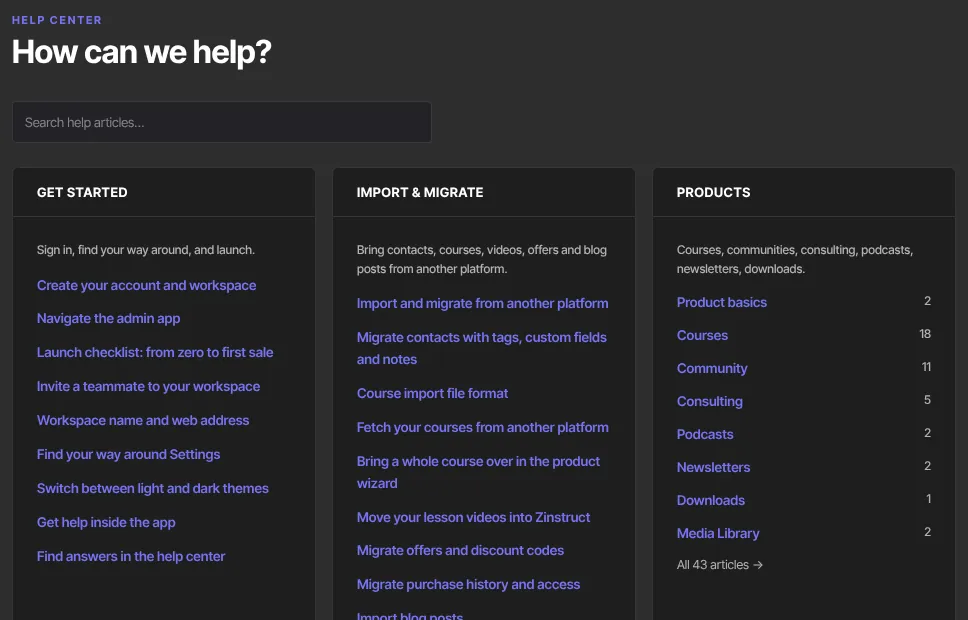
/help). The page is titled How can we help?. - Browse the ten topic panels: Get started, Import & migrate, Products, Revenue, Website, Marketing, Contacts, Analytics, Account & settings and API & integrations.
- The longer topics list their sub-topics, each with how many articles it has. For example, Products lists Product basics, Courses, Community, Consulting, Podcasts, Newsletters, Downloads and Media Library. The shorter topics list their articles.
- Click a sub-topic, a topic's name or All … articles → to open that topic's page. Click an article title to open the article.
The article names in the support chat's Sources: line open articles here too, in a new tab.
Browse a topic
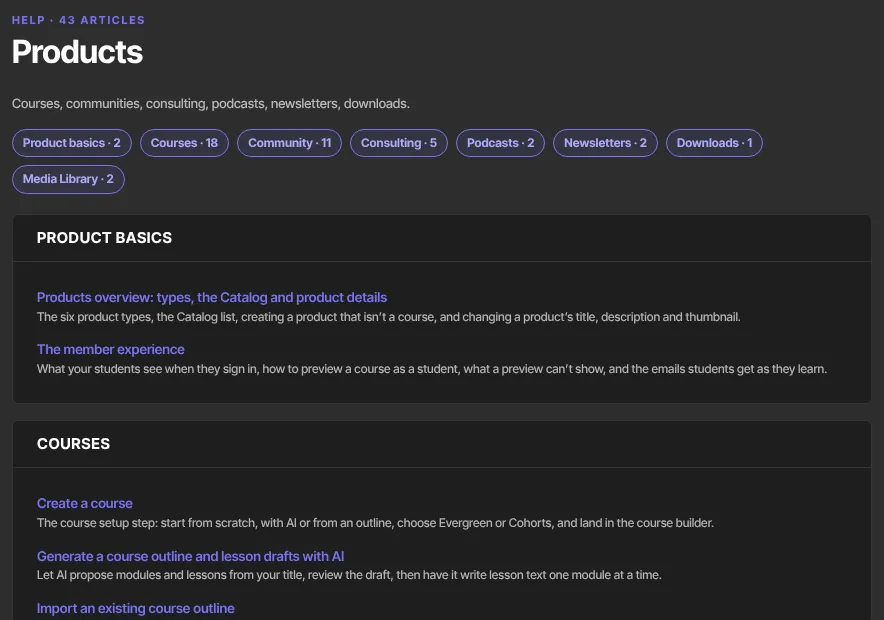
- A topic's page, such as Products, shows how many articles it has, then its sub-topics as a row of links. Click one to jump to it.
- Under each sub-topic's heading, its articles are listed in the order you'd read them, each with a one-line summary.
- Click an article title to open it. Help center at the top takes you back to the index.
Search for an article
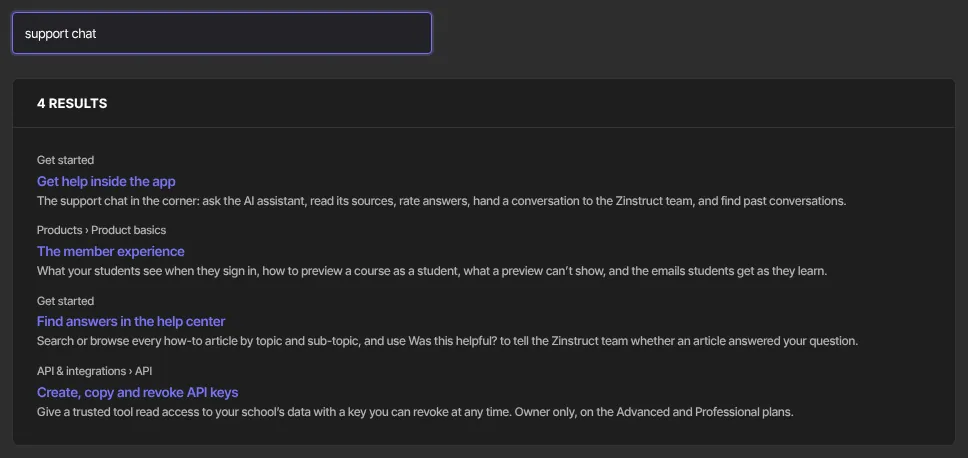
- Type into Search help articles… at the top of the page. Results appear as you type, under a count such as 4 results. Each result shows where it lives, such as Products › Courses.
- Every word you type must appear somewhere in an article. Articles with your words in their title come first.
- Clear the box to go back to the topic panels.
Read an article
- The line at the top shows where the article lives, such as Help center › Products › Courses. Click Help center, the topic or the sub-topic to go back to it.
- Under the article, More in lists the other articles in the same sub-topic (or, in a topic without sub-topics, the same topic).
- If an article has been merged into another one, its old link takes you to the new article.
Tell us whether an article helped
- Scroll to Was this helpful? under the article.
- Click Yes. Your vote is sent straight away.
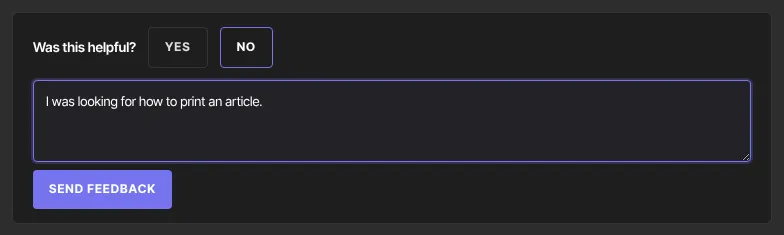
- Or click No. A box opens: What were you looking for? (optional). Say what was missing or wrong (up to 1,000 characters), then click Send feedback. The button reads Sending… while it saves.
- The panel changes to "Thanks — your feedback makes these articles better."
What happens next
- Your vote and note go to the Zinstruct team that writes these articles. They see each article's Yes and No counts and read the notes, so they can fix the articles that aren't working.
- Feedback is linked to your login, so leave out passwords and customer details.
- Nobody replies to feedback. If you need an answer, ask in the support chat: see Get help inside the app.
Common errors
- "Couldn't send that just now — try again in a bit.": your vote wasn't saved. Your session may have ended (sign in again), or you've sent a lot of feedback in a short time. Wait a while, then try again.
- "Nothing matched — try a different word.": no article contains every word you typed. Use fewer or simpler words, or browse the topics.
- A page-not-found error on a help link: there's no article or topic at that address. Search for the topic instead.