The admin app comes in two themes: Dark, the default, and Light. Pick whichever is easier on your eyes. Your choice only changes how the app looks for you. Your teammates, your public site and your students see no difference.
Who can do this
Everyone on your team (owner, admin, staff and viewer) can pick a theme for themselves. Nobody can set the theme for someone else, and there's no theme for the whole workspace.
Switch your theme
- Click your avatar or initials at the top right, then Appearance.
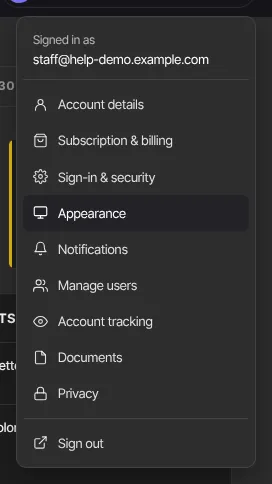
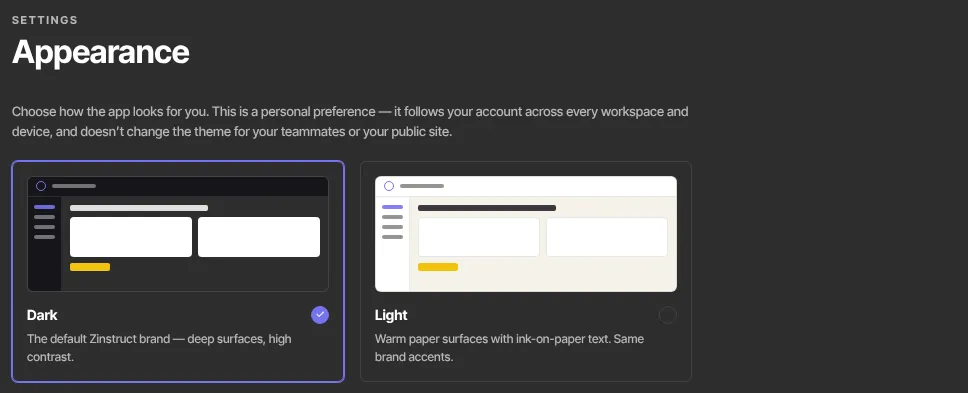
- The Appearance page (
/settings/appearance) shows two cards, each with a small preview. Dark has deep surfaces and high contrast. Light has warm, paper-coloured surfaces with dark text. The card in use has a tick. - Click the card you want. The app switches straight away. There's no Save button: clicking a card saves your choice.
You also picked a theme under Look and feel when you first set up your workspace. This page changes that choice.
What it changes
- Every page of the admin app, for you.
- Your course library and lessons when you open them while signed in to your own account, for example to preview a course.
- Not your public site, checkout pages or emails. Their look comes from your site's Style Guide.
- Not your teammates' screens. Each person picks their own.
What happens next
- Your choice is saved to your account and applies at once in the browser you're using.
- A browser or device where you've never picked a theme uses your saved choice when you sign in.
- A browser where you picked a theme before keeps that one until you pick again there. If another device shows the old theme, open Appearance on it and click the card you want.
Common errors
- "Could not save your theme.": the save didn't go through, and the selection switches back to your previous theme. Try again.
- "You must be signed in.": your session ended. Sign in again, then pick your theme.
- The theme is different on another device: that browser remembers its own last choice. Pick the theme again there.