The ? button in the bottom-right corner of every admin page opens Zinstruct support, a chat for questions about using Zinstruct. An AI assistant answers first, using the articles in this help center, and names the articles it used. When you need a person, you hand the same conversation to the Zinstruct team.
Who can use the support chat
- Every team member (owner, admin, staff and viewer) can use it.
- Conversations are personal. A colleague in the same workspace sees their own conversations, never yours.
- If there's no ? button on your admin pages, the chat isn't available for your workspace. Email support@zinstruct.com instead.
- Your students don't get this chat. They have their own help center under Help in their member area; see Find help and rate an article.
Ask a question
- Click ? in the bottom-right corner. The Zinstruct support panel opens, marked AI assistant.
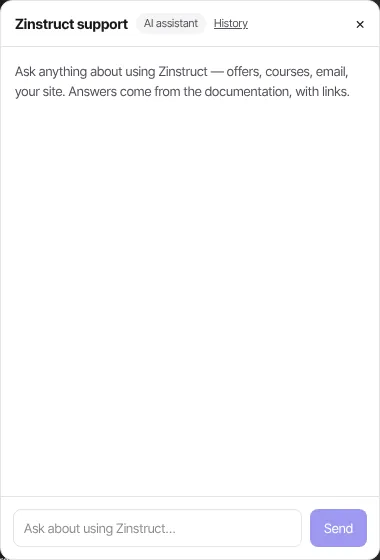
- Type your question into Ask about using Zinstruct… and click Send (or press Enter). Say what you're trying to do, such as "how do I invite a teammate". A long question wraps onto more lines so you can see all of it; press Shift+Enter to start a new line yourself.
- The answer appears as it's written. Under it, Sources: names the articles it used. Click a name to open that article in a new tab.
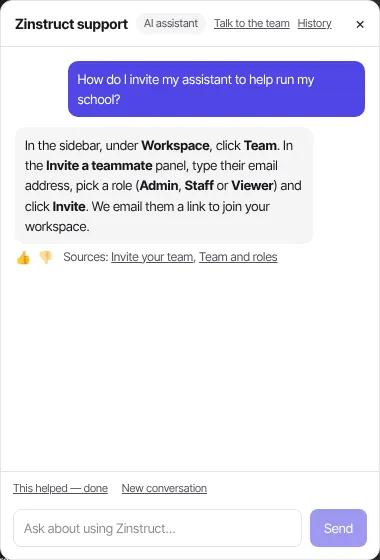
- Ask follow-up questions in the same conversation. The assistant reads the earlier messages in it.
The assistant answers from the help center, not from your account. It can't look up your orders, members, payouts or invoices. For a question only your account can answer, use Talk to the team (below).
In the sources, Zinstruct team answer means a person on the Zinstruct team wrote that answer for this exact question, and Student help: marks an article from your students' help center. No Sources: line means no article backed the answer, so check it before relying on it.
Rate an answer
- Under an answer, click 👍 if it helped or 👎 if it didn't.
- To change your mind, click the same button again to clear your vote, or click the other one to switch it.
- After a second 👎 in the same conversation, the chat adds "Not getting what you need? Use “Talk to the team” above and a person will follow up." It's only a suggestion: nothing changes until you click Talk to the team.
Hand the conversation to the Zinstruct team
Talk to the team appears at the top of the chat once you've sent your first question, for as long as the assistant is handling the conversation.
- Click Talk to the team.
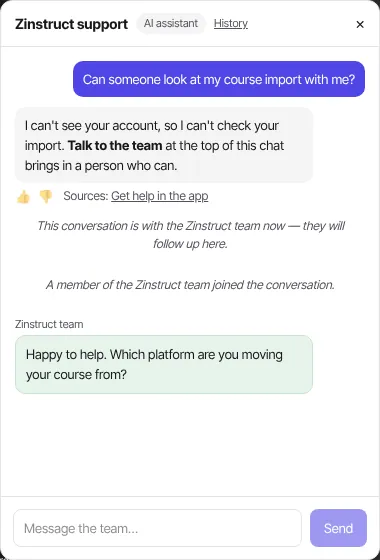
- The chat says "This conversation is with the Zinstruct team now — they will follow up here." The message box now reads Message the team….
- Add any details the team will need. Everything you type now goes to the team, and the assistant stays silent. These messages don't count toward the assistant's fair-use limit, and they still reach the team when the assistant is paused or your plan's monthly assistant limit is used up.
- When someone picks it up, the chat shows "A member of the Zinstruct team joined the conversation." Their replies appear under Zinstruct team.
Some questions skip the assistant and go to the team straight away: asking for a person, refunds or billing disputes, account security, legal matters, deleting an account or its data, and cancelling a subscription or plan. The assistant replies with one line, such as "Billing and refund questions need a person — I've flagged this for the Zinstruct team and they'll follow up here.", and the conversation moves to the team.
Find a past conversation
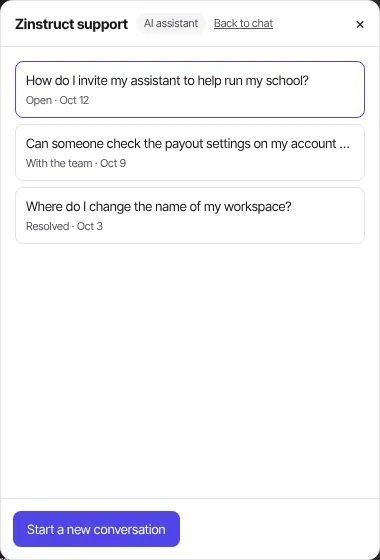
- Click History at the top of the chat.
- Your conversations are listed newest first. Each is titled with the first thing you asked and marked Open, With the team or Resolved, with its date.
- Click one to open it. Back to chat returns to the conversation you had open, and Start a new conversation opens an empty one.
Close a conversation
While the assistant is handling a conversation, two links sit above the message box:
- This helped — done closes it and records that the answer worked. The chat adds "You marked this conversation resolved. Start a new chat any time."
- New conversation closes it and opens an empty chat in one step.
A conversation the team is handling is closed by the team, not by these links, so a question waiting for a person is never dropped by accident. When they finish, you see "The team marked this conversation resolved. Start a new chat any time." If they hand it back to the assistant instead, it answers again and Talk to the team returns.
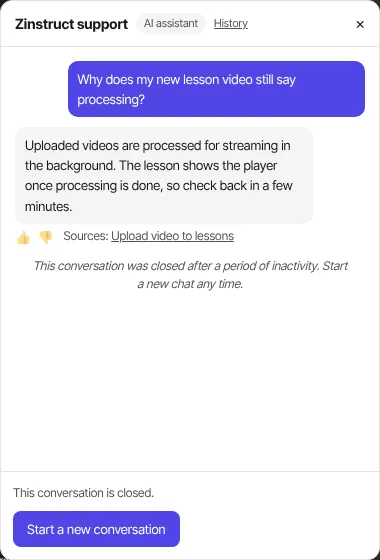
When the assistant's answer is the last message and you leave the conversation alone for a day, it closes itself: "This conversation was closed after a period of inactivity. Start a new chat any time."
A closed conversation reads This conversation is closed. Click Start a new conversation to ask something else.
What happens next
- The team replies in the chat and by email, with the subject "The Zinstruct team replied to your support conversation". You don't need to keep the chat open.
- If nobody joins soon after you hand over, the chat says "The team isn't immediately available — they'll reply here, and you'll also get an email."
- Each time you open the chat, it reloads the conversation you had on screen, with anything new in it. After a page reload, or if that conversation has closed, it opens on your newest open conversation, or empty if none is open.
- The Zinstruct support team can read your support conversations, including ones the assistant is still handling, and can join one before you hand it over. If they do, the chat switches to the team by itself. With the chat open, "A member of the Zinstruct team joined the conversation." appears within about 15 seconds, the message box reads Message the team…, and their replies follow under Zinstruct team. With the chat closed, you see all this the next time you open it. A message you send in the meantime goes to the team member, not the assistant. Their replies also reach you by email.
- Questions the assistant couldn't answer well, and answers marked 👎, go to the team, who use them to improve the articles.
Common errors
- "You have sent a lot of messages — give it a short break, or email support@zinstruct.com.": you've reached the fair-use limit on questions to the assistant, which is per person. Messages in a conversation the team is handling don't count toward it. Wait a while, or email.
- "Your plan's assistant limit is reached for this month. Email support@zinstruct.com and the team will follow up.": your workspace has used this month's allowance of assistant answers, which the whole team shares. It starts again on the 1st (UTC). See Plans and billing.
- "The assistant is temporarily unavailable. Email support@zinstruct.com and the team will follow up.": the assistant is paused on our side.
- Those three messages are about the assistant only. In a conversation the team is handling, your messages still reach the team, and Talk to the team still works in a conversation you've already started.
- "You have sent a lot of messages in a short time — give the team a moment to reply, or email support@zinstruct.com.": you've sent a lot of messages in a conversation the team is handling. The message you just sent stays on screen but didn't reach the team. Wait a little, then send it again, or email.
- "This conversation is closed — start a new one below.": the conversation closed while you had it open. Click Start a new conversation.
- "Could not close this conversation — try again.": if the team has taken the conversation over, only they can close it. Otherwise, try again.
- "Could not reach the team just now — email support@zinstruct.com.": the hand-over didn't go through. Try again, or email.
- "Something went wrong — try again, or email support@zinstruct.com.": the answer failed part-way. Send your question again.
- "Sign in required": your session has ended. Reload the page and sign in again.
- "I can't give a good answer to that from the documentation I have. I've noted the question for the Zinstruct team — you can also email support@zinstruct.com.": reword the question, or click Talk to the team.