Sometimes the Zinstruct support team needs to see your workspace exactly as one of your team members sees it, for example to check a problem that person reported. Support can't simply sign in. First they send a support access request by email to the workspace owner and to that teammate. Nothing happens unless one of you says yes, and a yes lasts at most 60 minutes.
Who can answer
- The workspace owner, and the teammate support wants to sign in as (an admin, staff member or viewer). Each gets their own email with their own link.
- If support wants to sign in as the owner, only the owner is asked.
- The first answer decides, Yes or No, whoever gives it. The other person's link then says the request was already answered.
- You don't sign in to answer: the link in your email is the proof it's you. Don't forward it.
- Nobody else on your team is asked, and nobody else can answer.
Check the email is genuine
The request email has one of these subjects:
- To the owner: "Zinstruct Support is asking to sign in as your team member", then the teammate's email address and your workspace name.
- To the teammate: "Zinstruct Support is asking to access your account on", then your workspace name.
It says Who is asking, Why, and How long (up to 60 minutes, starting when you say yes), and it has a single Respond here button. Replying to the email reaches Zinstruct support.
The page behind the button never asks for a password or a code. It shows the request and two buttons, nothing else. If a page asks you to sign in or type a password, stop and reply to the email instead. Not expecting a request? Reply and ask, or decline it.
Allow or decline a request
- In the email, click Respond here. A page titled Support is asking for access opens. Opening it doesn't answer anything.
- Check Who is asking, Why and How long, and read the question under them. The owner is asked "Do you give Zinstruct Support permission to sign in as", followed by the teammate's email address.
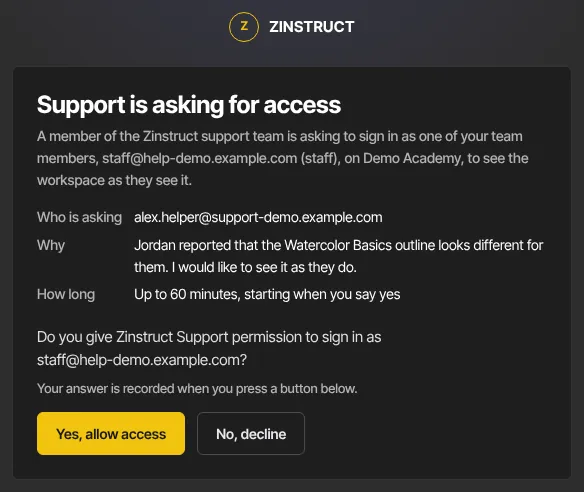
- Click Yes, allow access or No, decline. As the page says: "Your answer is recorded when you press a button below."
- After Yes, allow access, a green Access allowed box says "Thanks — Zinstruct Support can now sign in for up to 60 minutes. They’ll be shown a banner the whole time, and the session ends on its own."
- After No, decline, a red Access declined box says "Thanks — you declined. Nobody from Zinstruct Support will sign in to your account for this request."
If you're the teammate
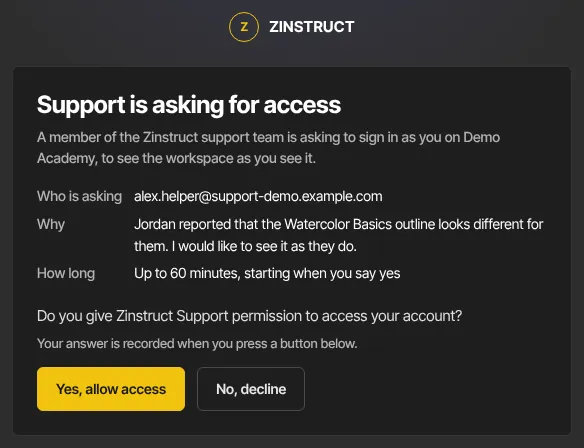
Your email and page ask about your own account: "Do you give Zinstruct Support permission to access your account?" The steps and buttons are the same, and your answer counts just like the owner's. You don't need to wait for the owner.
What happens next
- After a yes: only the support person who asked can use it, and only in the 60 minutes after the yes. They see the workspace as your teammate does, with a warning banner on their screen the whole time, and the session ends on its own when the hour is up.
- If your teammate uses two-factor authentication: support doesn't need their 6-digit code to sign in during that window. While signed in as your teammate, support can't add or remove an authenticator on the account.
- After a no: the person who asked can't use this request to sign in. To ask again, support sends a new request, which emails you again.
- No answer within 24 hours: the request lapses, and nobody gets access.
- Nothing else is emailed when someone answers.
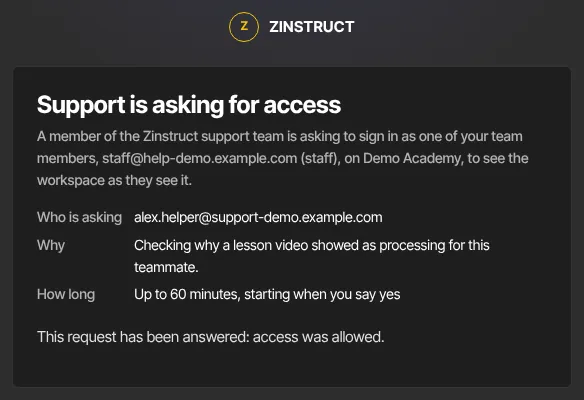
- Open the link again later and the page shows the outcome, for example "This request has been answered: access was allowed."
Common errors
- "This request has already been answered, so your answer wasn’t needed.": the other person answered first. Their answer stands.
- "This request lapsed without an answer, so nobody was given access.": more than 24 hours passed. If support still needs access, they'll send a new request.
- "Zinstruct Support withdrew this request, so nobody was given access.": support no longer needs it. There's nothing to do.
- Link not recognised, or "This link isn’t valid. If you were expecting a request from Zinstruct Support, reply to the email.": the link is incomplete or isn't a real request. Open it again from the email, making sure the whole link is used, or reply to the email.
- "Too many attempts. Please wait a few minutes and try again.": too many answers came from your network in a short time. Wait a few minutes, then press your answer again.