Two-factor authentication (2FA) adds a second step to signing in: after your password, you type a 6-digit code from an authenticator app on your phone, such as Google Authenticator, 1Password or Authy. Someone who learns your password still can't get in without your phone.
Who can do this
- Any team member (owner, admin, staff or viewer) can turn 2FA on or off for their own login.
- Owners and admins can also require it for everyone in the workspace. Staff and viewers don't see that setting.
Turn on 2FA with an authenticator app
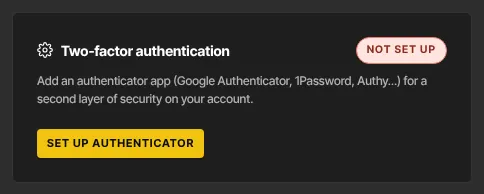
- Go to Settings → Sign-in & security. The Two-factor authentication panel shows Not set up.
- Click Set up authenticator.
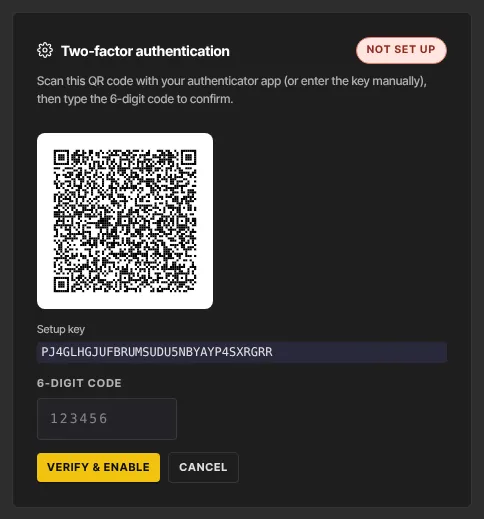
- Scan the QR code with your authenticator app, or type the Setup key into it by hand.
- Save the setup key somewhere safe, such as a password manager. It's the only way to add the same login to a new phone later.
- Type the 6-digit code your app shows into 6-digit code, then click Verify & enable. Cancel stops without turning 2FA on.
- The panel now shows 1 active.
Use one authenticator app per login. The Add another authenticator button doesn't give you a working backup: sign-in always asks for the code from your first authenticator.
Sign in with 2FA
- Sign in with your email and password as usual.
- A page titled Two-step verification asks you to complete the second step. Type the code from your app into 6-digit code and click Verify.
- You land on your Dashboard.
Require 2FA for your whole team (owners and admins)
- On Settings → Sign-in & security, find the Workspace 2FA policy panel.
- Tick Require two-factor for everyone and click Save. The panel shows Saved.
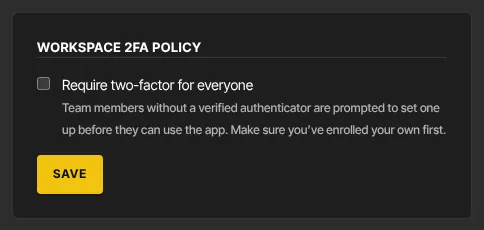
- From then on, anyone without an authenticator sees Two-factor authentication required the next time they open the admin app. They set one up on that screen (the same steps as above) and continue. That screen also has a Sign out button.
Turn 2FA off
- On Settings → Sign-in & security, click Remove next to your authenticator.
- The panel goes back to Not set up, and sign-in no longer asks for a code.
If your workspace requires 2FA, removing your only authenticator sends you straight to the Two-factor authentication required screen to set up a new one.
Text message codes
Some accounts also see a Text message (SMS) panel. You enter a Mobile number, click Send code, type the 6-digit code and click Verify & enable. At sign-in you click Text a code to your number, then enter the code. If you don't see this panel, it isn't available for your account; use an authenticator app instead.
What happens next
- Every password sign-in, and every password reset, now asks for your code before the admin app opens.
- Changing phones? Before you wipe the old one, add your login to the new phone with the setup key you saved, or remove 2FA and set it up again on the new phone.
Common errors
- "That code is invalid or has expired. Try again." or "That code didn’t match. Try again.": codes change every 30 seconds. Type the current one, and check your phone's clock is set automatically.
- "Too many attempts. Please wait a few minutes and try again.": too many wrong codes. Wait a few minutes.
- "Your session expired — please sign in again.": start again from the sign-in page.
- "No authenticator is set up on this account.": there's no authenticator to check. Sign in again.
- "Only owners and admins can change this.": staff and viewers can't change the workspace 2FA policy.
- "SMS verification isn’t available yet.": text message codes aren't enabled for your account. Use an authenticator app.
- Lost your phone? There are no backup codes for workspace logins. Add the login to a new phone with your saved setup key. If you have neither the phone nor the key, contact Zinstruct support from the email you sign in with.