Your members (students and buyers) never create a password. They sign in to your member area with a one-time code we email them, or with the link in the same email. This article explains what they see, so you can help a student who's stuck, and what the Member sign-in & security settings page does.
Who can do this
- Owners and admins can open and change Settings → Member sign-in & security.
- Staff and viewers see only the heading and "Only owners and admins can change this."
What your members do to sign in
- They open
/loginon your school's site (youryourname.zinstruct.comaddress or your own domain). That takes them to the member sign-in page, Sign in to your courses, branded with your school's name. - They enter their email and click Email me a sign-in code. On your school's site, once you've verified a sending domain, the email comes from that domain.
- They type the code into Sign-in code and click Sign in. Or they open the link in the email and press Sign in on that page.
- The first time, they're asked for a first and last name (and an optional photo), then click Save and continue.
- They land in their library.
A new person who signs in on your school's site, by typing the code or by clicking the emailed link, and isn't on your list yet, is added to your contacts. Members who bought from you can also use the access button in their receipt email.
The student-facing version of these steps is Sign in to your courses in your member help center.
The Member sign-in & security page
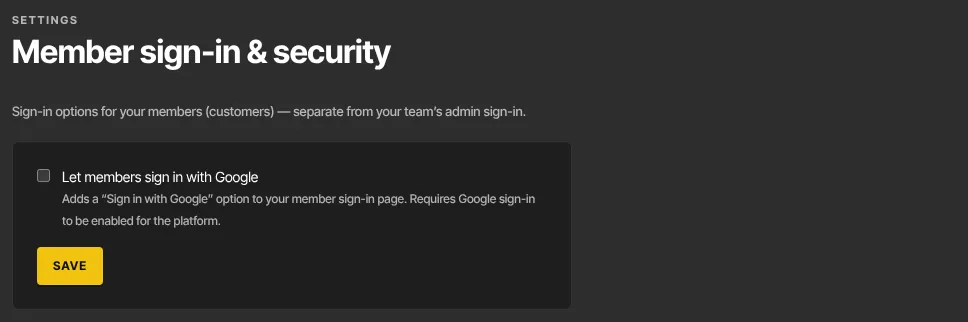
- Go to Settings → Member sign-in & security (
/settings/member-signin). - The page explains how members sign in today: Members sign in with an emailed code. There's nothing to set up. Members can't sign in with Google.

What happens next
- A member who can't find the email should check spam, and make sure they typed the email they bought with. Their access is attached to that exact address.
- If a member says the code didn't work, they can click Send a new code: codes expire quickly and work once.
Common errors
- "Only owners and admins can change this.": you're signed in as staff or a viewer.
- "Could not save.": try again.
- A member sees "We can’t email that address right now. Please contact support and we’ll sign you in.": we've stopped sending to that address (for example after it bounced). Check the address on their contact record.
Stuck member? Work through A member can't sign in or reach their course.